Complete a Hydrant Test (FireWorks PRO)
Overview
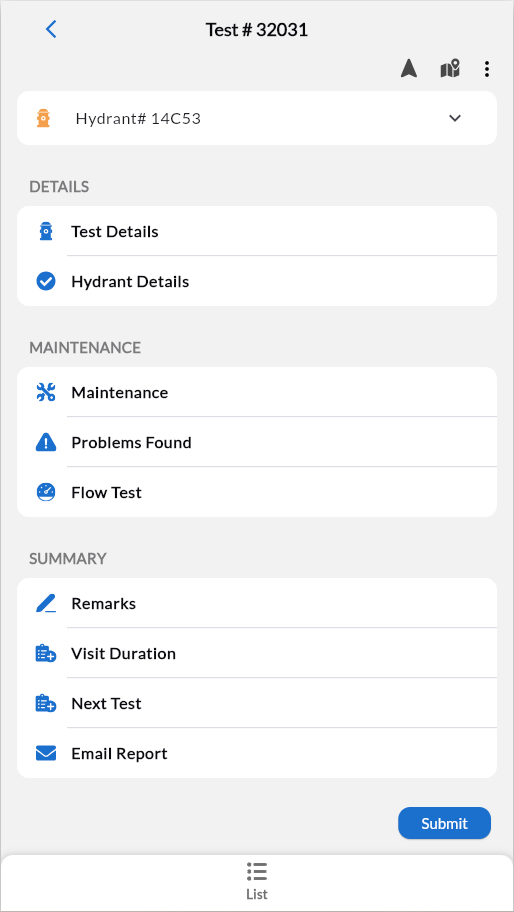
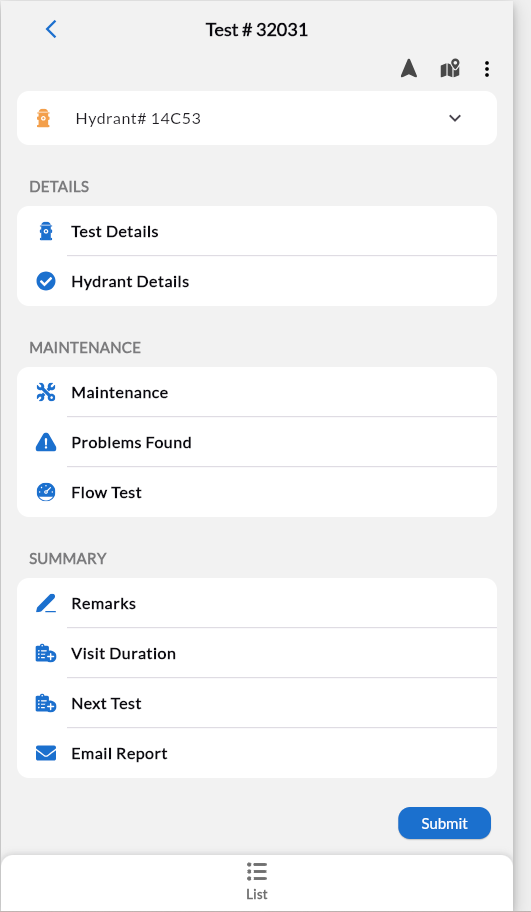
Open assigned tests from test list, complete required sections (maintenance checks, flow measurements, problems found), and submit. Auto-save protects work every 30 seconds. Green checkmarks indicate completed sections—all required sections must complete before submission.
Quick Access
Navigation: Tap Navigate Waze for directions.
Attachments: Review attachments via three-dot menu (top right): Test Attachments, Hydrant Attachments, or Problem Attachments.
Map View: Use
 to view the hydrant location on Google Maps.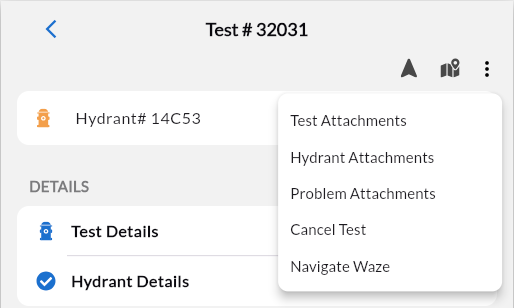
Open Test
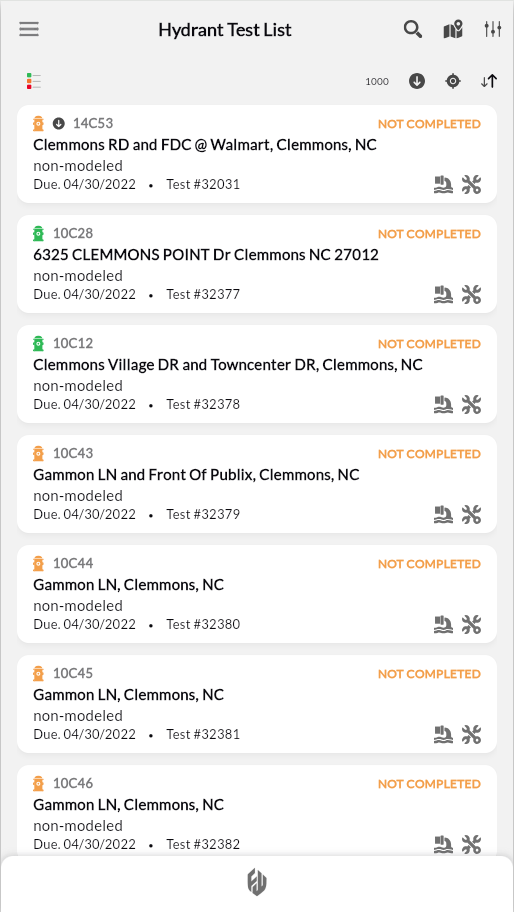
Using the left side navigation panel, select Hydrant Test- List.
Tap test card from the list.
Review test details and hydrant information

Result: The test opens, displaying all configured sections. Previous test data available via View History sections.
Document Maintenance
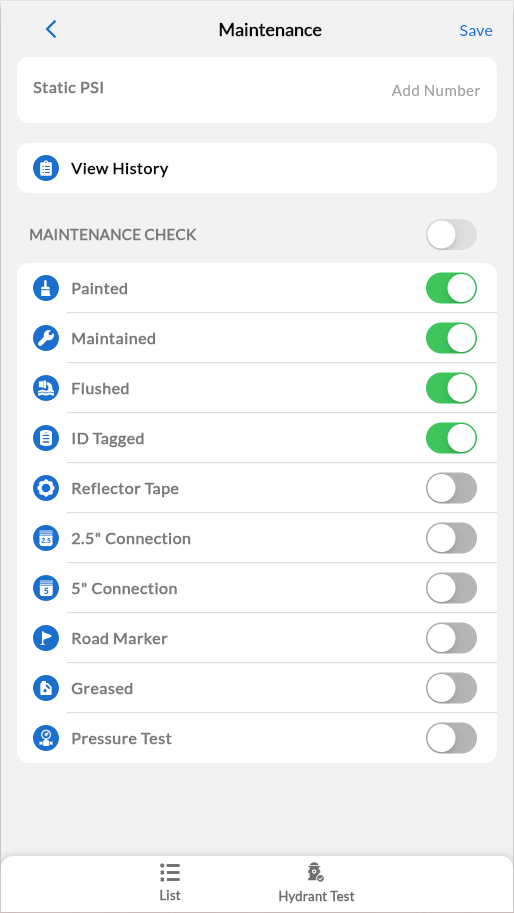
Tap Maintenance
Toggle each item based on inspection (Painted, Maintained, Flushed, ID Tagged, Reflector Tape, Connections).
Enter Static PSI if measuring.
Review View History for comparison.
When done, click Save
Result: Items save automatically. A green checkmark appears when complete.
Record Problems
Complete only when issues are found.

Access: From the hydrant test page, tap Maintenance > Flow Test
Email Problem Report
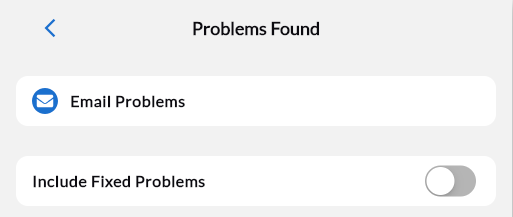
Tap Problems Found
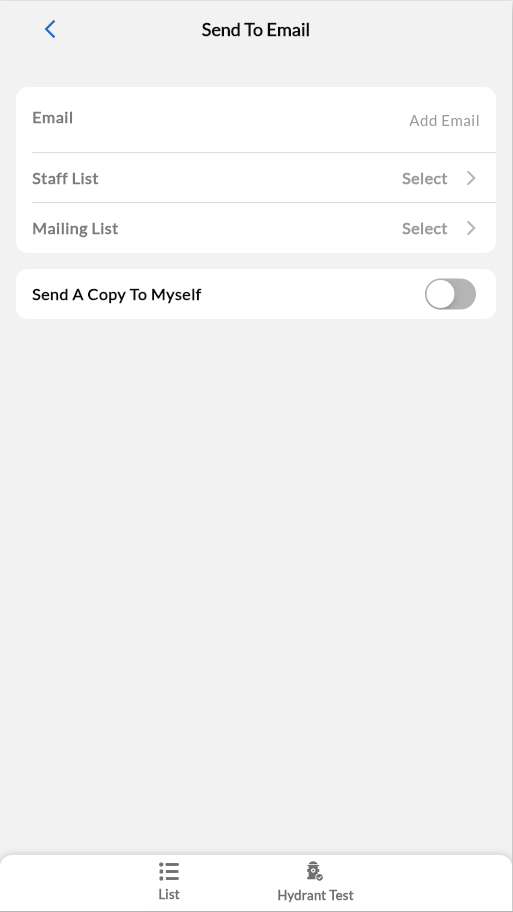
Tap Email Problems to open the Send to Email page.
Configure recipients: Email, Staff List, or Mailing List
Toggle Send A Copy To Myself if needed.
Click
 to return to Problems Found.
Result: Problem report is ready to email as soon as you submit the test.
Add New Problem
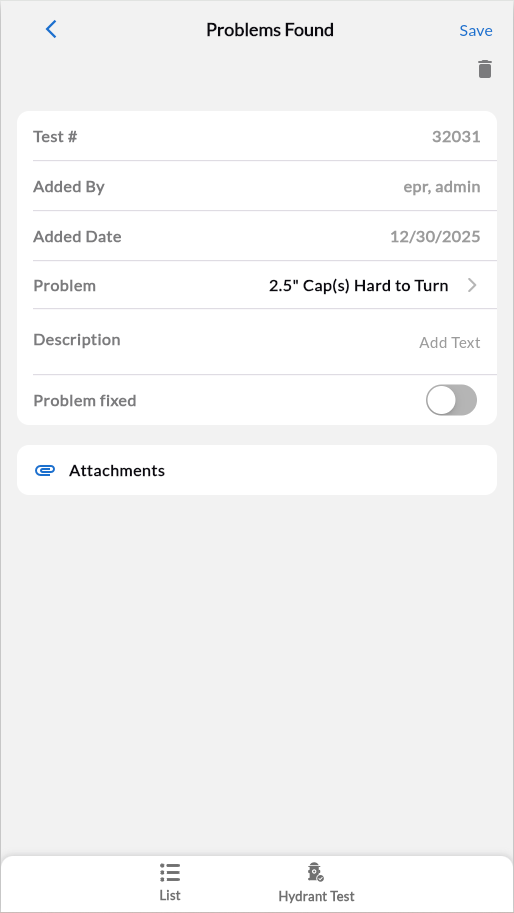
Tap Add Problem to open a new Problems Found page.
Tap Problem, and then select the problem type from the list.
Enter Description.
Toggle Problem fixed if corrected during visit.
Tap Attachments to add photos.
Tap Save.
Result: Problem syncs to FireWorks for work order generation.
Tip: Toggle Include Fixed Problems on the main Problems Found screen to show/hide previously resolved issues.
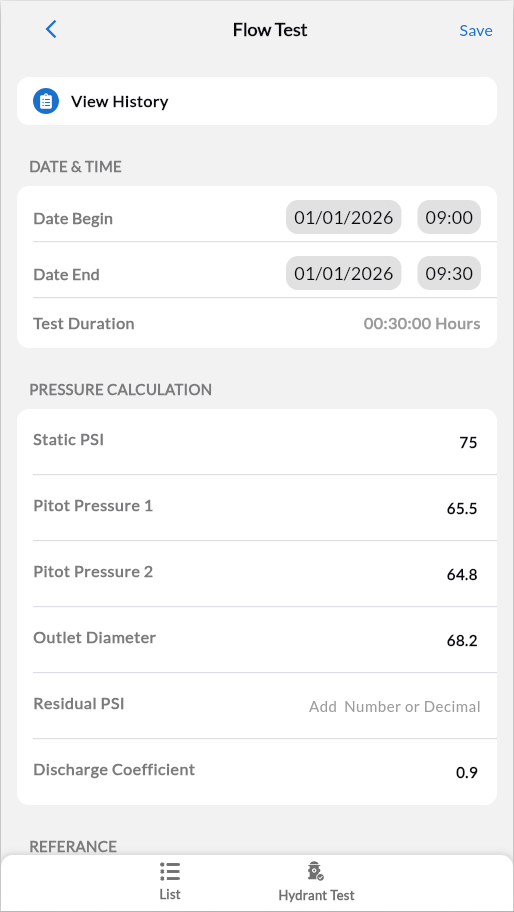
Perform Flow Test
Complete only if performing manual flow measurement.
Access: From the hydrant test page, tap Maintenance > Flow Test
Tap Flow Test
Set Date Begin (auto-populates current time)
Enter Static PSI baseline
Verify Outlet Diameter (defaults to 2.5)
Enter Pitot Pressure readings (1 or 2 outlets)
Set Date End when complete
Result: GPM calculates automatically using NFPA 291 formulas. Green checkmark appears.
Submit Test
Scroll to SUMMARY section
Complete required fields: Remarks, Visit Duration, Next Test, Email Report
Tap Submit
Fix any validation errors if prompted, then tap Submit again
Note: The Submit button is disabled until you complete all required sections.