
Logging In to FireWorks PRO
You can log in to FireWorks PRO on your iPhone or Android device using email and password, biometric authentication, one-time passcode, or Microsoft single sign-on.
Tip: Enable biometric authentication after your first login for faster access during incident response.
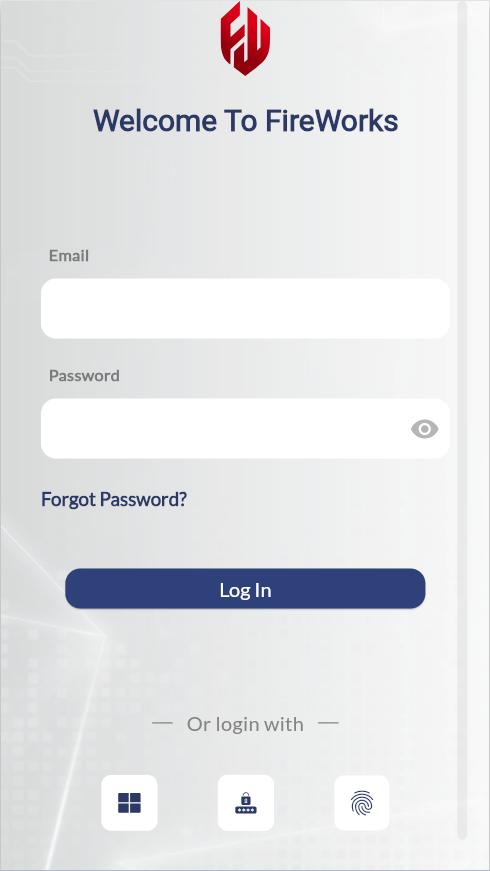
Log in With Email and Password
Open the FireWorks PRO app.
Enter your email address and password.
Tap Log In.
If you forgot your password, tap Forgot Password below the password field, then follow the on-screen instructions.
Set Up Biometric Authentication
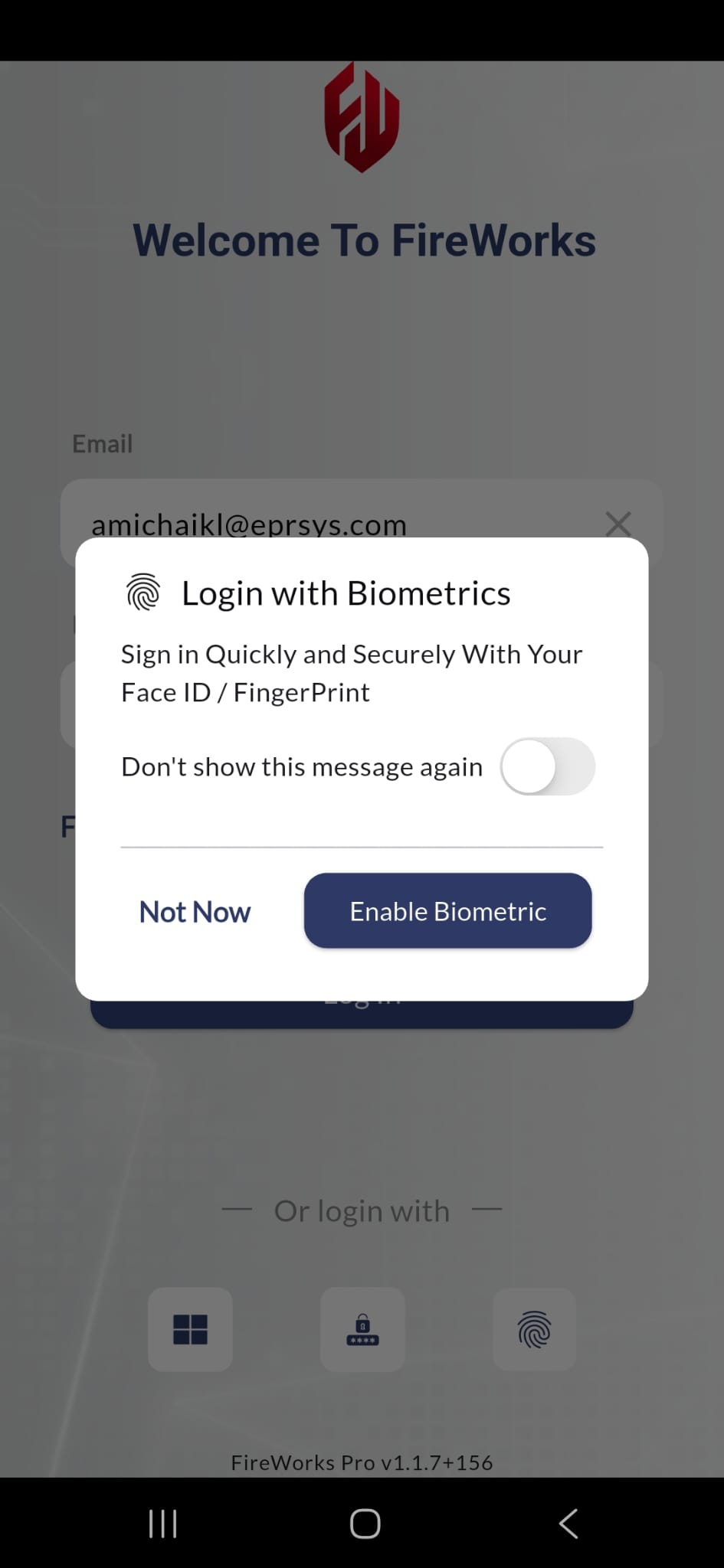
When you first log in with email and password, you can enable biometric authentication for faster future logins.
Log in with your email address and password.
When prompted, tap Enable Biometric.
Follow the onscreen instructions to authorize with your device's biometric authentication.
Tap Finish.
Tip: If the biometric setup prompt doesn't appear, check that biometric authentication is enabled in your device settings and that FireWorks PRO has permission to use biometrics.
Log in with Biometric Authentication
After you set up biometric authentication, the app uses it automatically when you open it.
Open the FireWorks PRO app.
Authenticate with your device's biometric authentication.
If biometric authentication fails, tap Use Password to log in with your email and password instead.
Turn off biometric authentication: Go to the FireWorks PRO settings menu, then turn off biometric authentication.
Log in with a One-Time Passcode (OTP)
If you don't have a permanent FireWorks PRO account, you can use a one-time passcode to log in temporarily.
Open the FireWorks PRO app.
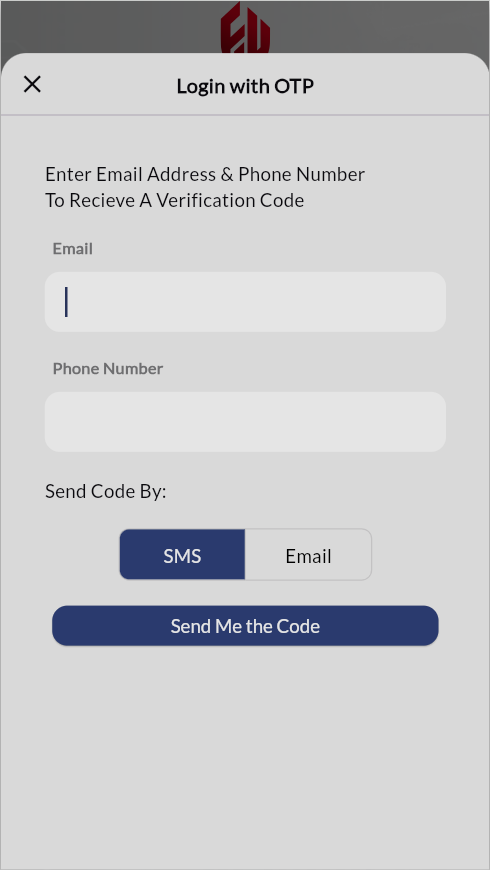
Tap the keypad icon at the bottom of the screen.
Enter your email address and phone number.
Tap SMS or Email to select how you want to receive the code.
Tap Send Me the Code.
Enter the verification code when you receive it.
If you don't receive the code, wait 60 seconds, then request a new code.
Log in with Microsoft Single Sign-On (SSO)
If your department uses Microsoft 365, you may be able to log in using single sign-on.
Open the FireWorks PRO app.
Tap the Microsoft icon at the bottom of the screen.
Enter your organizational Microsoft email address.
Follow the onscreen instructions to authenticate with Microsoft.
When prompted, grant FireWorks PRO the requested permissions.

Note: Microsoft single sign-on must be configured by your department administrator. If the Microsoft icon doesn't appear, contact your administrator or use email and password to log in.