Search and Filter Lists

What you'll learn: How to search, filter, and sort your inspection list to focus on specific properties.
Search for Properties
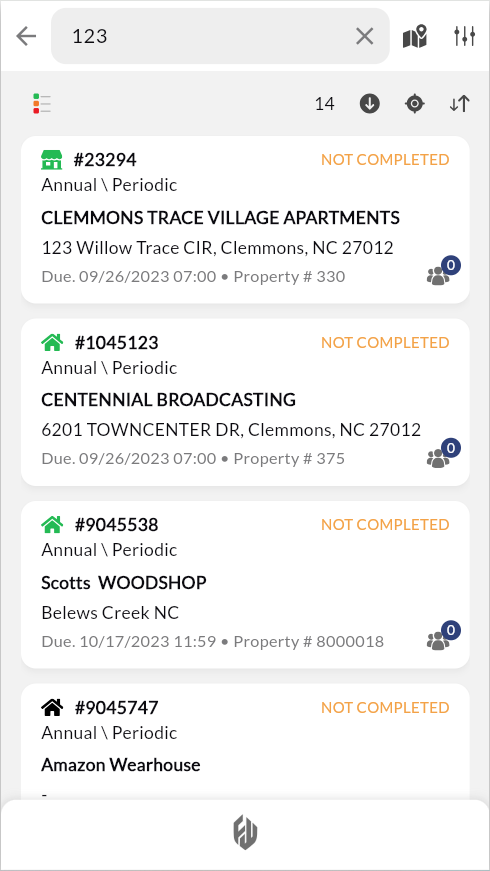
Find specific properties quickly by name, address, or owner using the search feature in the toolbar.
Tap
 in the upper toolbar.
Enter property name or address.
Partial matches work: "riverside" finds all properties with "Riverside" in the name. "123 main" finds all addresses starting with 123 on Main Street.

Result: Matching properties appear as you type.
Filter your List
Properties Module Filters
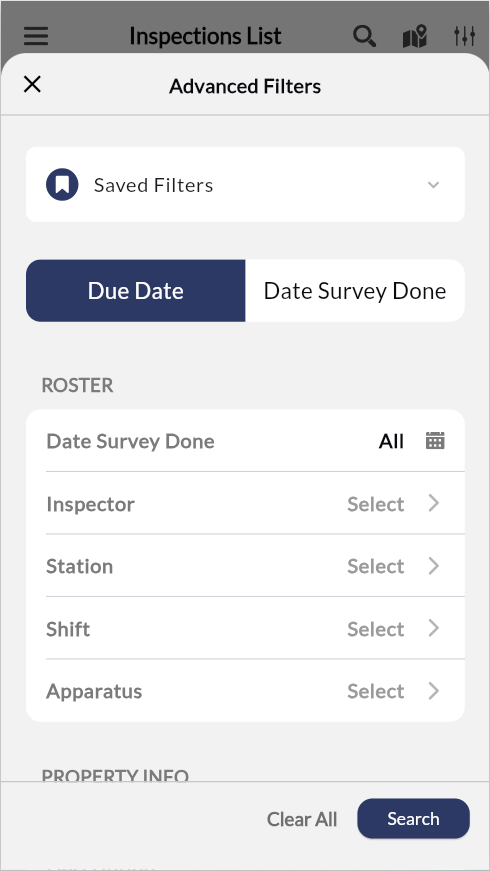
Narrow your inspection list by roster assignments, property details, or inspection status using the Advanced Filters panel.
Tap
 in the upper toolbar.
Choose filter category:
Saved Filters — Load a previously saved filter set.
ROSTER — Filter by inspector, station, shift, or apparatus.
PROPERTY INFO — Filter by address, fire district, occupancy type, or neighborhood.
INSPECTION — Filter by status, type, priority, or QC stage.
Select your criteria.
Tap Search.
Result: The list shows only inspections that match your filter criteria.
Filter Hydrant Tests
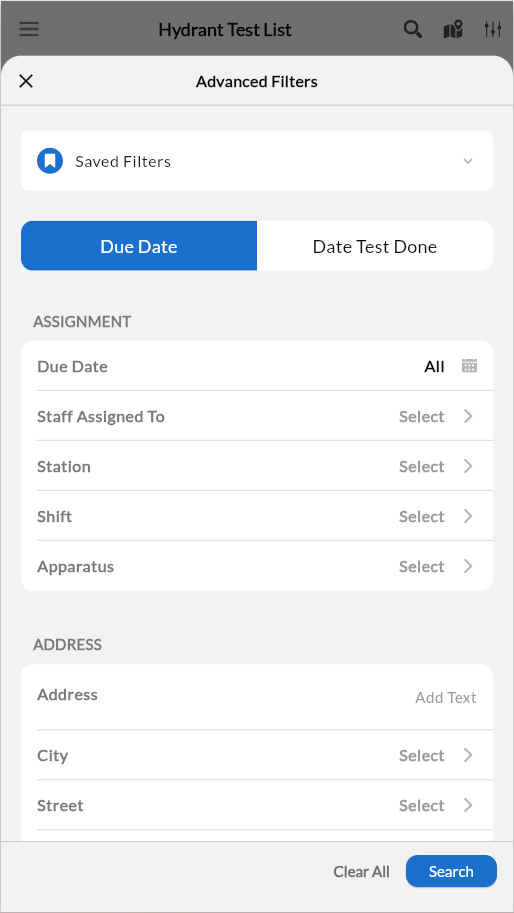
Narrow your hydrant test list by assignment, address, test details, or hydrant specifications using the Advanced Filters panel.
Tap ![the Filter icon] in the toolbar
Choose filter category:
Saved Filters — Load a previously saved filter set
ASSIGNMENT — Filter by due date, staff assigned, station, shift, or apparatus
ADDRESS — Filter by address, city, street, box, zone, fire district, or neighborhood
TEST — Filter by test number, test type, recurring type, problem, or status
BASIC INFO — Filter by hydrant type, hydrant number, county, ownership, description, or water company
Select your criteria
Tap Search
Result: List shows only hydrant tests matching your filter criteria.
Multiple filters: Combine filters from different categories. Filters work together using AND logic.
Clear filters: Tap Clear All in the filter panel.
Save Filters for Quick Access
Create reusable filter sets for your common workflows so you can quickly focus on specific inspection categories.
In Advanced Filters, configure your desired filter criteria.
Tap the Saved Filters section to expand it.
Tap New Filter.
Enter a name for your filter set.
Tap Save.
Result: Your filter appears in the Saved Filters list for quick reuse.
Load Saved Filters
In Advanced Filters, expand the Saved Filters section.
Select your saved filter from the list.
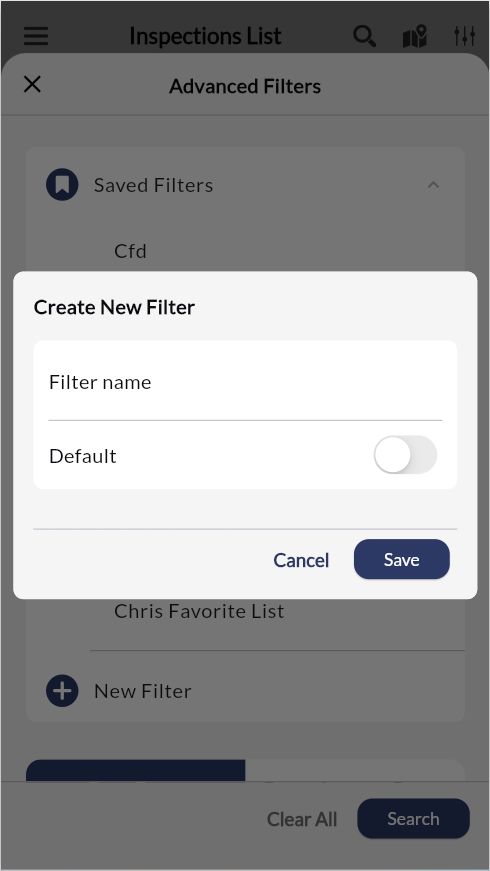
[Screenshot placeholder: Saved Filters dropdown]
Sort by Distance From Your Location
Utilize geolocation sorting to organize your inspection list by proximity, allowing for efficient route planning when working in the field.
Apply relevant filters, as described above.
Tap
 in the toolbar to sort properties by distance from your current location.
Result: Nearest properties appear first in your list. Distance updates as you move.
Use for route planning: When you arrive in a neighborhood, tap to see which properties are closest and plan your inspection route efficiently.
Combine with the map view to see proximity to the inspection/hydrant test
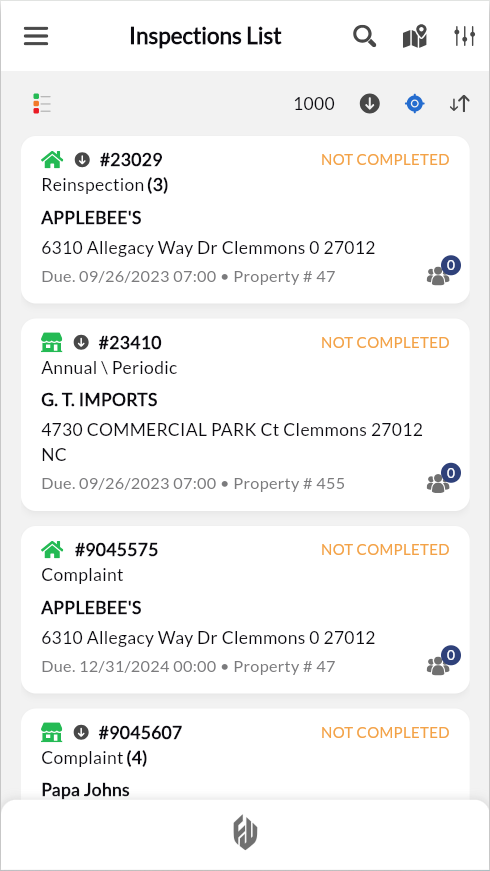
Additional Sort Options
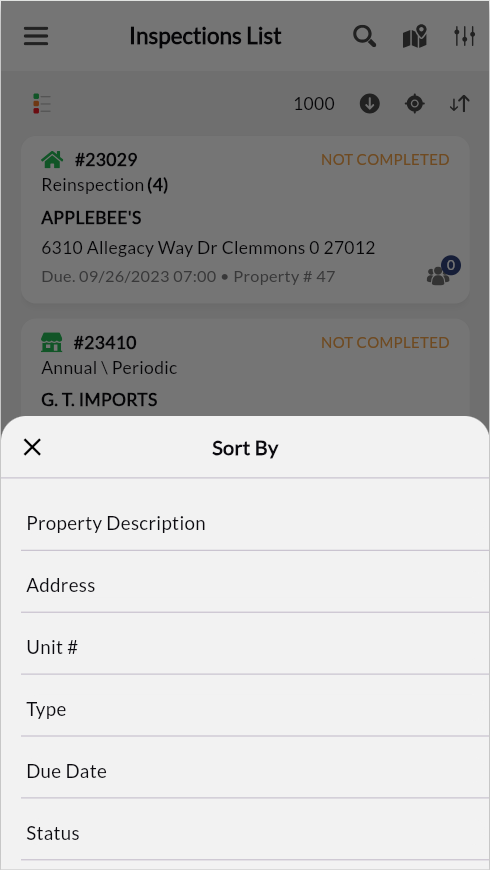
Organize your filtered inspection, pre-plan, and hydrant lists by due date, property name, address, or status to match your workflow priorities.