
Inventory & Maintenance - Release Notes
December 2024 Build 1.4.12.1
Inventory
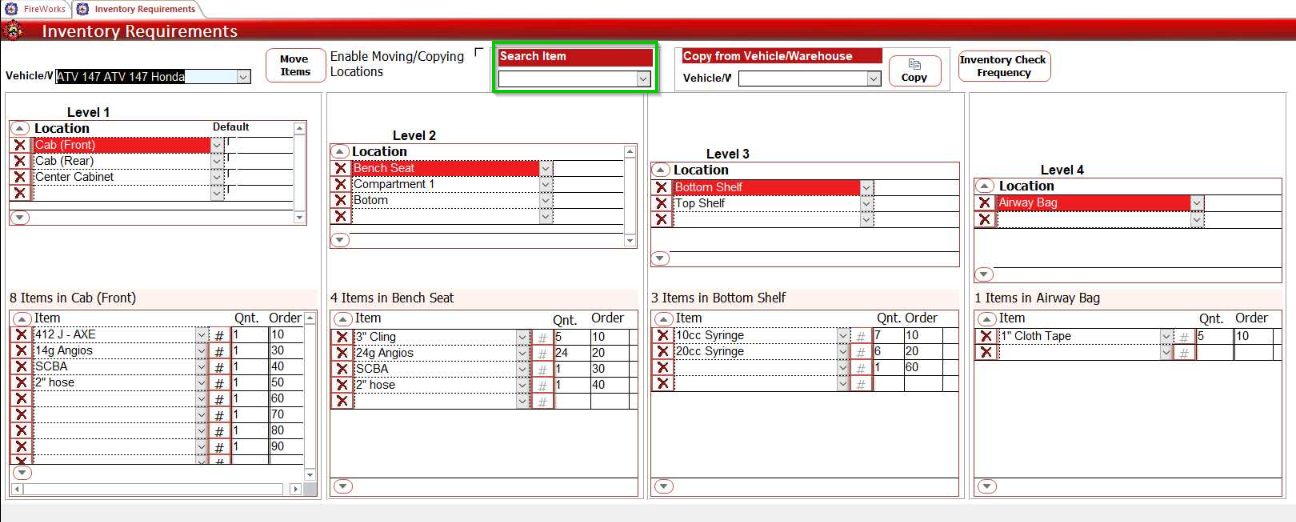
You can now search individual warehouses and apparatuses for items using the Search Item search bar.
Custom Item Checks
We added an option to customize item check frequency according to your specific needs. Previously, checks could only be set as Daily, Weekly, Monthly, Quarterly, Bi-Annual, or Annual. Now, you can define item checks to occur every x months, providing greater flexibility.
To customize item check frequency, do as follows:
Select an item from the list of items (Settings > Items). Double-click the item.
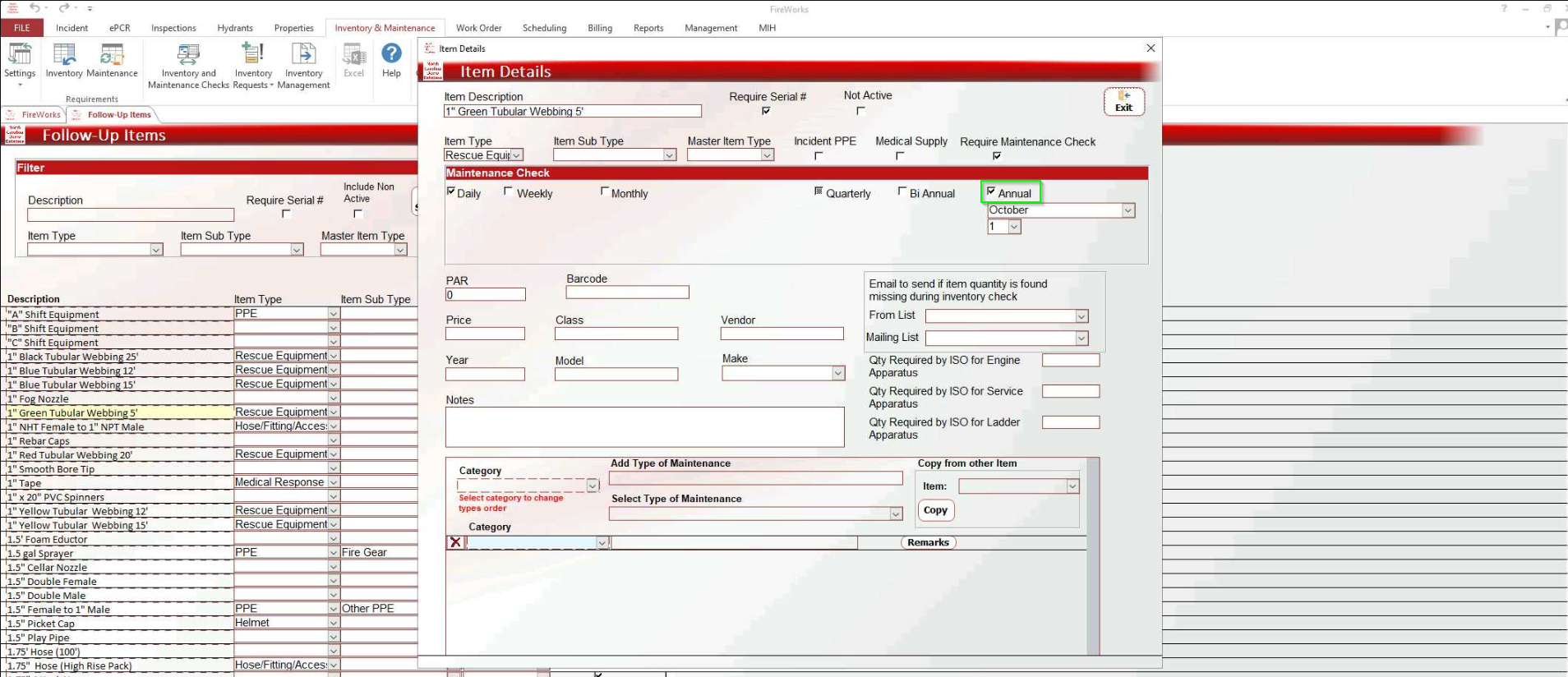
In the Items Details form Maintenance Check section, select Annual.
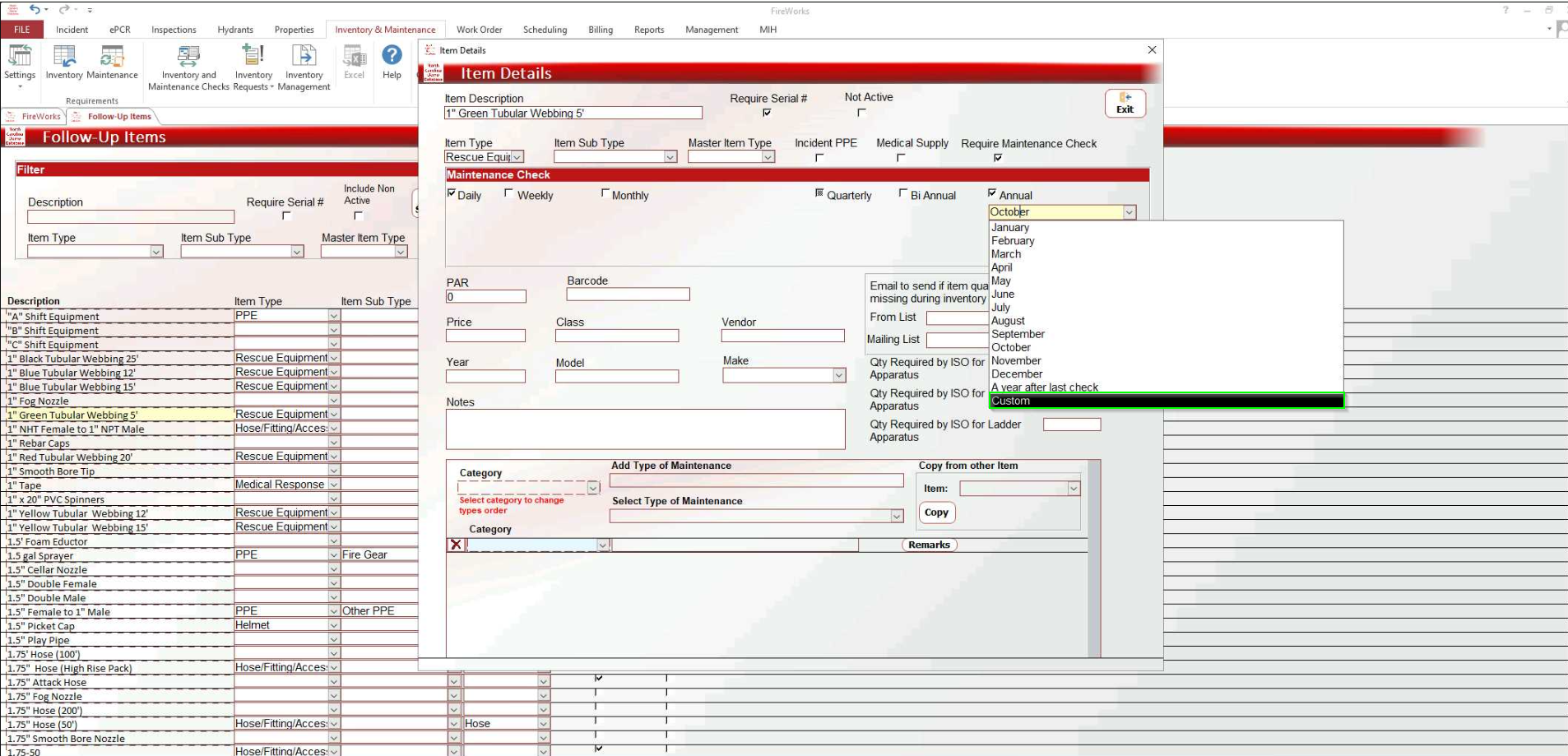
In the drop-down list below Annual, select Custom.
Type the number of months between checks.
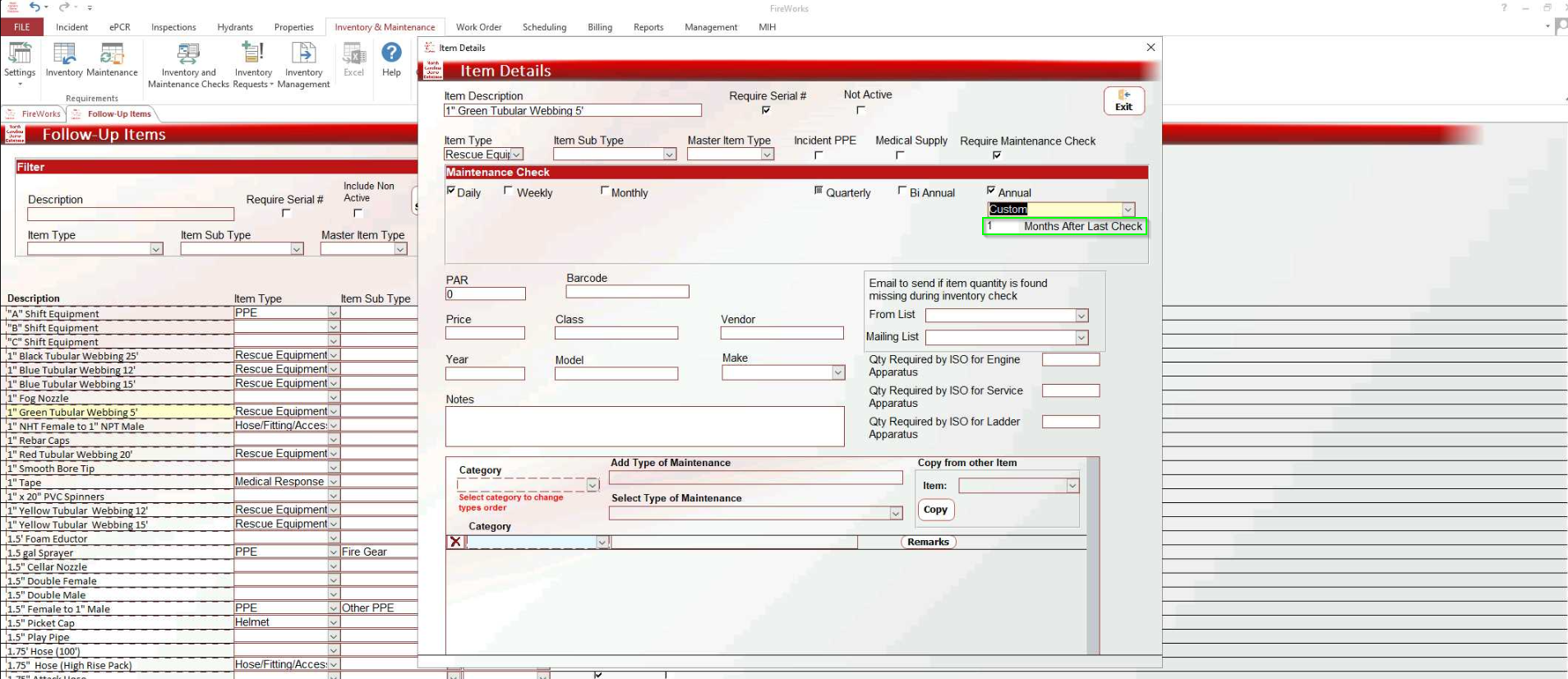
When done, click Exit.

Note: Custom checks will appear as Annual checks in the Work-Order.
Department Items > Save & Duplicate, Custom Fields
You can now add multiple department items of the same type using the Save & Duplicate button.
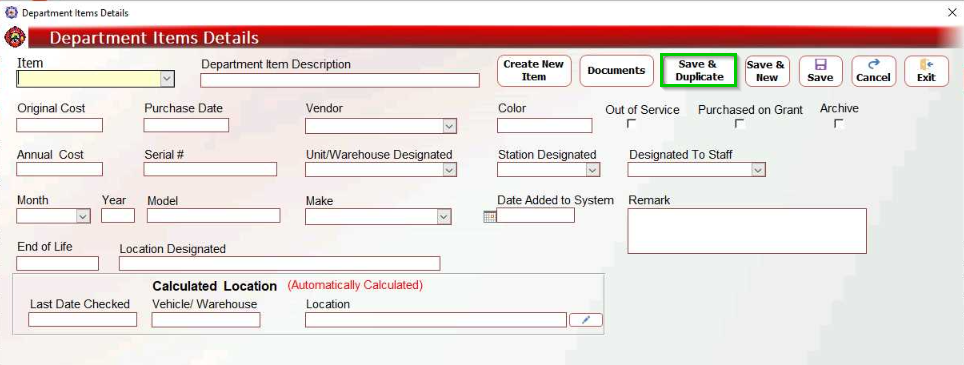
When you click Save & Duplicate, only the Description, Serial #, Unit/Warehouse Designated, Station Designated, and Designated To Staff will go blank. All other fields will stay the same as before.
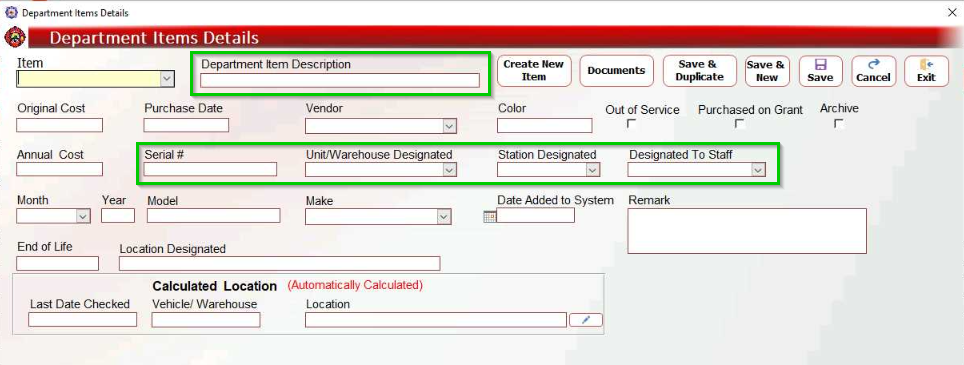
In addition, we added an option to add Custom Fields.
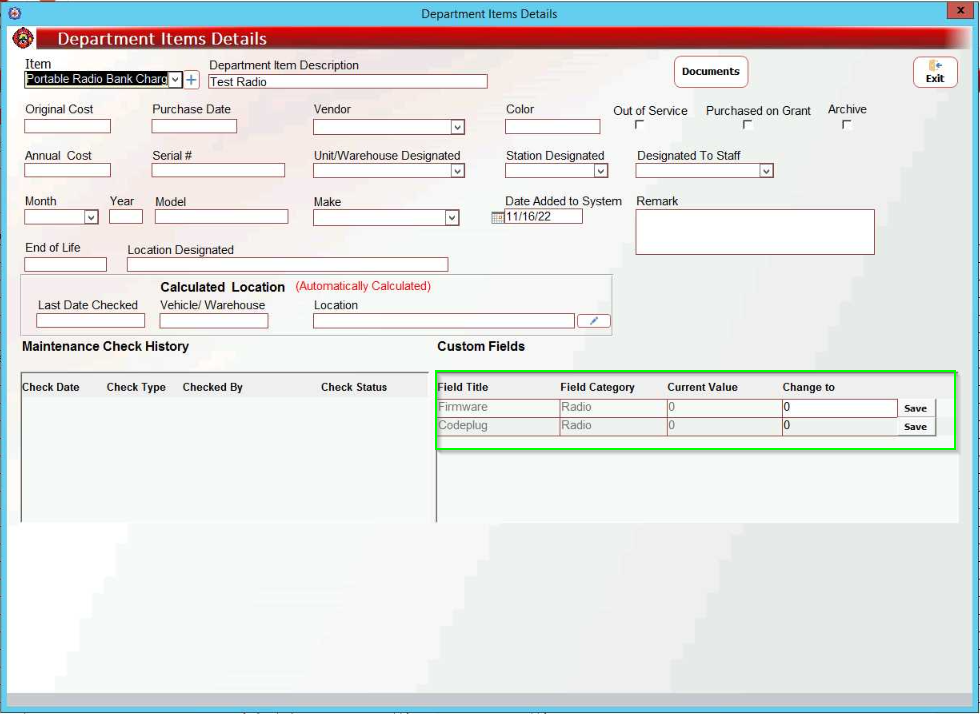
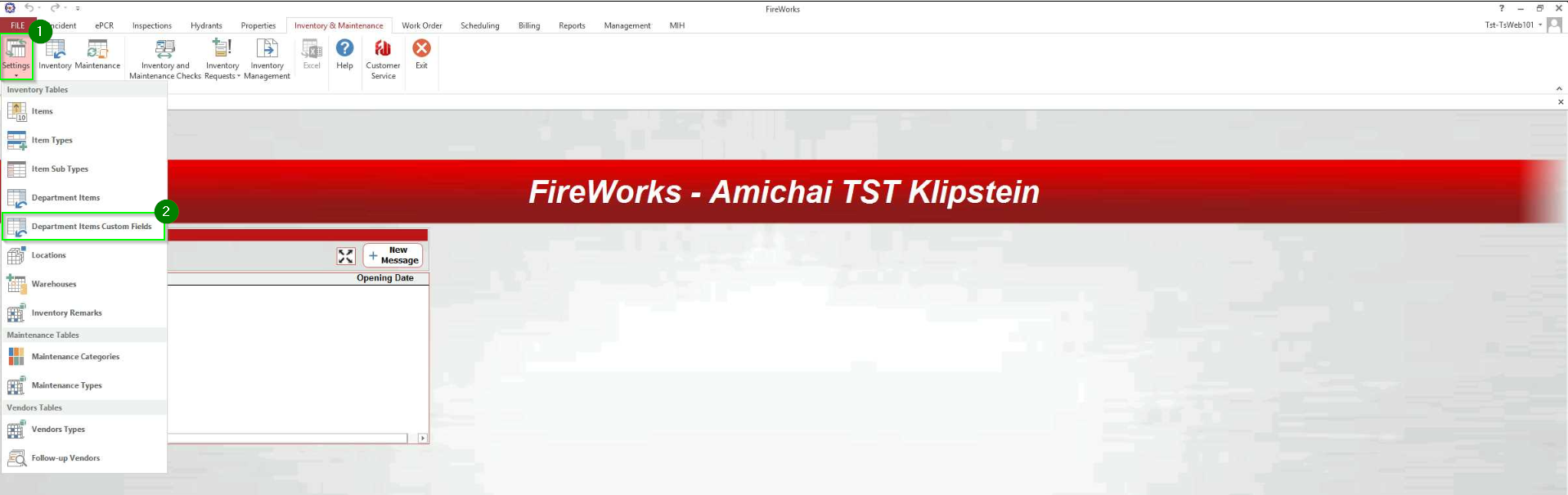
To add custom fields to items, do as follows:
In Inventory & Maintenance, go to Settings > Department Items Custom Fields.
Add custom fields to the table according to the table fields.
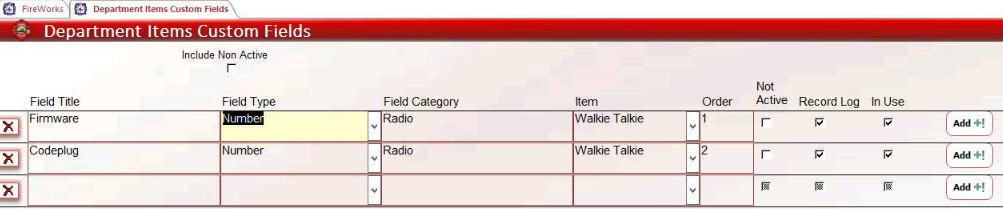
Note: The Item field associates the custom field with a specific item. If left empty, the custom field will appear for all items.
September 2024 Build 1.4.09.1
Inventory Check Frequency
You can now define the frequency of your inventory checks. The Inventory Check Frequency button is located to the right of the Move/Copy feature.
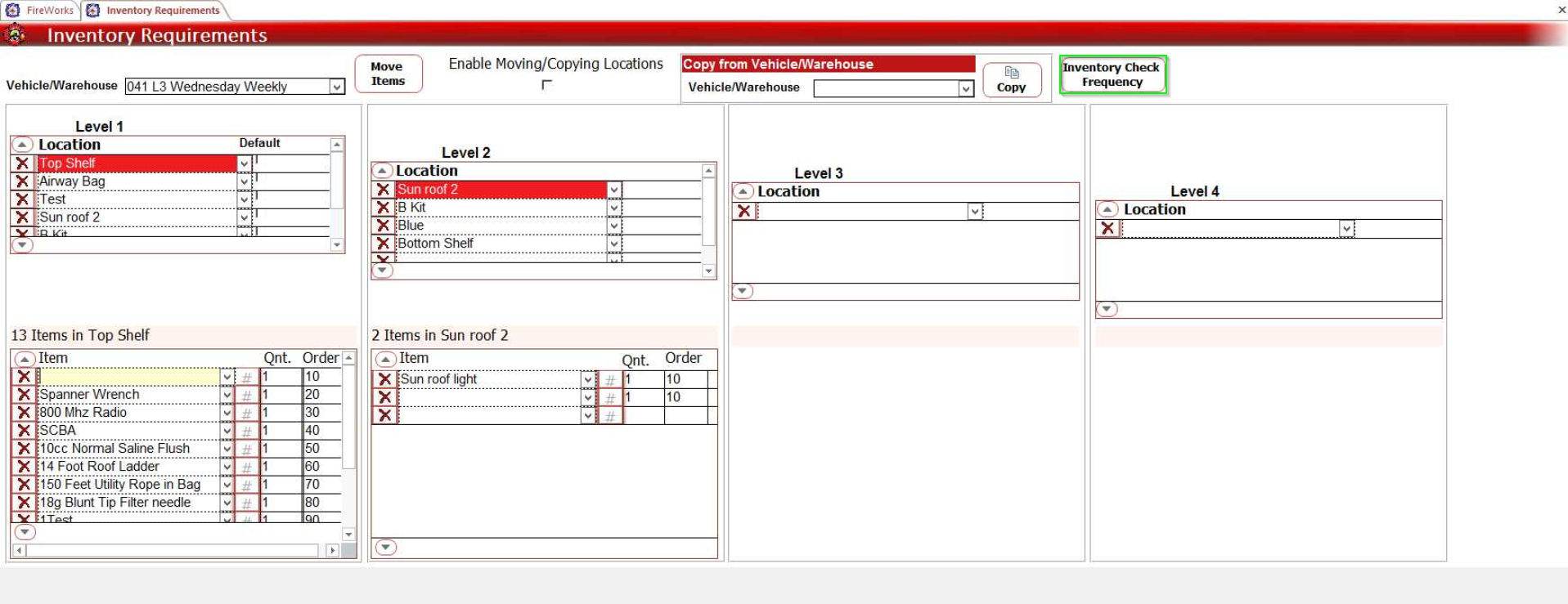
To set frequency checks, click Inventory Frequency Check. The Inventory Check Frequency tab will open. Adjust the check frequency as needed. Check types include Daily, Monthly, Quarterly, Annual, and After Use.
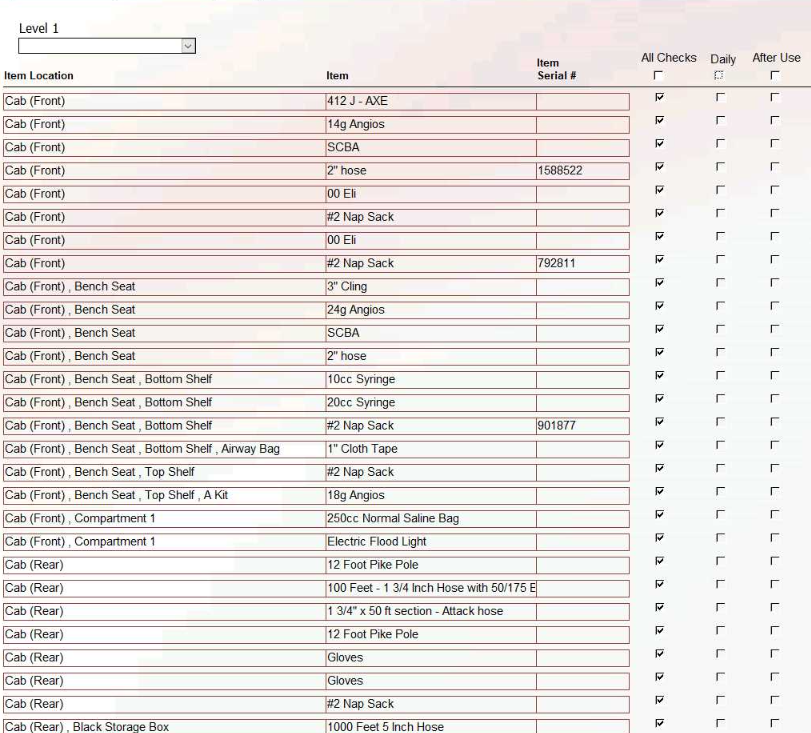
Note: Check types appear according to items and apparatuses.
Inventory multi-select
While selecting multiple inventory items, you can sort them by moving them up or down the list.
To sort items during selection, select items and click one from the Selected Items list. Then, use the arrows on the right to change their order.
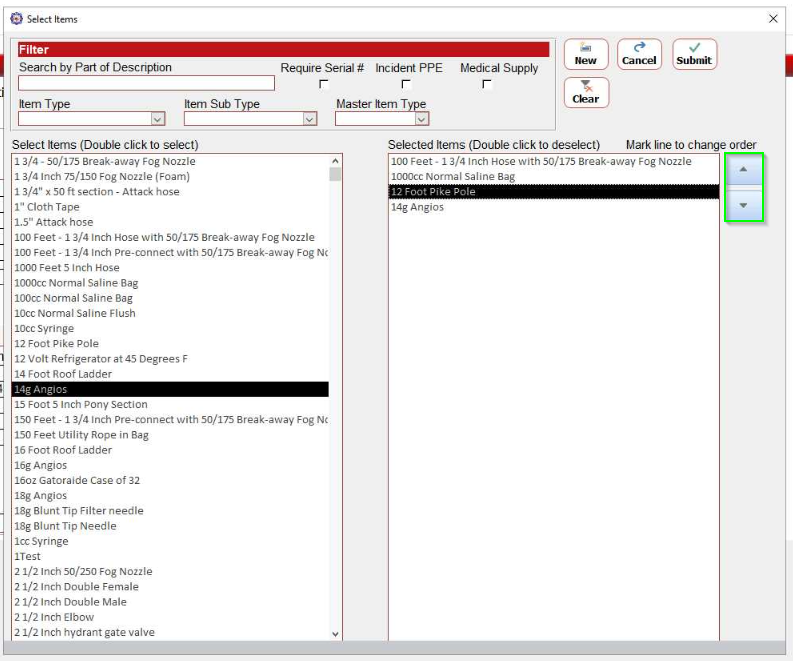
When finished, click Submit.
September 2024 1.4.09.1
Department Items
Item Location
You can now edit item locations directly from the Department Items table, and when adding a new item to the list.
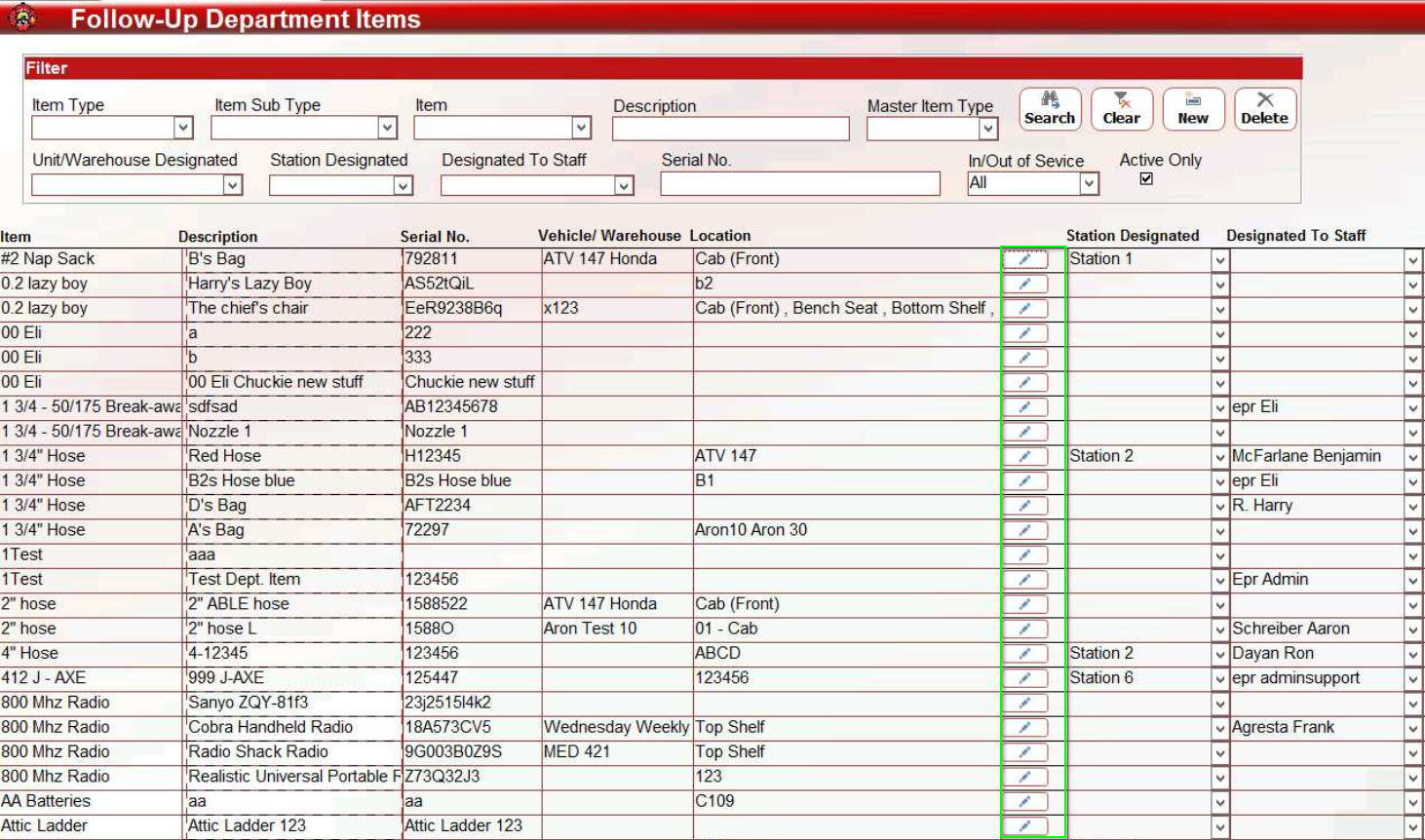
To edit item locations directly from the table, click the Edit button to the right of the location field. The Change Location dialog box will open.
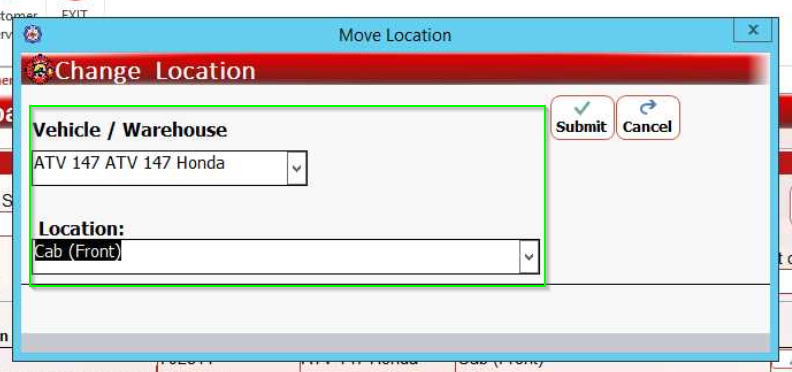
Select the vehicle or warehouse where the item is currently stored, and then choose its specific location.
To edit item locations when adding a new item to the list, in the new item form, click the Edit button to the right of the location field.
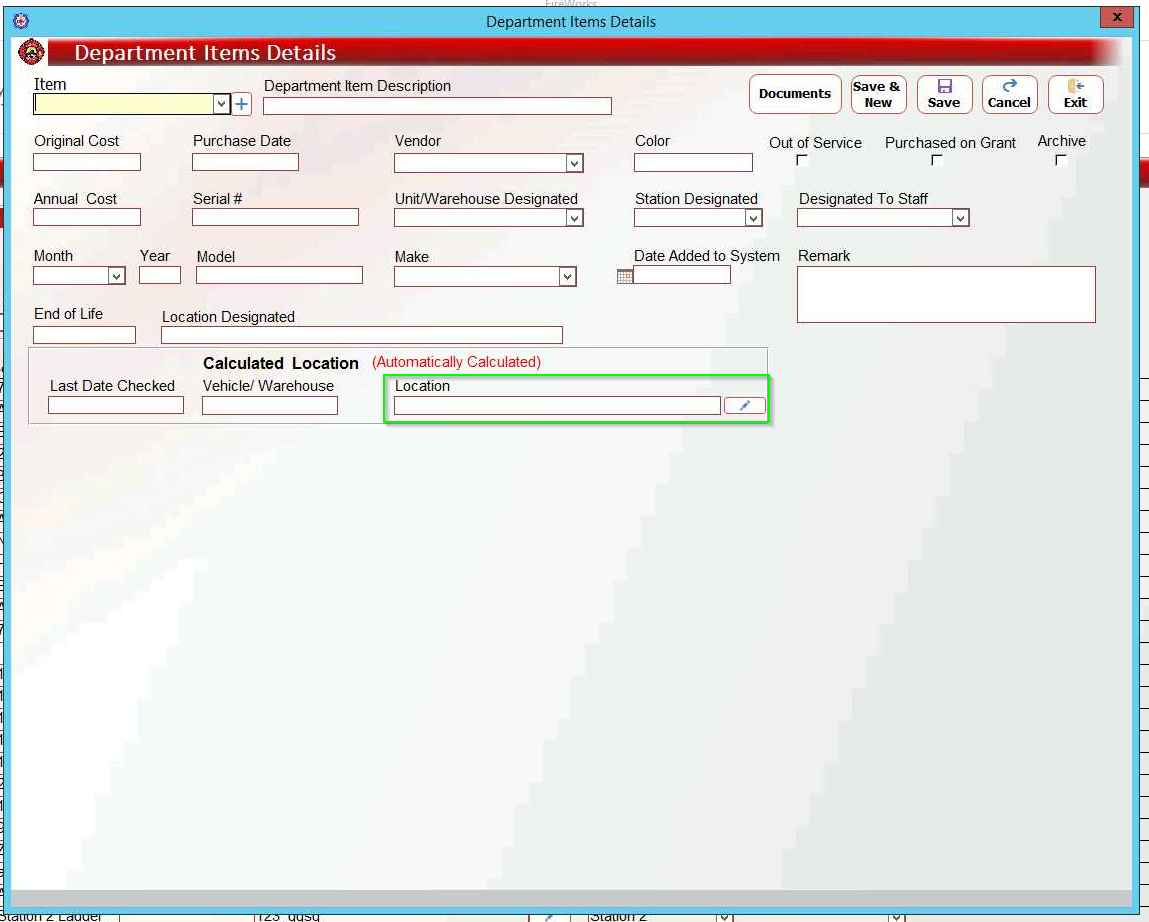
The Change Location dialog box will open (as shown above when (as shown above when editing the location directly from the table). Select the vehicle or warehouse where the item is currently stored, and then choose its specific location. When finished, click Submit.
New Item Type
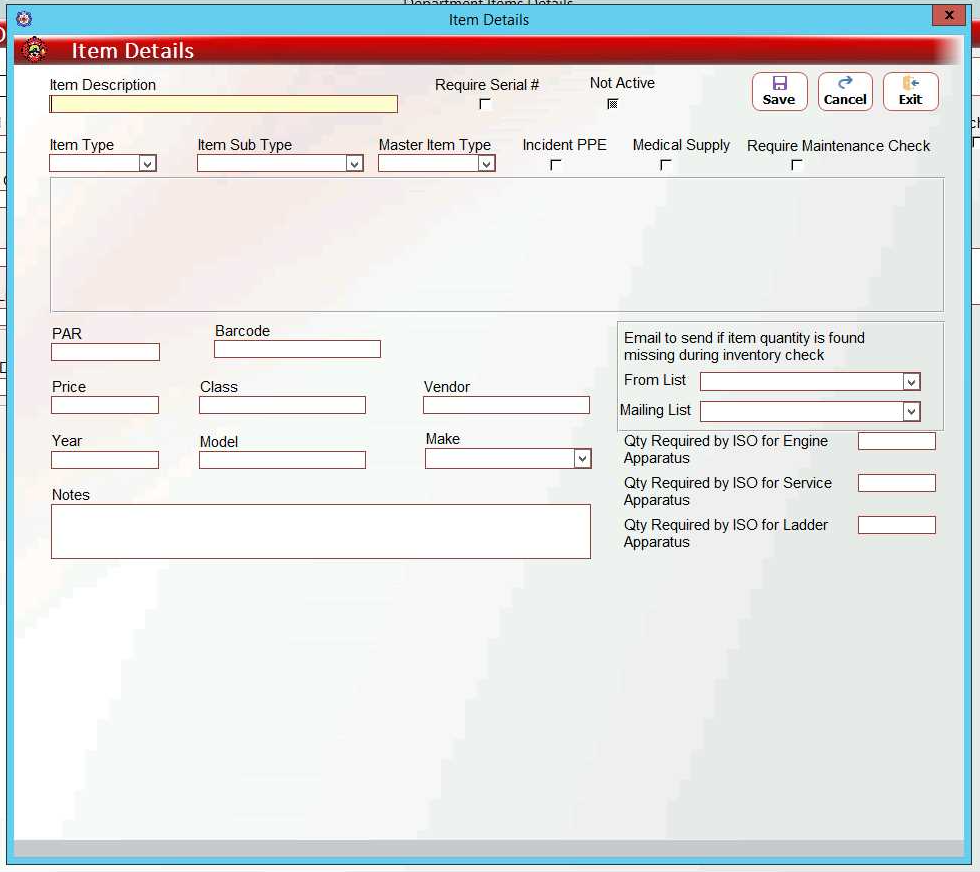
We added an Add button to the New Item form so that you can now add a new item that does not appear in the Item drop-down list.
To add a new item, click New. In the dialog box, click +.
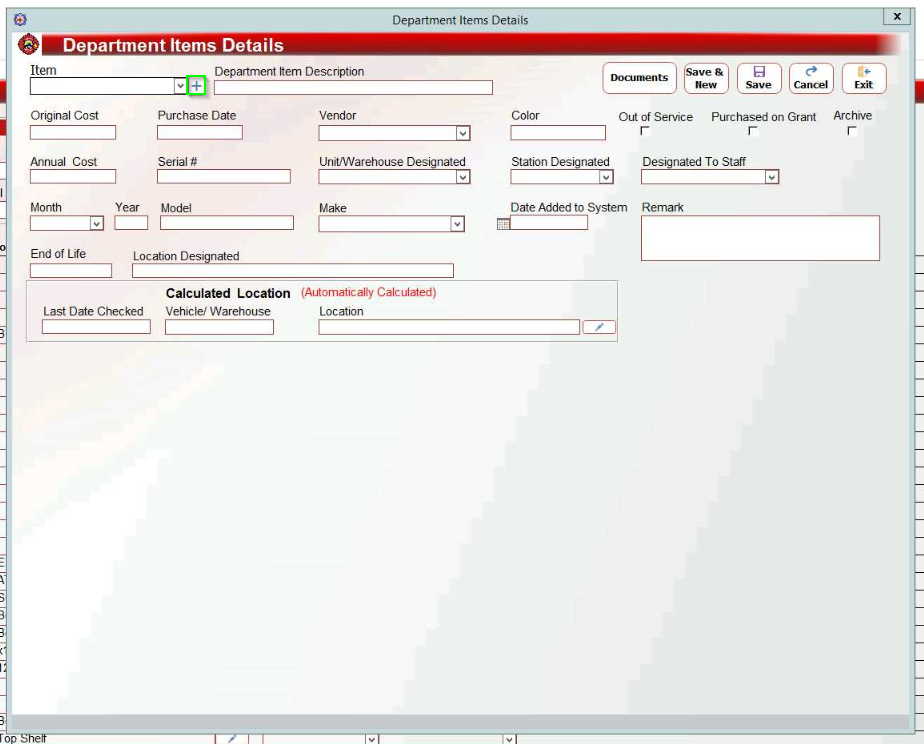
In the dialog box, complete the empty fields. When finished, click Save.
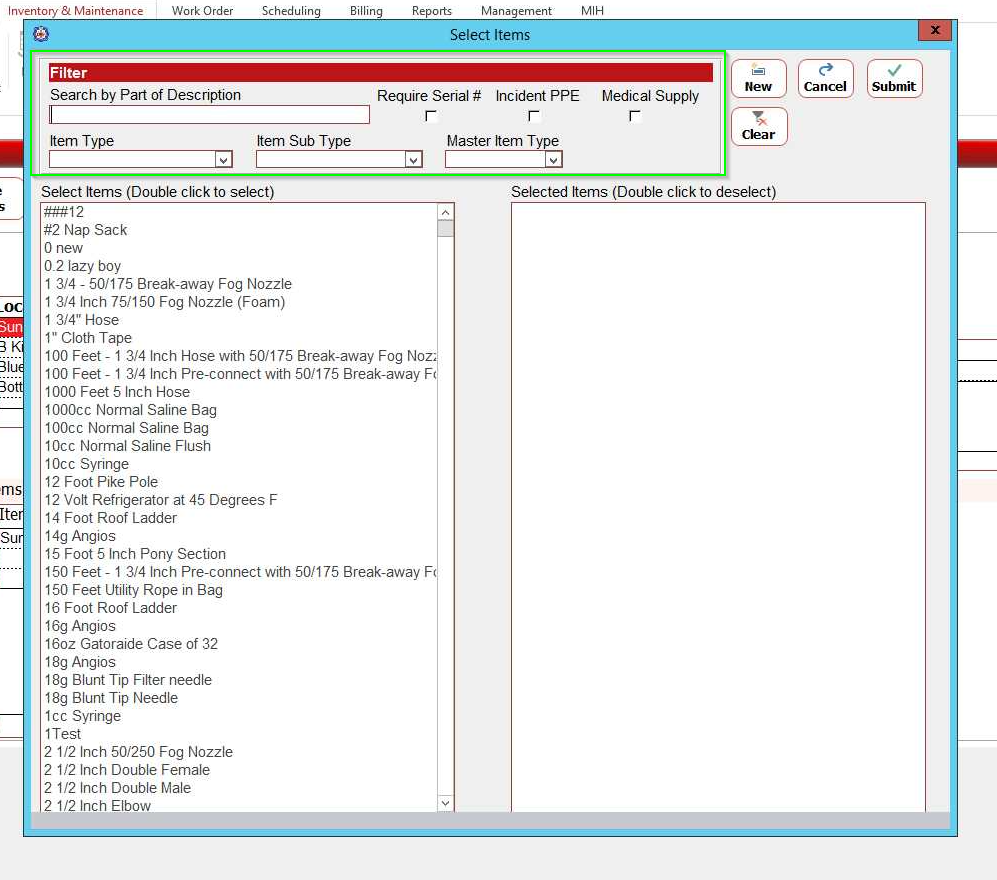
Search filters
We added extra search filters for items in the inventory. When searching for items to add to a location, you can now filter items by type, sub-type, and master item type.
Move/Copy
Keep your inventory organized as you move or copy locations with their items between vehicles and warehouses using our new Move/Copy feature, with no need to delete or reselect locations. Move/Copy will move or copy all of the items within a specific location to the selected new location.
Note: You can only move and copy location in a logical way between levels.
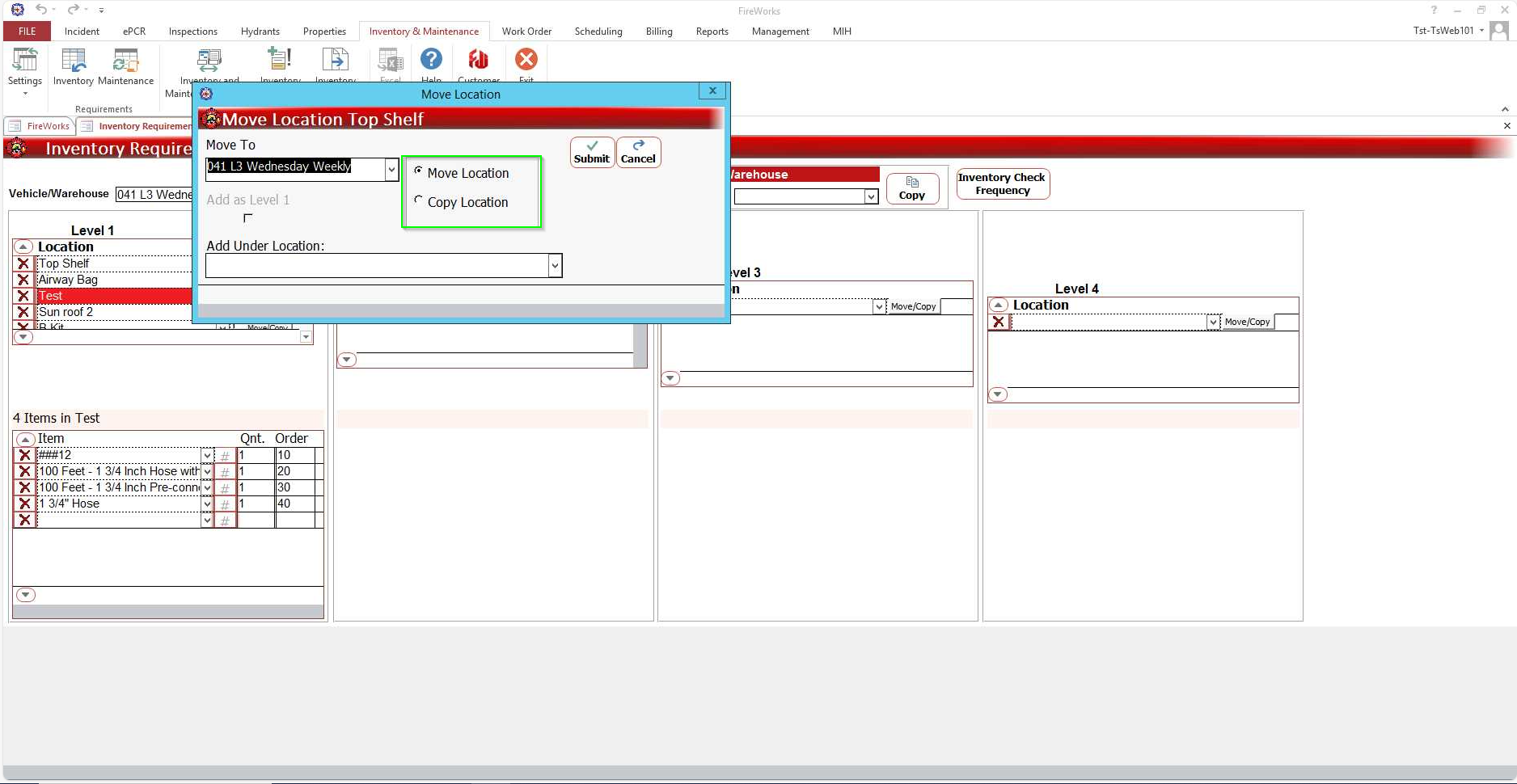
To move or copy items, do as follows:
Enable Move/Copy. In Inventory, select Enable Moving/Copying Locations.
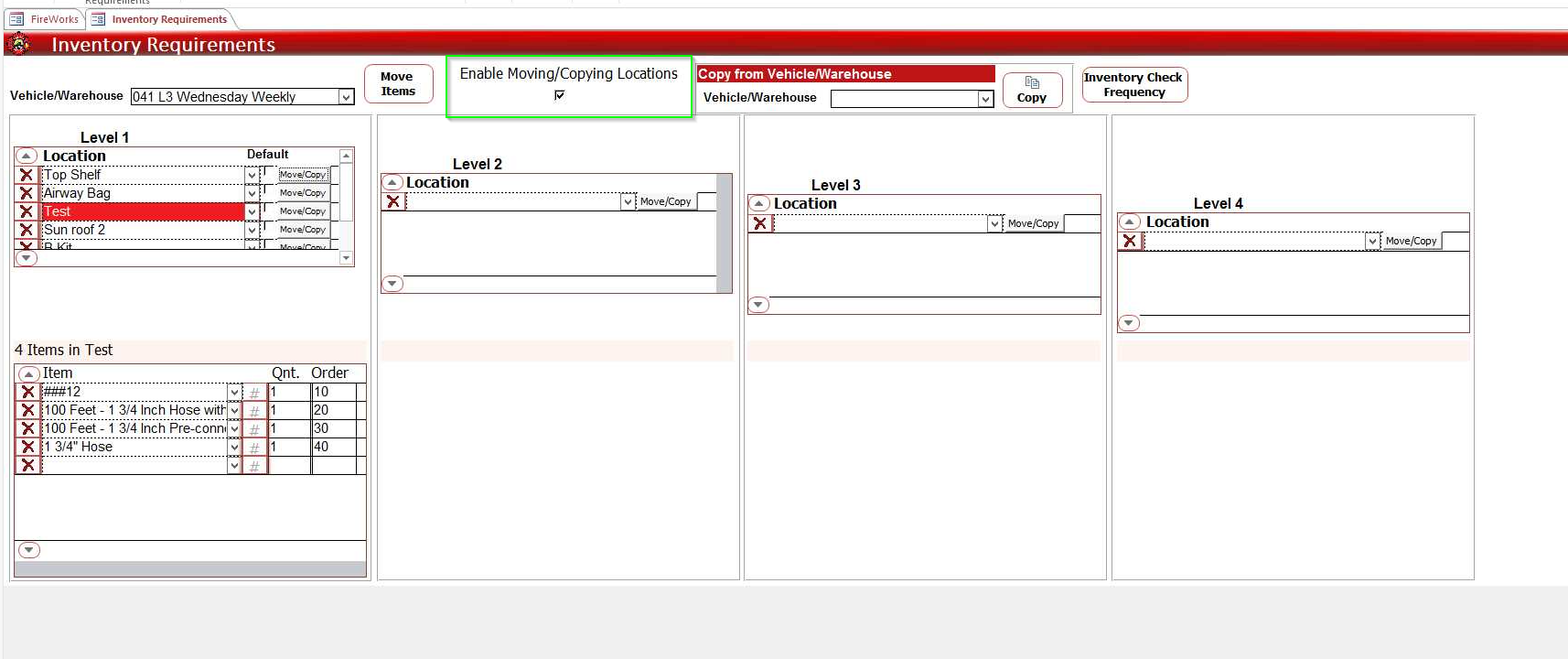
The Move/Copy button will appear beside all locations within your vehicle or warehouse.
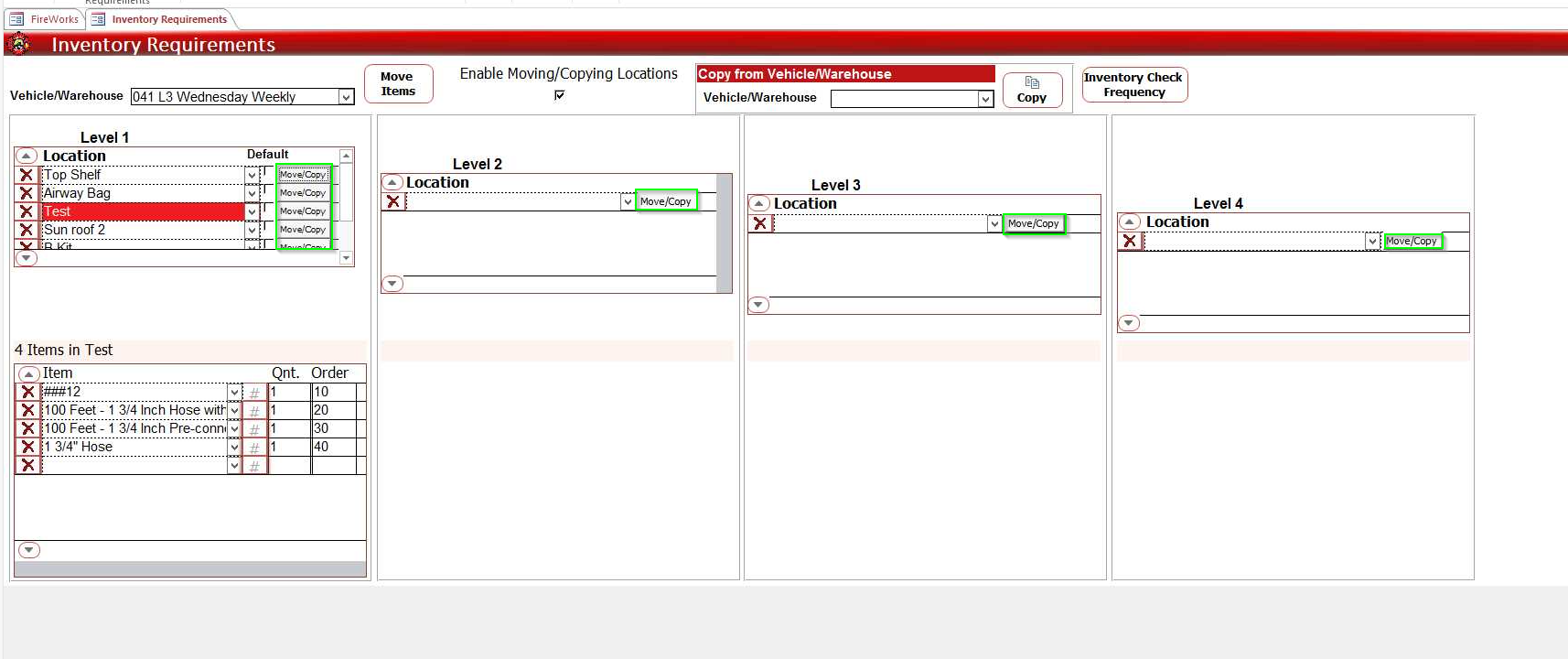
Move or copy the location.
Select the location, and then click on Move/Copy.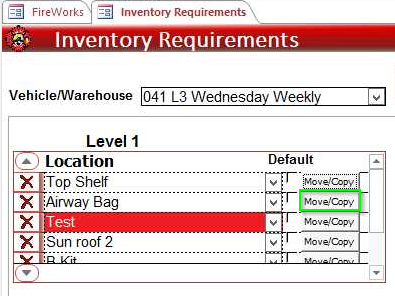
In the dialog box, select Move Location or Copy Location, and then select a new location from the Move To/Copy To dropdown list.
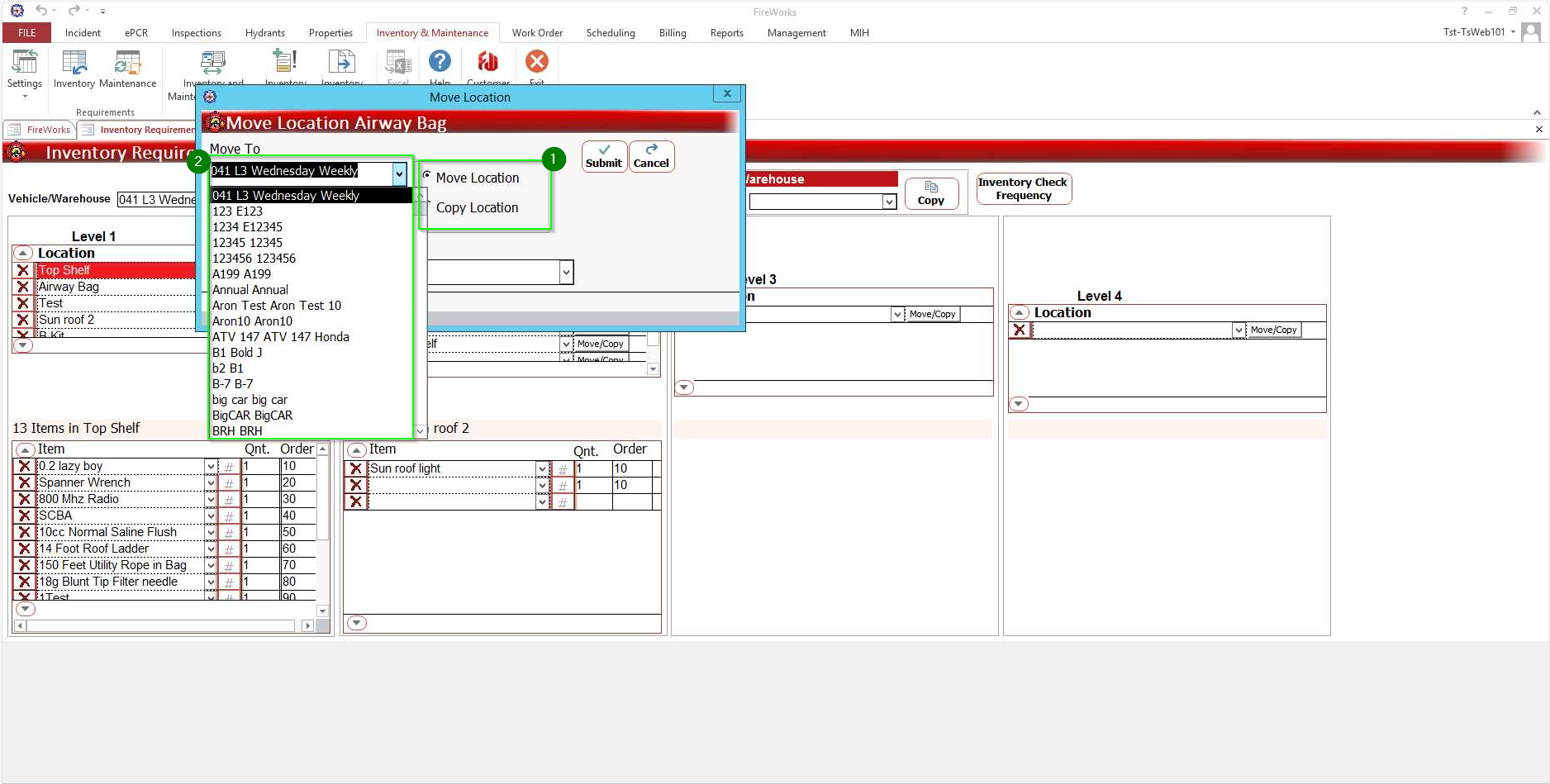
When finished, click Submit.
August 1.4.08.1
Select Multiple Locations and Items
You can now select multiple locations in your apparatus or warehouse, and then set multiple items for each location.
Locations
To set multiple locations, double click on an empty cell in the locations table. In the dialog box that appears, select locations. When finished, click Submit.
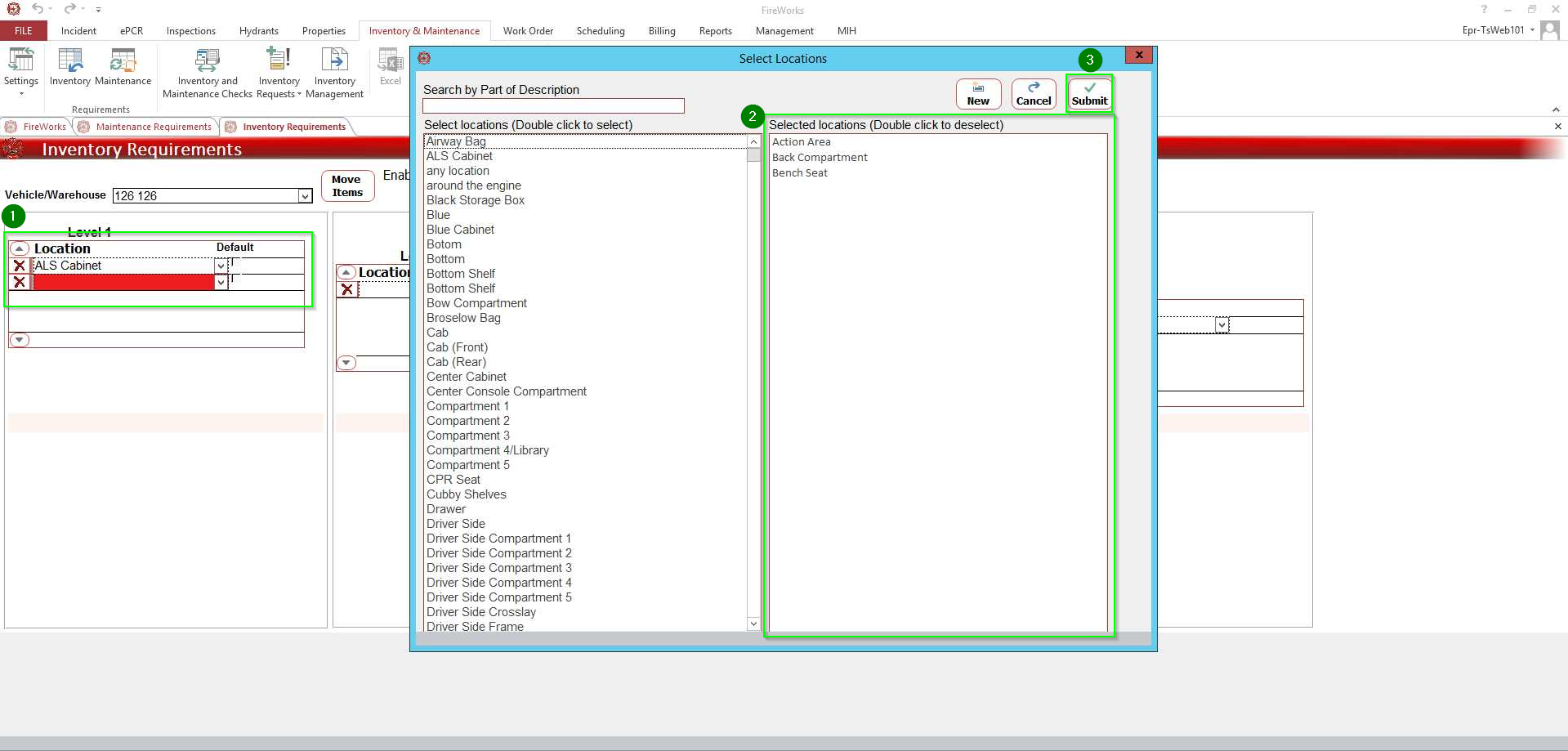
The locations will appear in the Location table.
Items
To set multiple items, first select a location from the Location table. The Items table will appear. Double click an empty cell. In the dialog box that appears, select the items relevant to that location. When finished, click Submit.
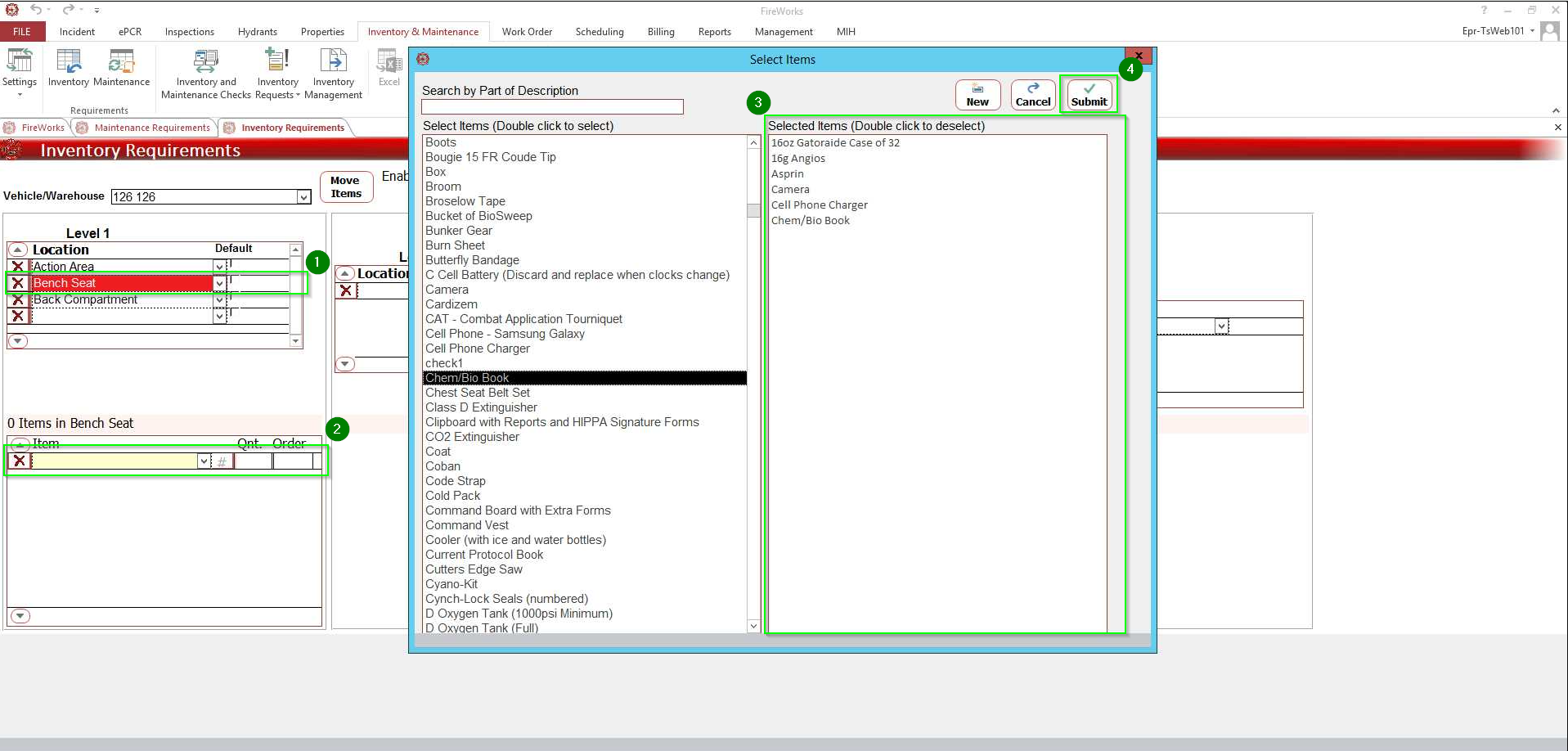
The items will appear in the Items table.