
Configuring ePCR App Settings
Overview
This reference documents user-level app settings that control your personal EPR FireWorks ePCR interface preferences and display options. These settings affect only your login account and do not impact other users or department configuration.
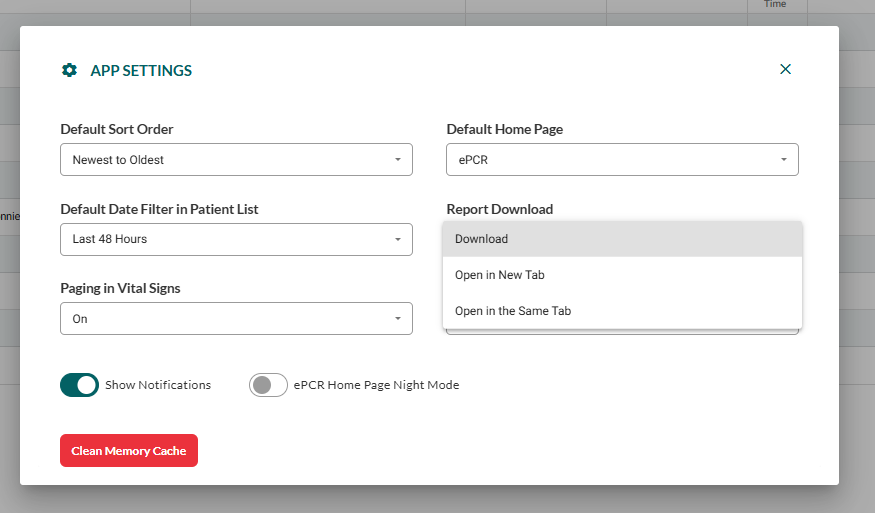

Access App Settings by clicking your user profile name in the top right corner, then select App Settings from the dropdown menu.
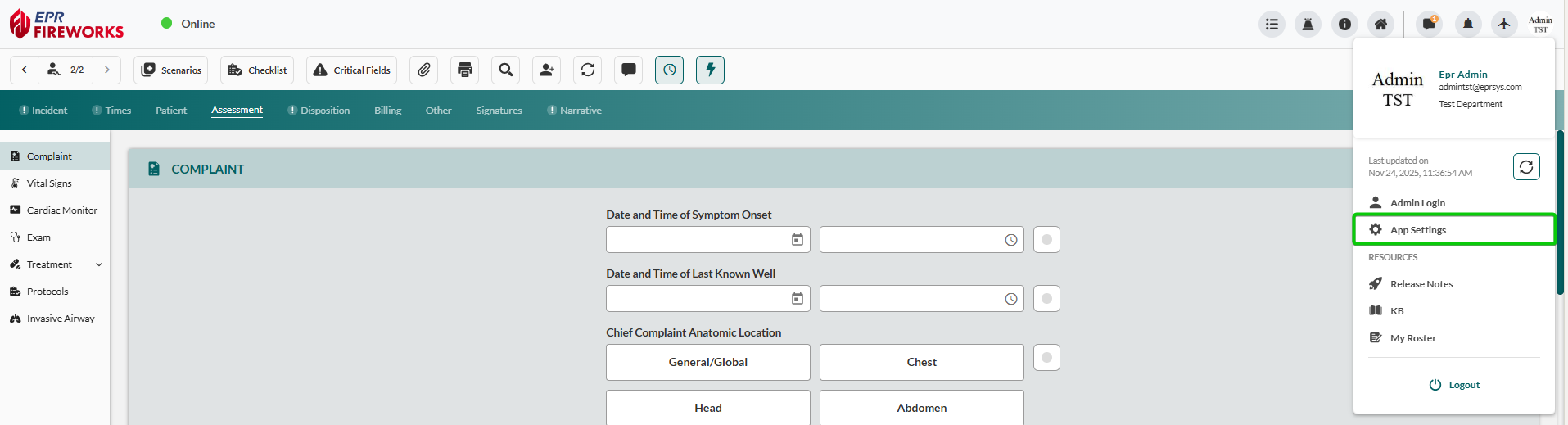
Display and Interface Settings
Control how ePCR content displays and where your session starts.
Setting | Options | Default | Effect |
|---|---|---|---|
Default Sort Order |
| Newest to Oldest | Controls initial sort order in ePCR patient lists and incident tables |
Default Home Page |
| ePCR | Determines which module appears immediately after login |
Default Date Filter in Patient List |
| Last 48 Hours | Sets the initial date range filter applied to the patient list view |
ePCR Home Page Night Mode |
| Off | Applies dark theme to the ePCR home page for reduced screen brightness |
Show Notifications |
| On | Controls whether system alerts and notifications appear in the interface |
Visual Examples
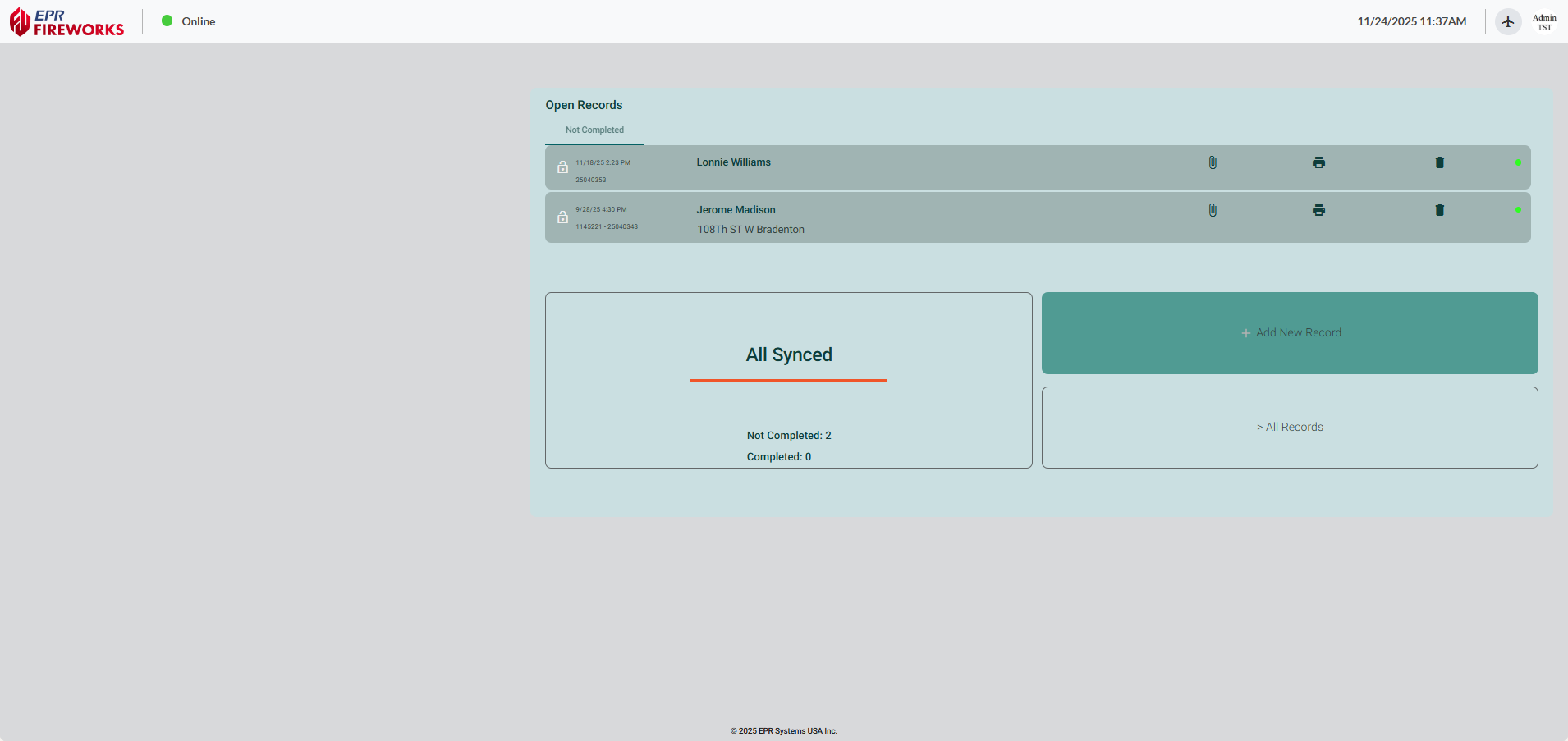
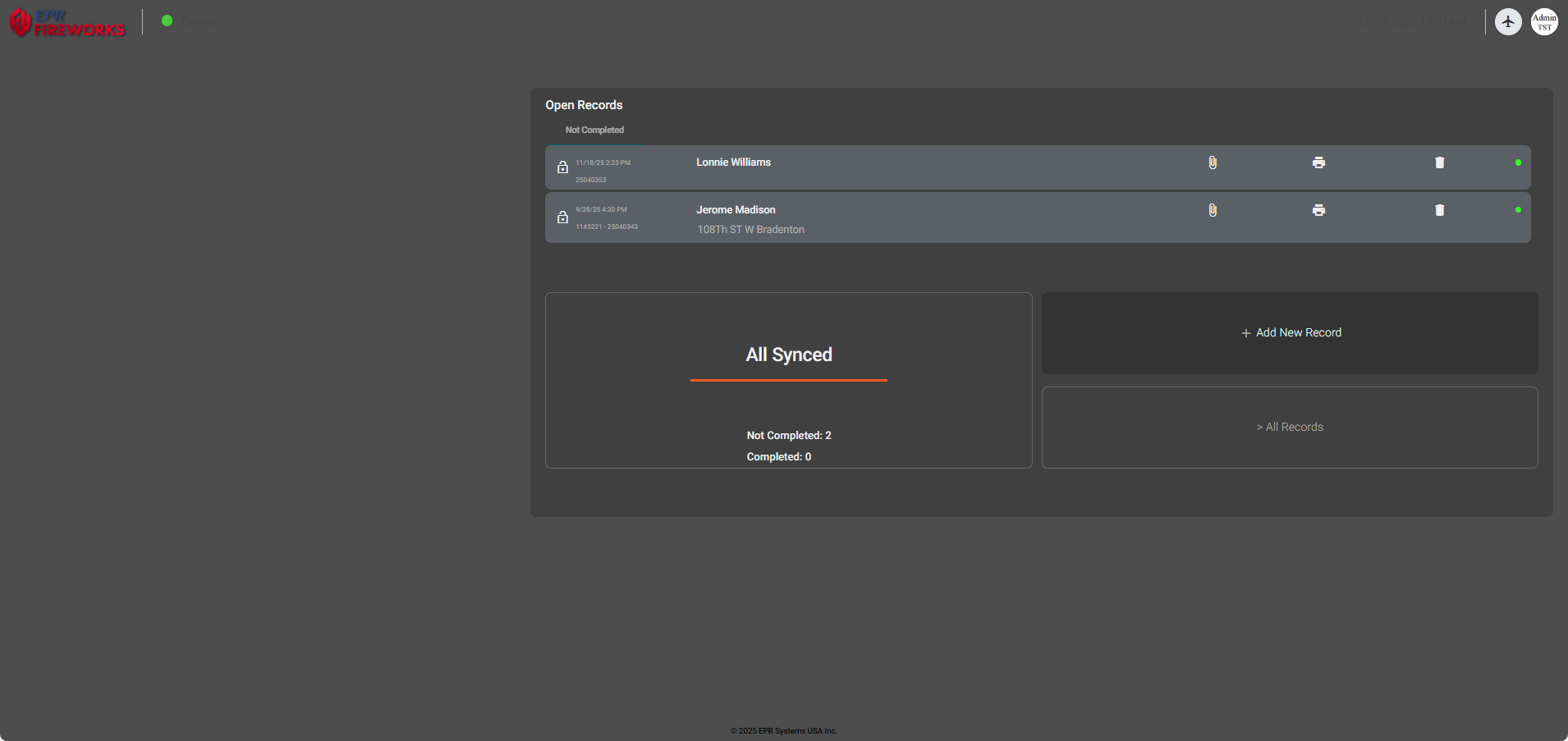
Default Home Page Options
ePCR Home Page (Night Mode Disabled):
FireWorks Home Page:
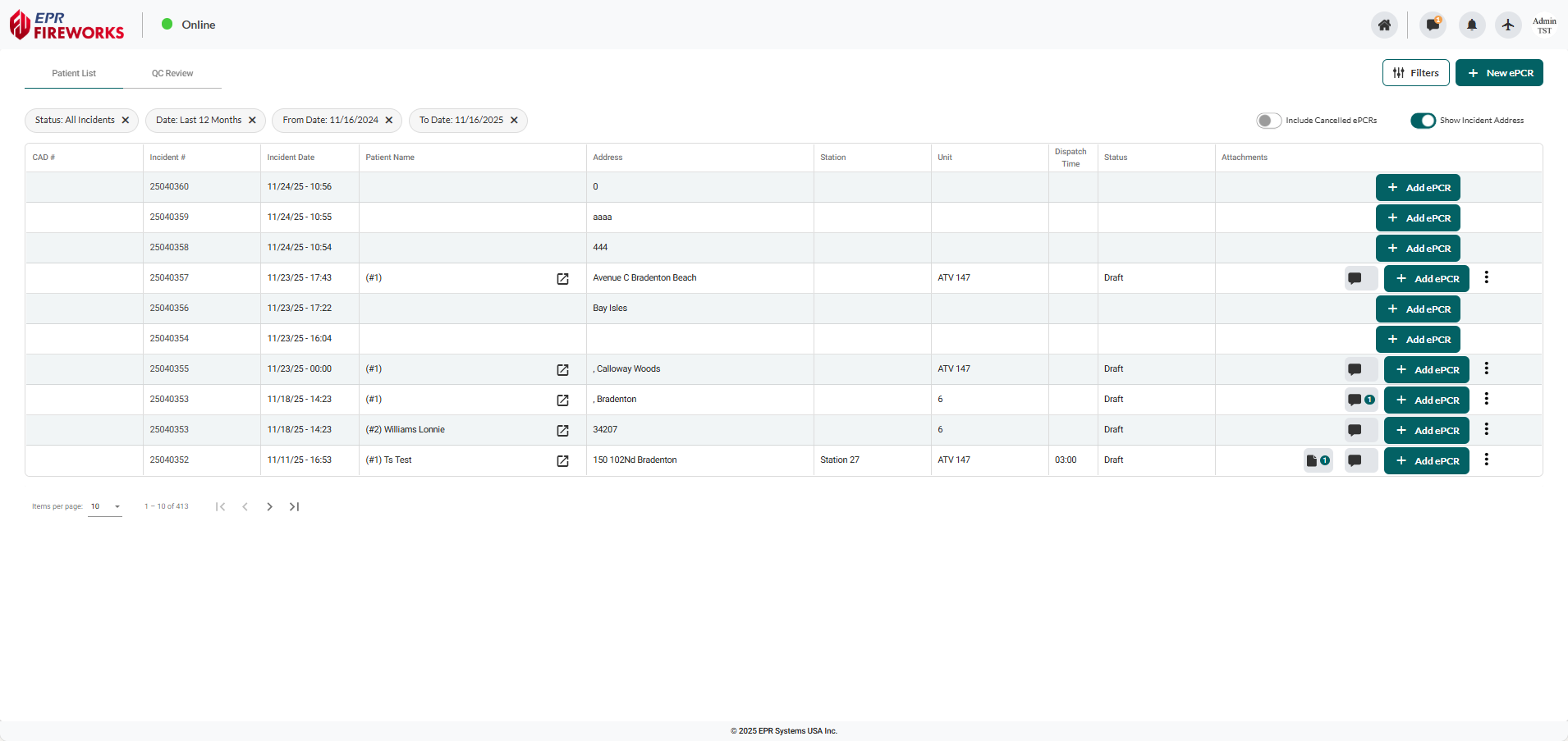
Night Mode Enabled
Data and Performance Settings
Configure data display behavior, template versions, and report output formats.
Setting | Options | Default | Effect |
|---|---|---|---|
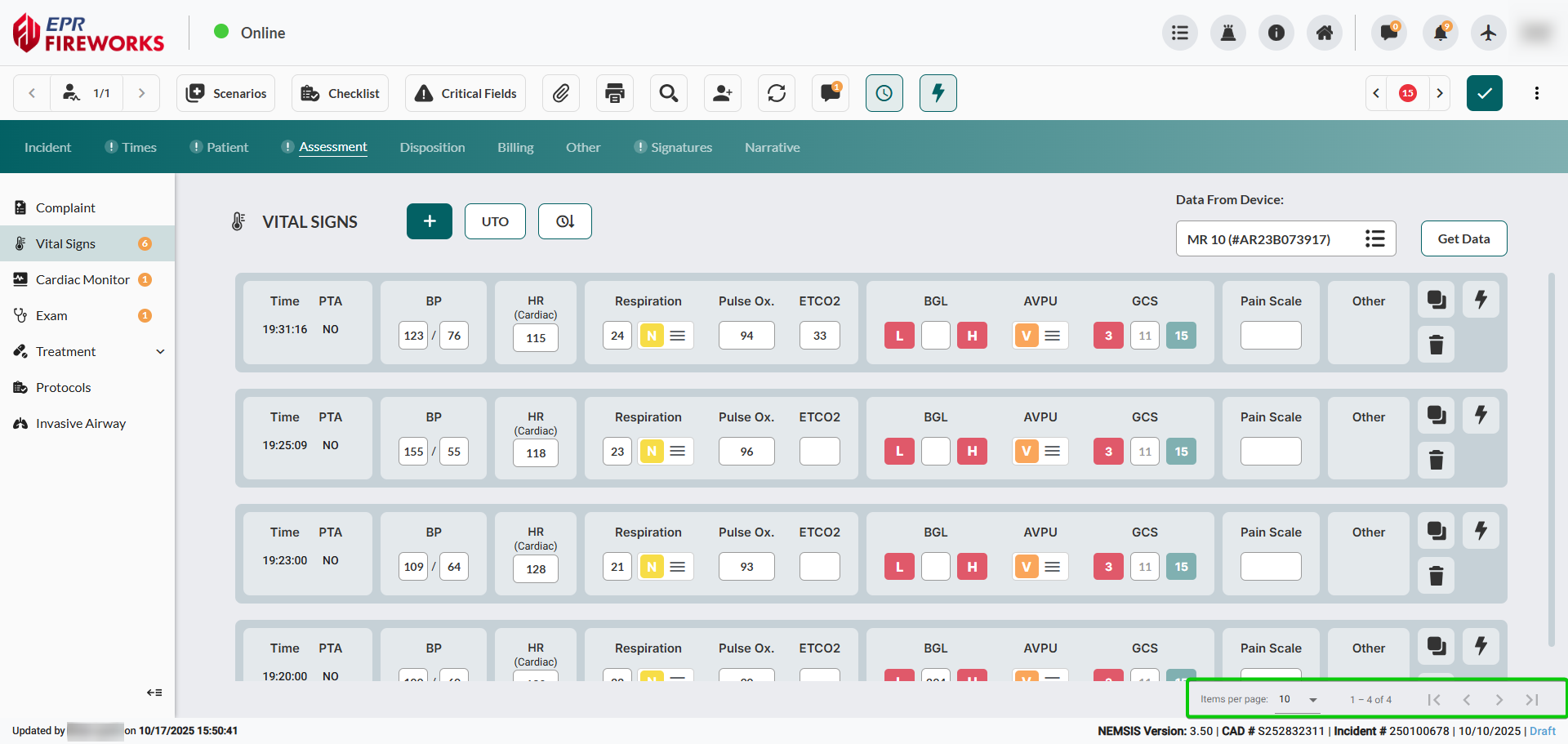
Paging in Vital Signs |
| On | Enables pagination for vital signs tables, disabling the display of all vital signs on a single page. |
Select ePCR Version |
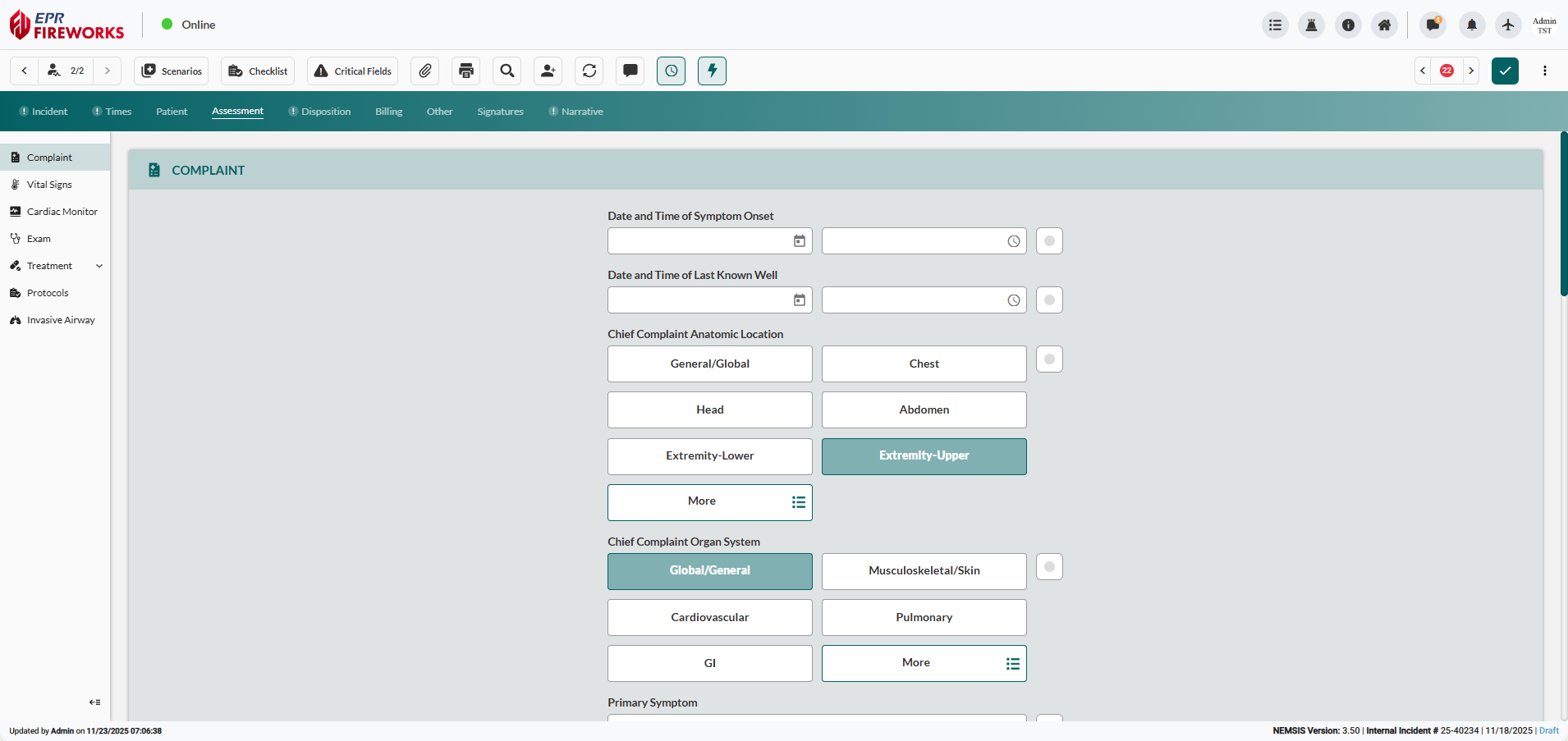
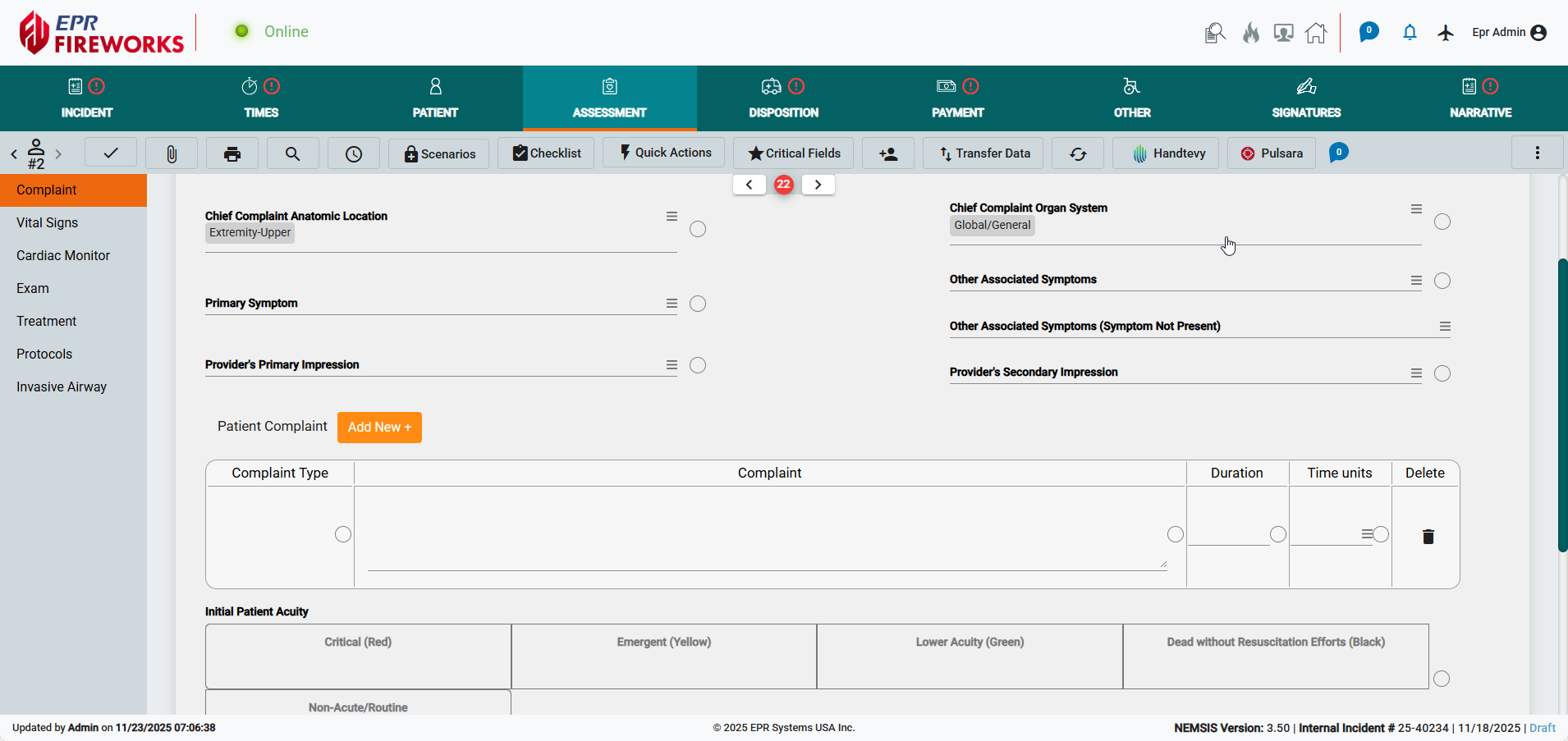
| ePCR 3.0 | Switches between ePCR template versions; determines available fields and workflow. |
Report Download |
| Download | Controls whether generated reports download with or without a report preview. |
Visual Examples
Paging in Vital Signs
ePCR Version Differences
ePCR 3.0:
ePCR Regular Version (Version 2.9.1):
System Maintenance
Clear cached data to resolve display issues or force data refresh.
Action | Effect | When to Use |
|---|---|---|
Clear Memory Cache | Removes locally cached data and forces fresh data retrieval from the server | Use when experiencing display issues, stale data, or after major system updates |
Setting Persistence
All settings configured in this panel:
Save automatically when changed
Sync across devices for your user account
Remain active after logout and apply at next login
Persist when clearing cache (cache clearing does not reset settings to defaults)