
NERIS (ePCR Summary)

Disclaimer: NERIS is currently under development by the Fire Safety Research Institute (FSRI). This guide reflects the system as implemented in EPR FireWorks. Functionality may evolve as NERIS continues development toward full national implementation by January 2026.
Overview
NERIS integration streamlines incident reporting by allowing departments to complete NERIS details directly within the ePCR workflow. Bidirectional data flow eliminates duplicate entry between systems.
Before You Start
NERIS reporting is required for all emergency response incidents.

Available NERIS Interface Features
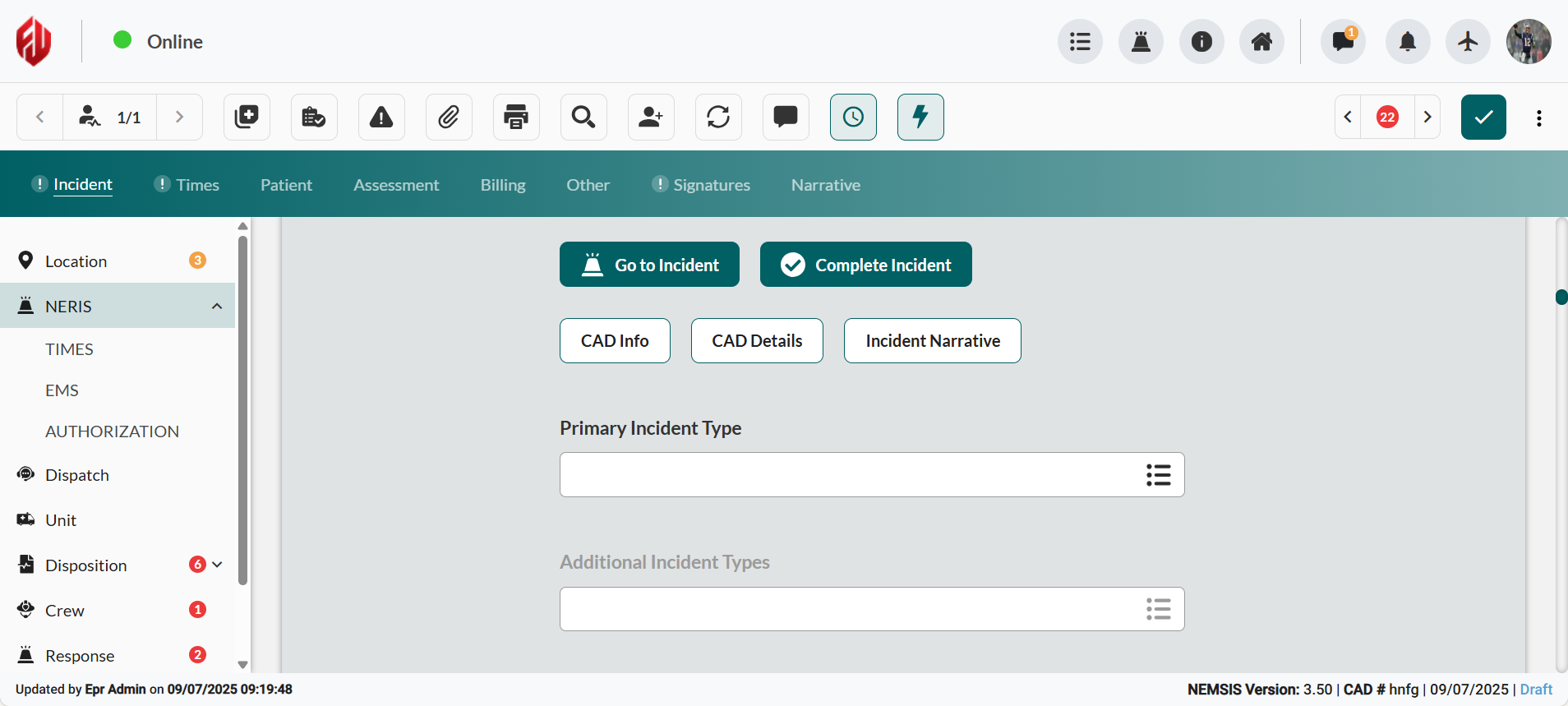
Go to Incident: Opens the NERIS interface in a new tab for detailed incident entry.
Complete Incident: Finalizes the incident and displays any critical deficiencies that prevent completion.
CAD Info or CAD Details: Provides additional context from dispatch information.
Incident Narrative: Completes incident narrative documentation.
Completing NERIS Incident Classification
Complete incident reports directly from the ePCR interface.
Scroll down to the NERIS section or click NERIS in the left sidemenu.
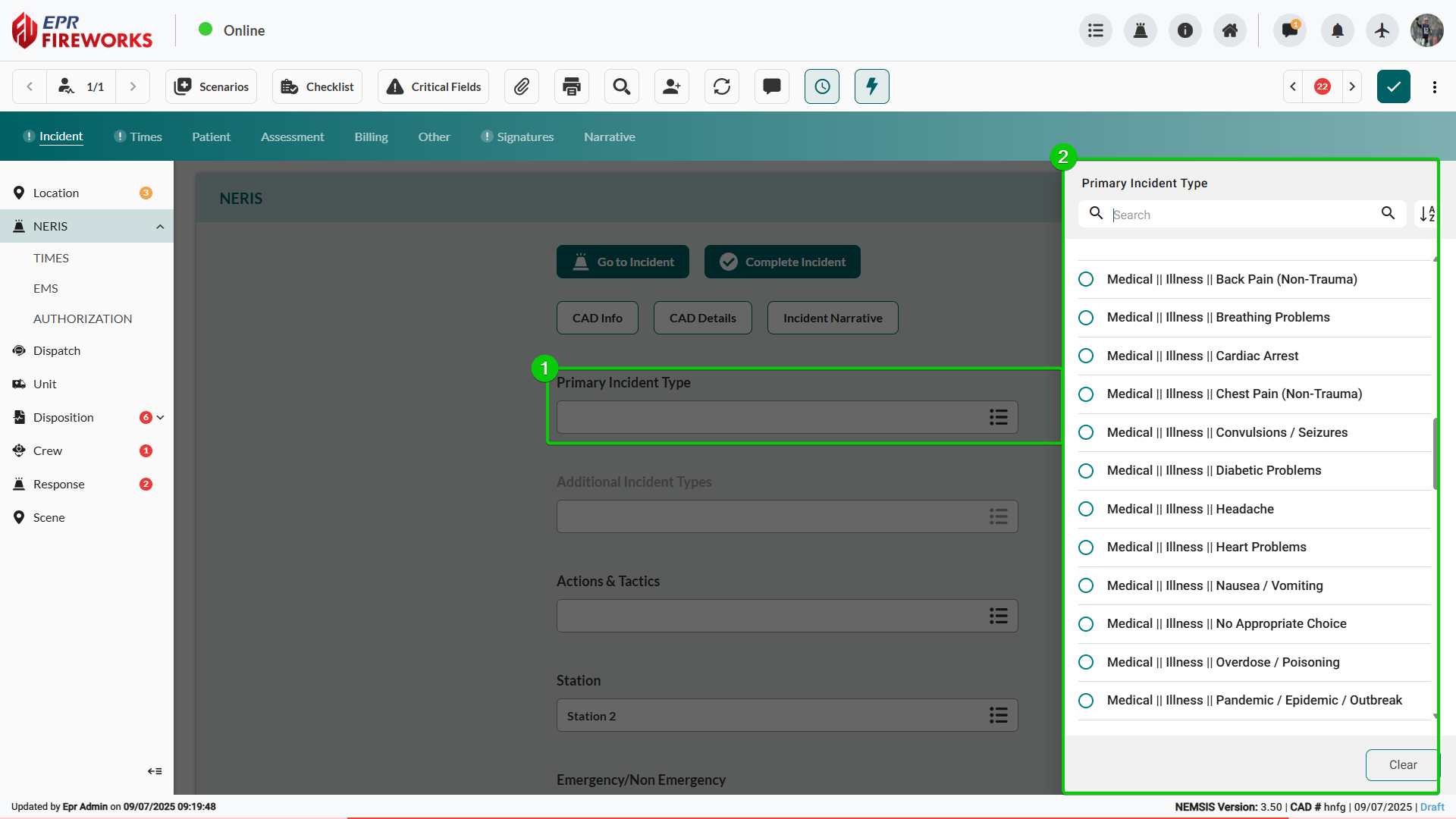
Click Primary Incident Type, and then select the appropriate option from the sidebar using NERIS hierarchical classification system:
Level 1: Major category (e.g., Fire)
Level 2: Subcategory (e.g., Outside Fire, Structure Fire, Transportation Fire)
Level 3: Specific incident type (e.g., Construction Waste, Utility Infrastructure Fire)
Add Additional Incident Types if the incident involves multiple categories.
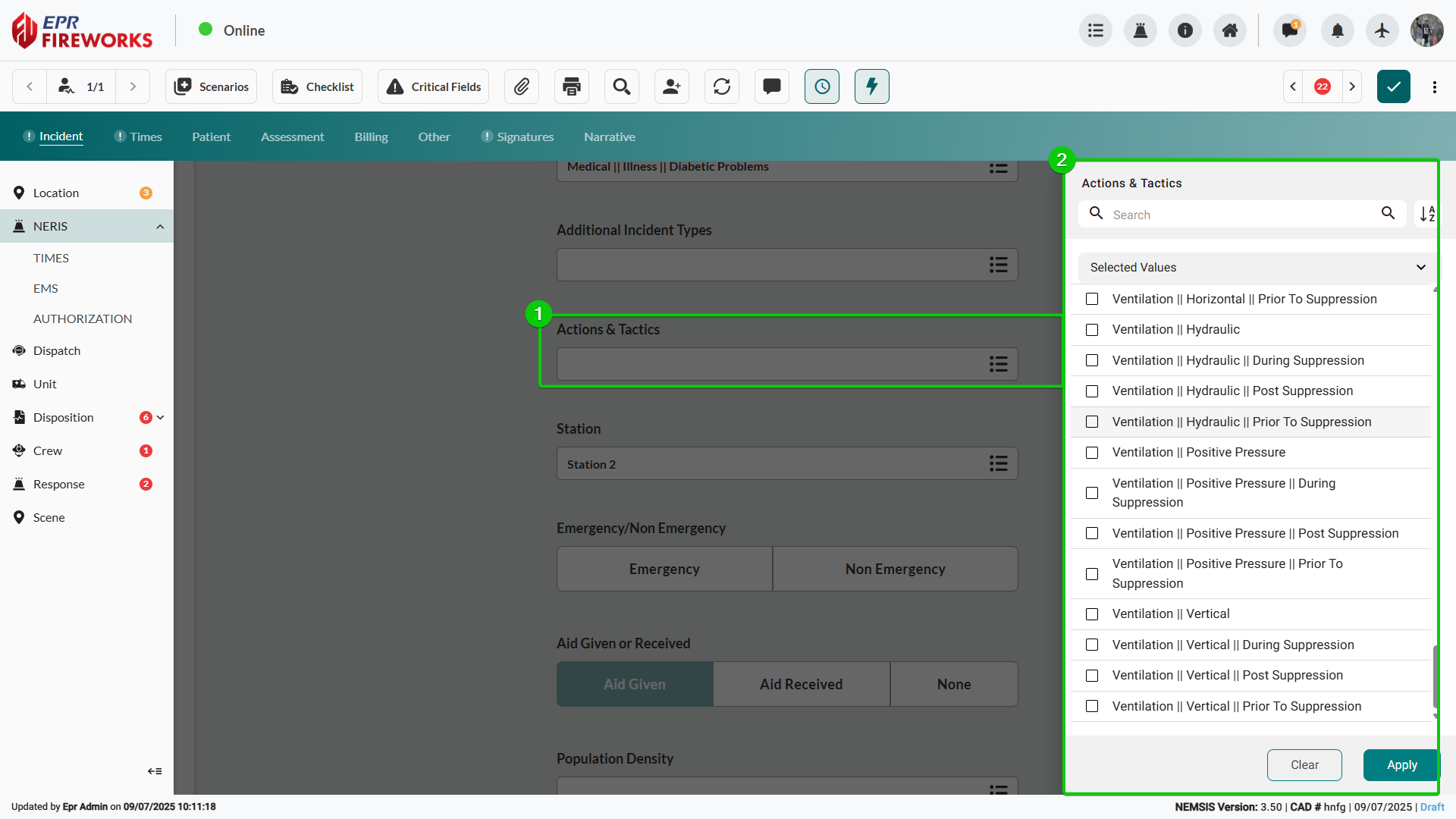
Note: You can select up to two additional incident types.Click Actions & Tactics, and then select all appropriate NERIS codes from the sidebar.
Click Station, and then select the responding station identifier from the sidebar.
Set Emergency/Non Emergency classification based on incident priority.
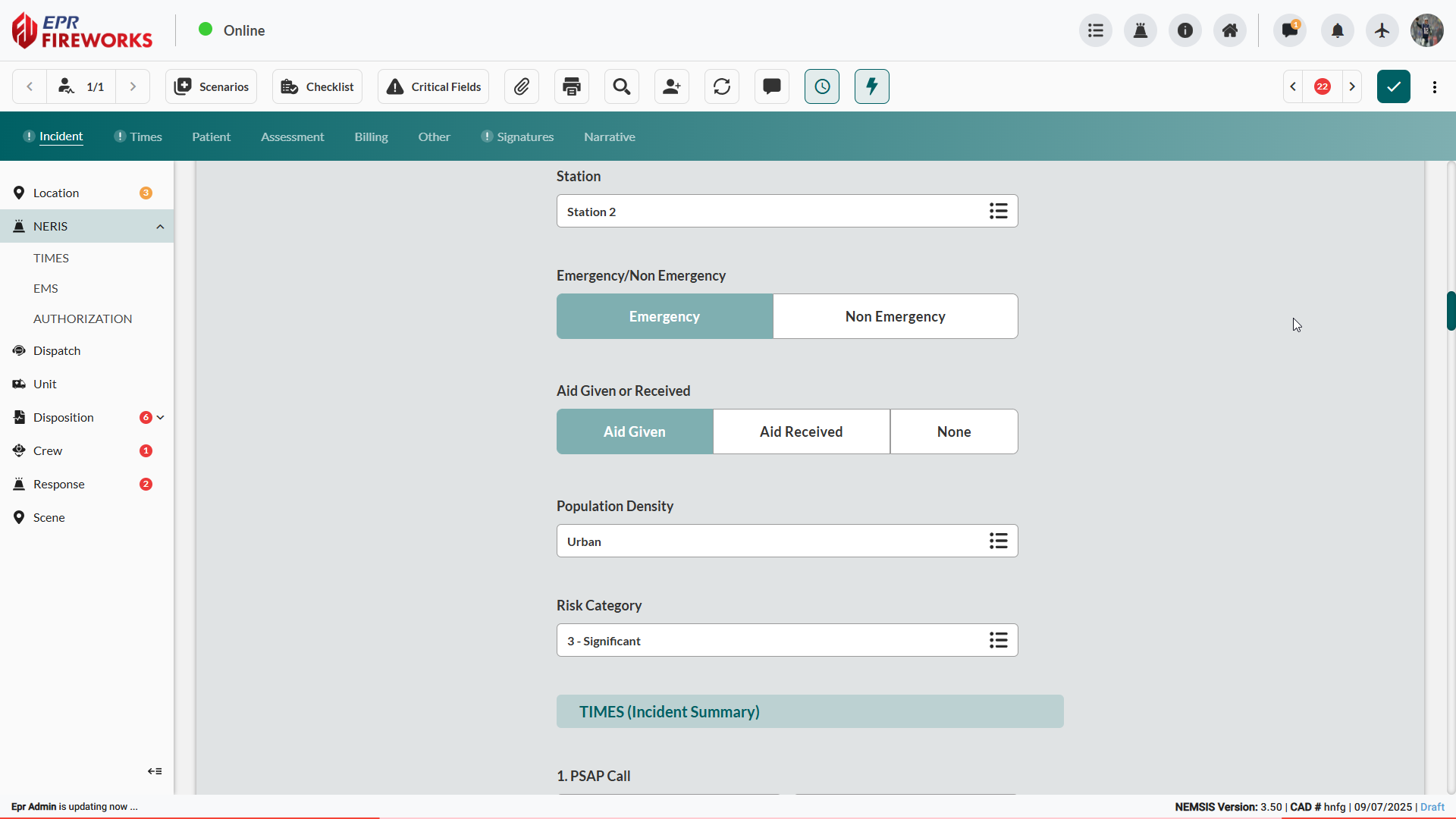

Result: Complete NERIS incident documentation with classification hierarchy, tactics, and station information recorded.
Completing NERIS Aid and Risk Documentation
Document mutual aid and risk assessment information.
Set Aid Given or Received based on mutual aid assessment.
Aid Given for resources provided to other departments.
Aid Received for resources received from other departments.
None for incidents without mutual aid.
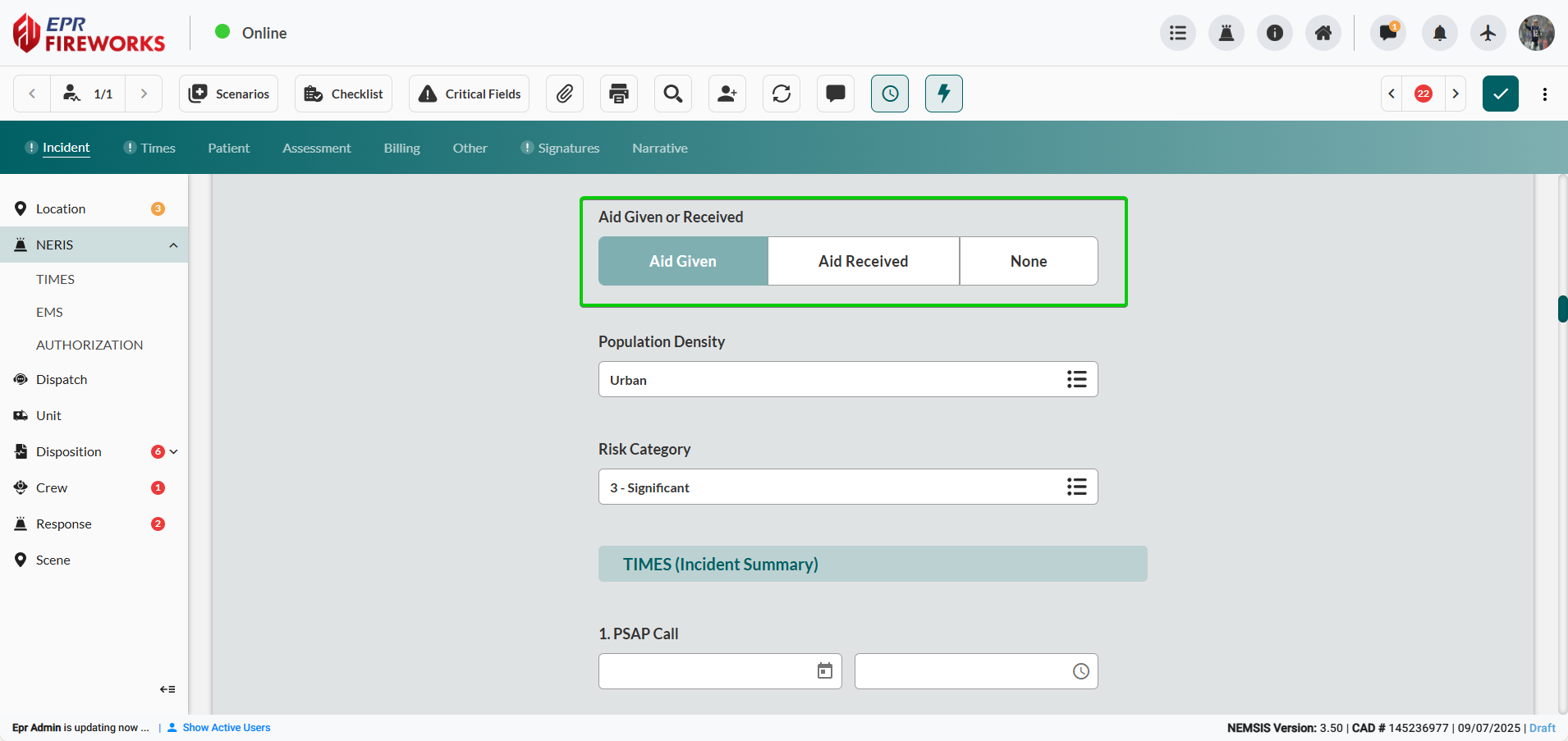
Complete Population Density designation (e.g., "Urban").
Select Risk Category based on incident classification.
Documenting NERIS Response Times
Record NERIS required response times within the ePCR workflow.
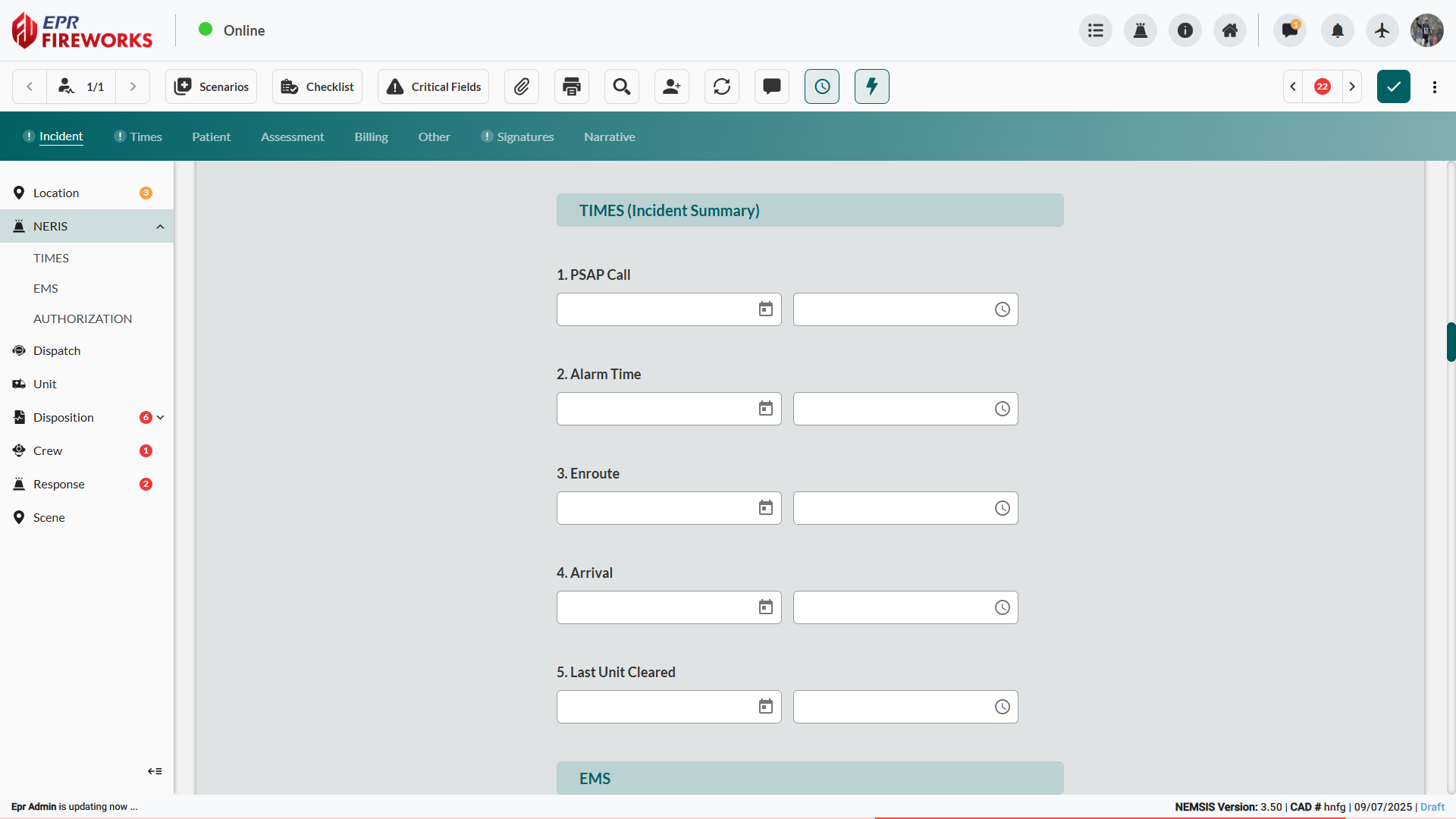
Scroll down to the TIMES (Incident Summary) section.
Enter PSAP Call date and time from emergency communications.
Complete additional timeline fields as documented in incident records.
Completing NERIS EMS Documentation
Document patient care information within the NERIS workflow for medical incidents.
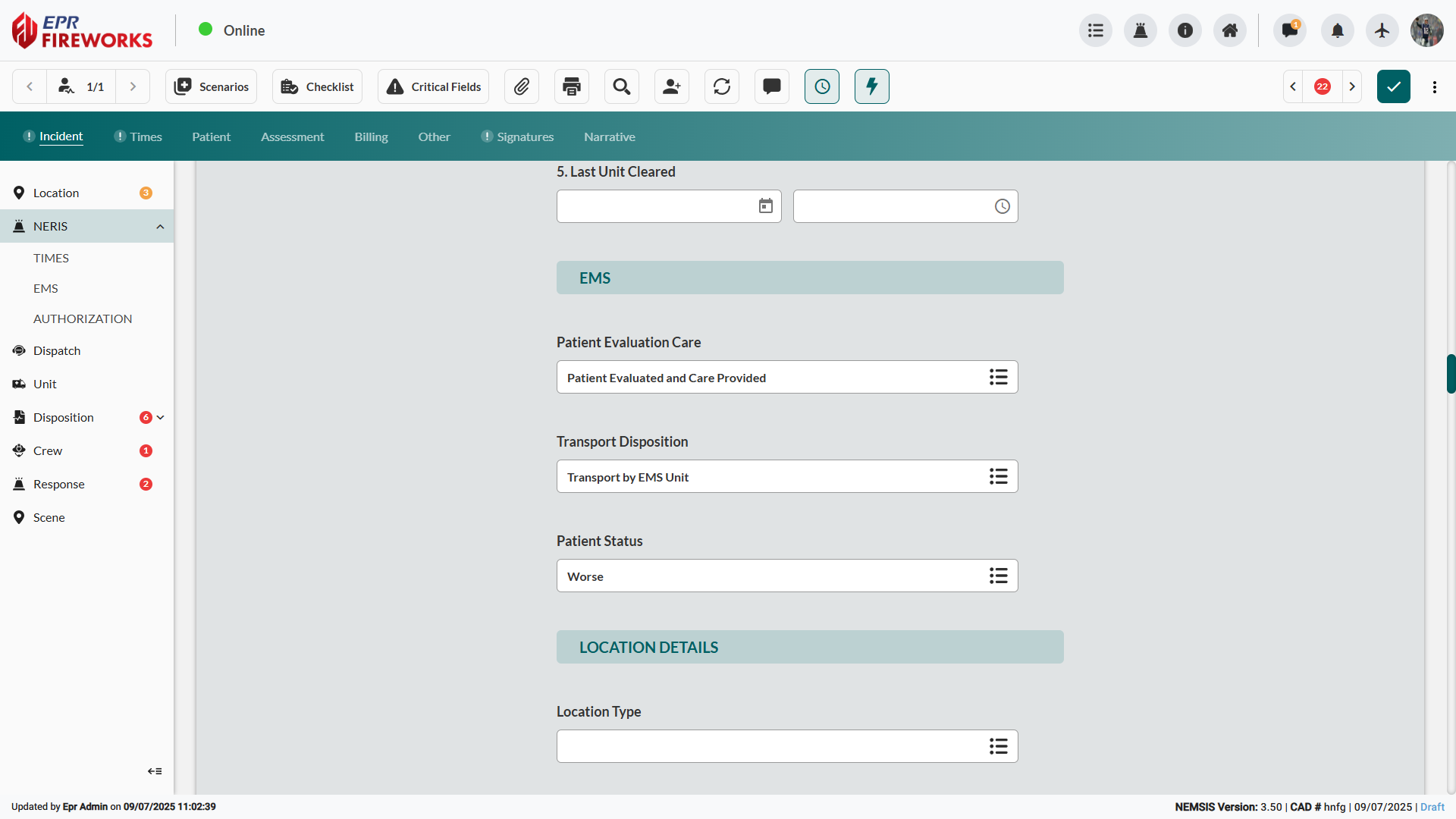
Scroll down to the EMS section.
Complete Patient Evaluation Care.
Select Transport Disposition.
Choose Patient Status.
Location Details Verification
Complete incident location specifications according to NERIS V1 standards.
Note: This section is for NERIS reporting purposes only and does not correspond with the Location section above.
Scroll down to the Location Details subsection.
Click Location Type, and then select the corresponding location identifier from the sidebar.
Complete State and City fields.
Enter the Zip Code and Zip Code extension.
Note: Click Get Zip Code to auto-populate the Zip Code field.Enter Zone designation if applicable.
Complete Number/Milepost for the address specification.
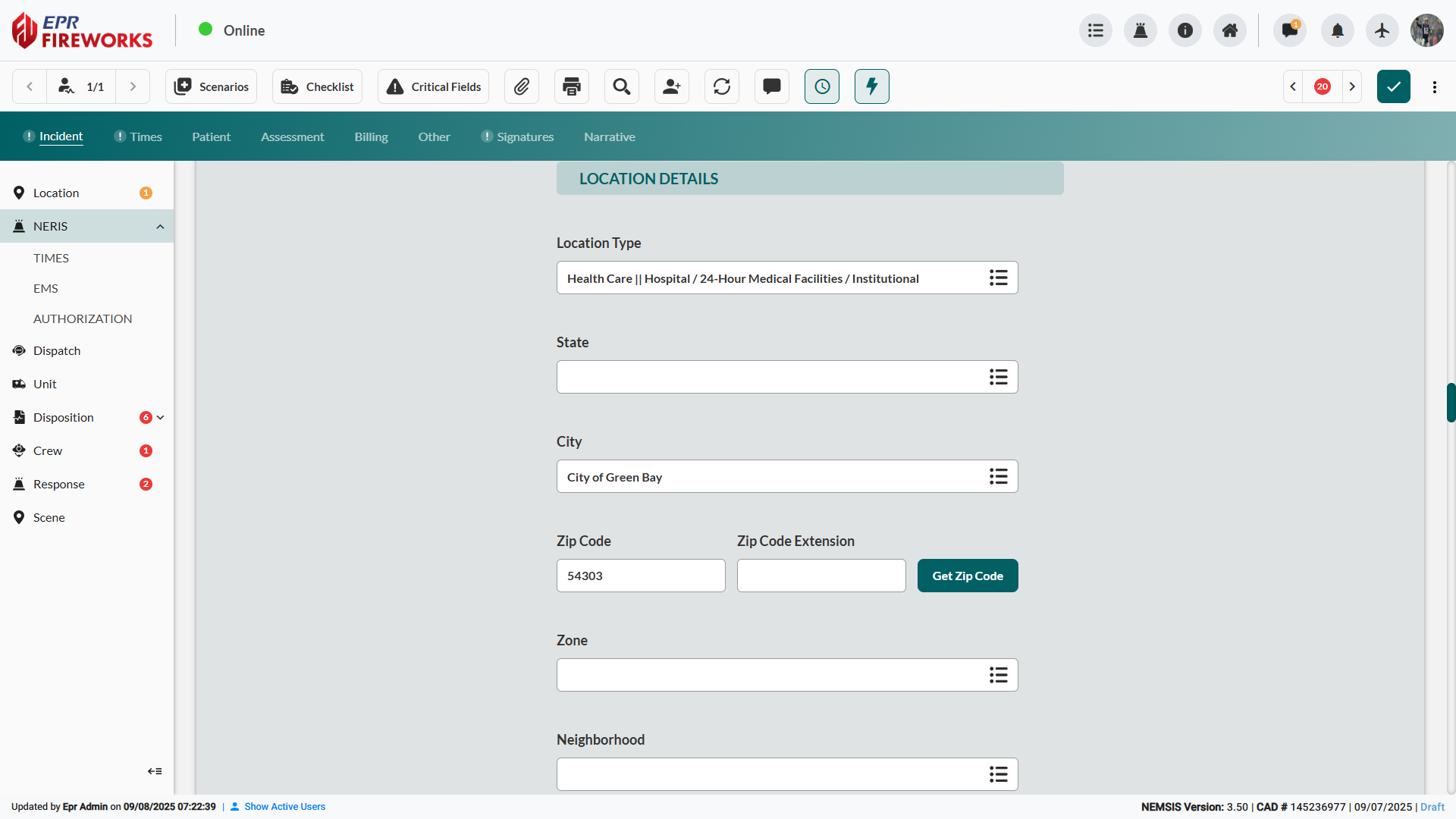
Result: NERIS location documentation completed, maintaining separate compliance from NEMSIS location requirements above.
Authorization Documentation
Record personnel assignments and report authorization.
Scroll down to the AUTHORIZATION subsection under NERIS.
Select Officer In Charge is same as Member Making Report if the same individual serves both roles.
Select Member Making Report from personnel dropdown.
Select Officer In Charge from personnel dropdown or verify auto-population if checkbox used.
Complete Member Making Report Assignment dropdown to specify role.
Complete Officer In Charge Assignment to document command structure.
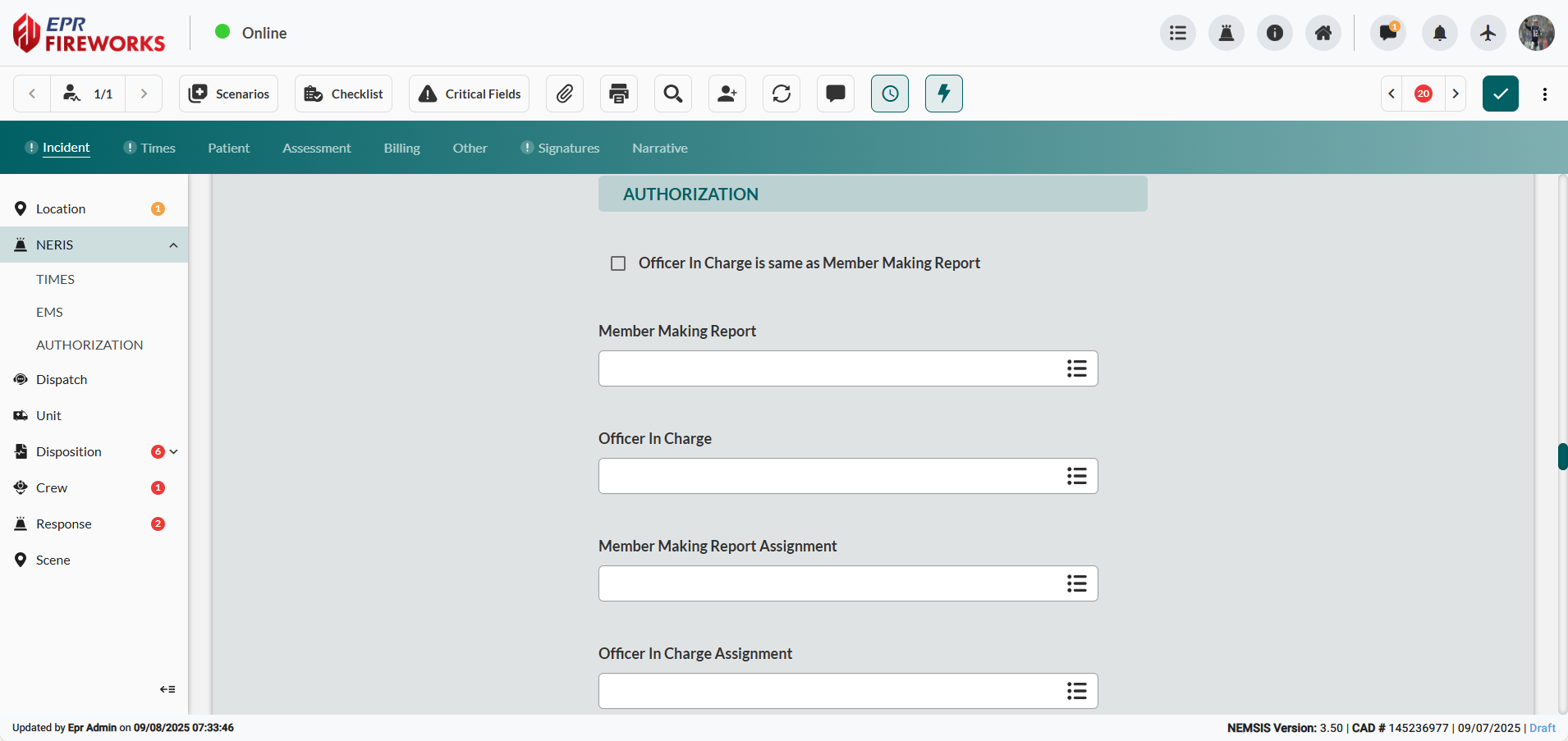
Result: Personnel accountability documentation establishes a clear command structure and reporting responsibility for NERIS compliance.
NERIS Integration Notes
Bidirectional Data Flow: Information entered in either ePCR or NERIS updates the corresponding report automatically, maintaining consistency between systems.
Regulatory Separation: NERIS section follows NERIS standards while ePCR sections follow NEMSIS standards. These are separate reporting requirements with independent data specifications for comprehensive emergency response documentation.
Complete NERIS Field Specifications: For detailed field definitions and reporting requirements, see NERIS Documentation.
Next Steps
Proceed to Dispatch to continue the incident documentation workflow.