
Opening an ePCR
Overview
EPR FireWorks provides multiple workflows for opening electronic Patient Care Reports (ePCRs) to accommodate different incident documentation scenarios. You can open ePCRs directly from visible incidents in the Patient List, search for historical incidents using date and apparatus filters, manually create new incident records when events aren't in the CAD system, or add additional patient records to existing incidents. Select the workflow that matches your incident visibility and data availability using the Quick Workflow Selection guide below.
Before You Start
Ensure you have ePCR permissions and incident information before initiating documentation:
Active crew assignment and network connection
CAD incident number OR incident details for manual entry
Patient demographics (name, DOB, or SSN) for existing patient lookup (optional)
Responding apparatus unit number
Opening an ePCR for Existing Incidents
Use this workflow when the incident is visible on your current Patient List screen.
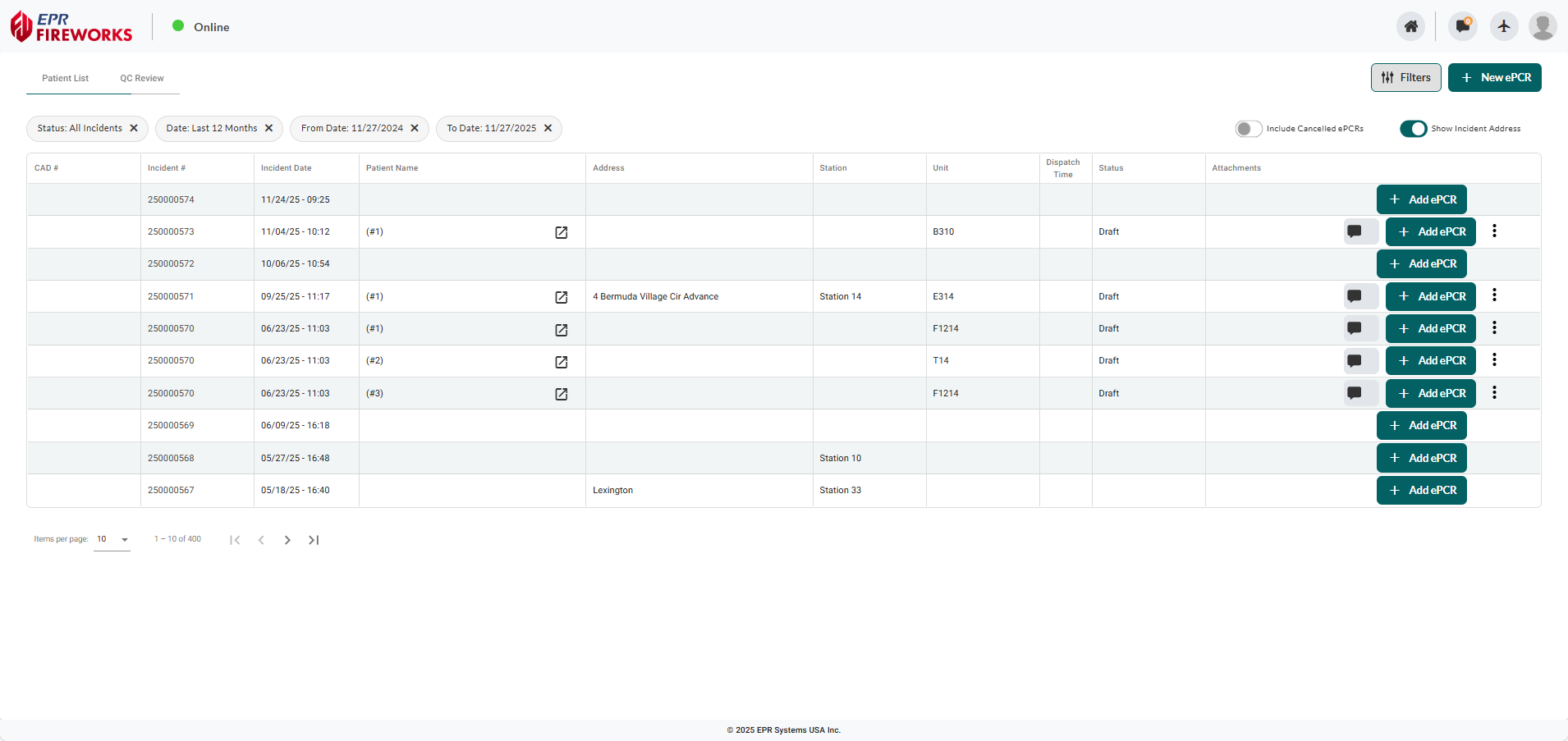
Locate the incident. Find the target incident row in the Patient List tab.
Initiate ePCR creation. Click + Add ePCR in the incident row.

Confirm ePCR creation. Review the incident number and CAD # in the confirmation dialog, then click Yes.
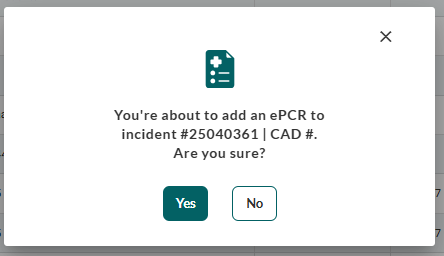
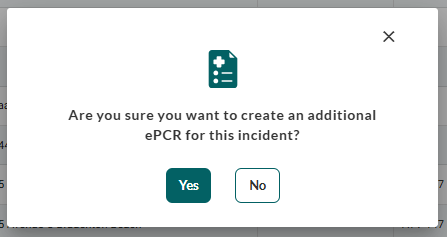
Note: If this incident already includes an open ePCR, confirm the creation of an additional ePCR.
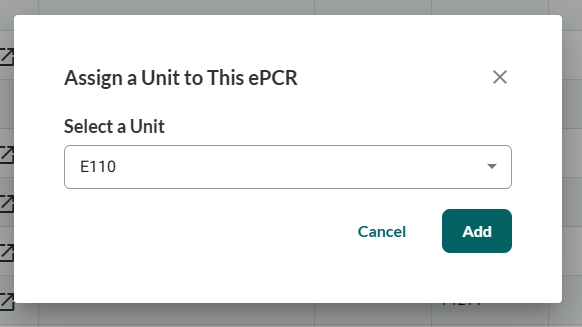
Assign responding apparatus (optional). Select your unit from the Select a Unit dropdown if available, or click Add without selection to proceed without apparatus assignment.
Opening ePCR Using Incident Lookup
Use this workflow when searching incidents by date, apparatus, or CAD number.
Initiate incident search. Navigate to the Patient List tab, and then click + New ePCR in the upper right corner.

Search for or create the incident.
For existing incidents: Use the Date and Apparatus dropdowns to filter results, then click the target incident row to highlight it and click Create ePCR.
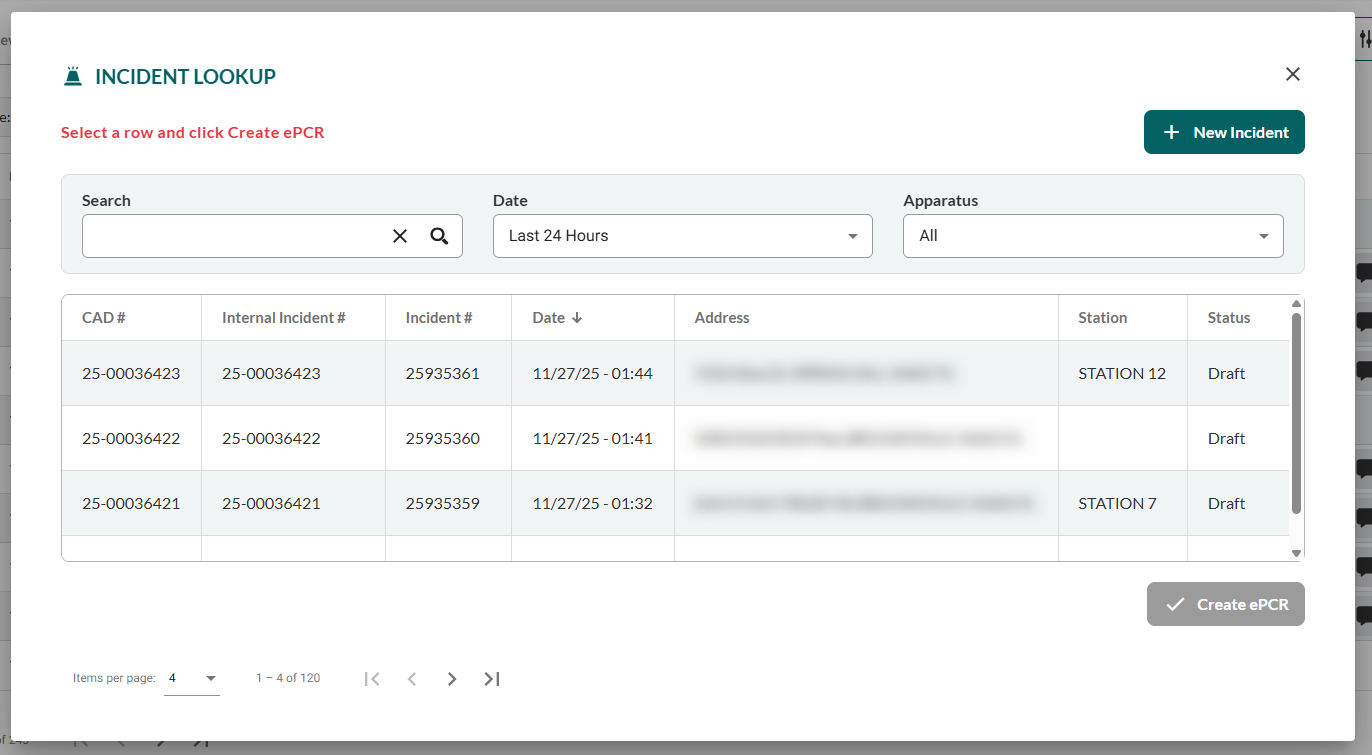
For new incidents:
Click New Incident, complete the New ePCR Details form, and then click Save & Go to ePCR.
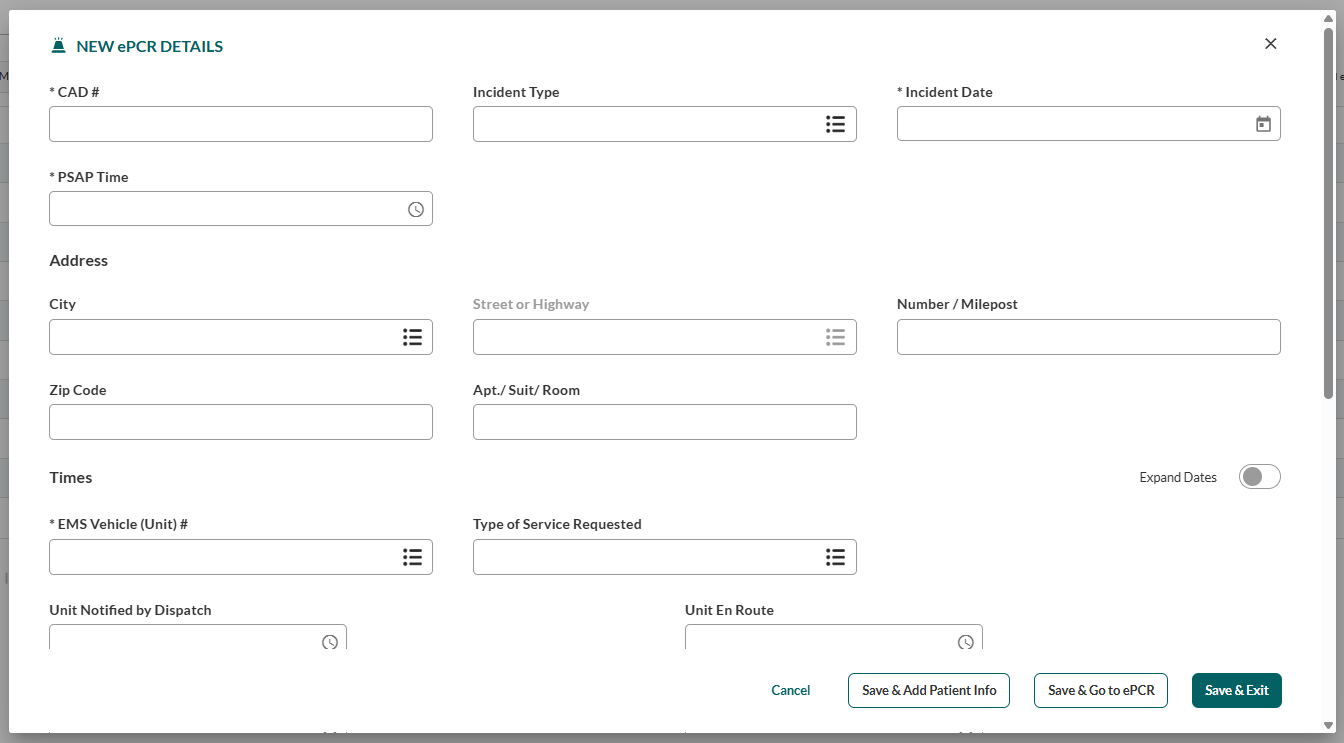
Choose your save option: Save & Go to ePCR to open the ePCR immediately, Save & Add Patient Info to enter patient demographics first, or Save & Exit to create the incident record without opening an ePCR.
Confirm ePCR creation. Review the incident number and CAD # in the confirmation dialog, then click Yes.
Assign responding apparatus (if opening ePCR). Select your unit from the dropdown and click Add, or click Add without selection to proceed without apparatus assignment.
Adding ePCRs for Multiple Patients
Use this workflow when documenting additional patients at an incident within an existing ePCR.
From the open ePCR interface toolbar, click the + Add ePCR option

Confirm the creation of an additional ePCR. Click Yes.
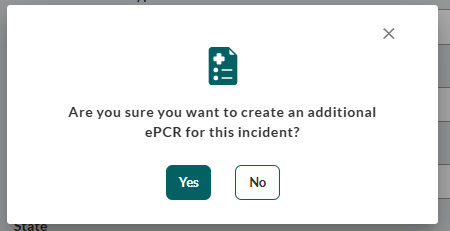
The new ePCR will open in the same tab instead of the current ePCR.
Next Steps
Begin patient documentation: After opening the ePCR, proceed to Documenting Patient Care for the comprehensive guide on completing the patient care report.