Crew
Configure crew member assignments for ePCR incident documentation using EPR FireWorks personnel database.
Selecting Report Author
In the Crew Member Completing this Report field, select the crew member authoring the report.
Click the person icon to auto-select yourself as the report author.
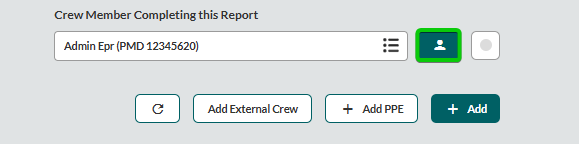

Result: Report author assignment appears in incident header and establishes electronic signature authority.
Adding Internal Crew Members
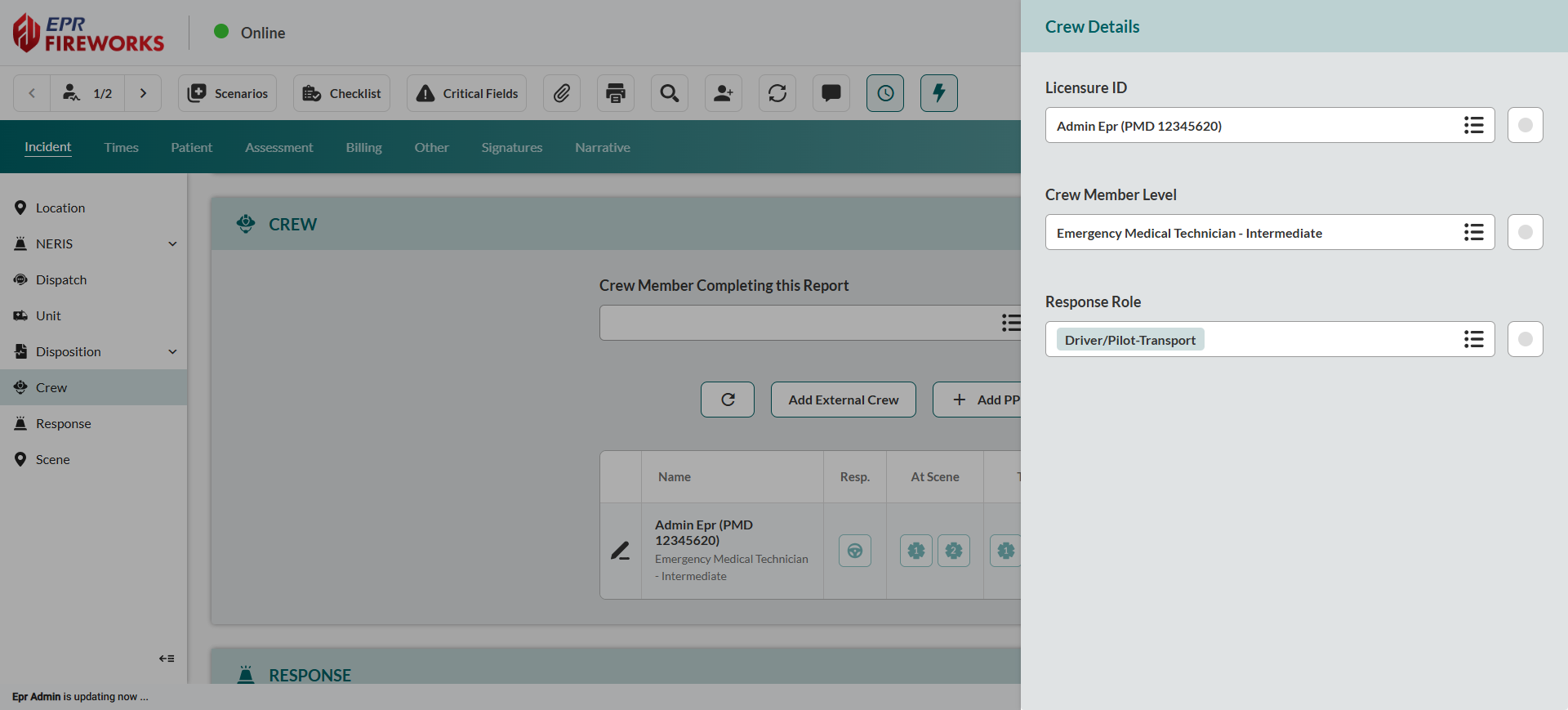
Scroll down to Crew.
Click + Add.
Complete the Crew Details sidebar:
Select a crew member from the Licensure ID sidebar.
Document certification level. Choose Crew Member Level (Paramedic, EMT, etc.).
Select Response Role for incident participation.
Note: NEMSIS 3.5.1 standards require one crew member to be designated as the primary caregiver. Select Primary in the Response Role field for the lead patient care provider.
Close the sidebar to save changes.
Adding External Crew Members (Mutual Aid)
Document personnel from assisting agencies requiring manual licensure entry.
Click Add External Crew.

In the pop-up window, enter First Name, Last Name, and Licensure ID.
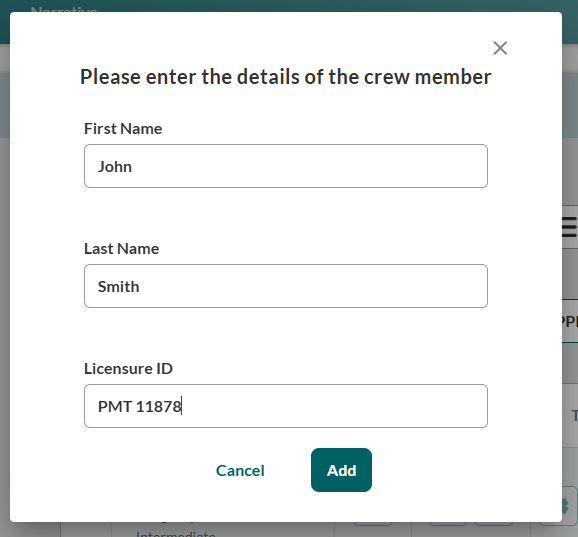
Click Add to confirm the external crew assignment.
Document certification level and incident participation. Select Crew Member Level and Response Role from the main crew interface.
Note: NEMSIS 3.5.1 standards require one crew member to be designated as the primary caregiver. Select Primary in the Response Role field for the lead patient care provider.
Managing PPE and Exposure Details
Document crew member PPE usage and work-related exposure incidents for EMS compliance reporting.

The PPE section, previously located in the EMS Crew Exposures & PPE subsection under Other, has been duplicated here to streamline the crew details workflow. Any PPE data entered in this section will automatically sync to the corresponding area in Other, maintaining full compliance with NEMSIS standards.
Documenting Crew Member PPE Usage
Record personal protective equipment used during incident response.
Click + Add PPE.
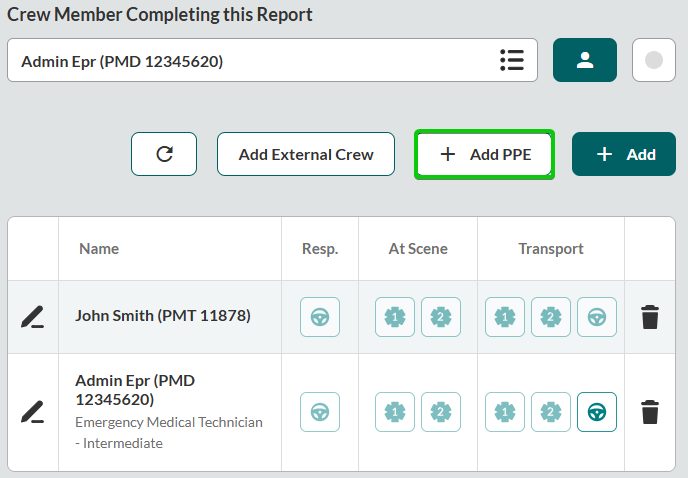
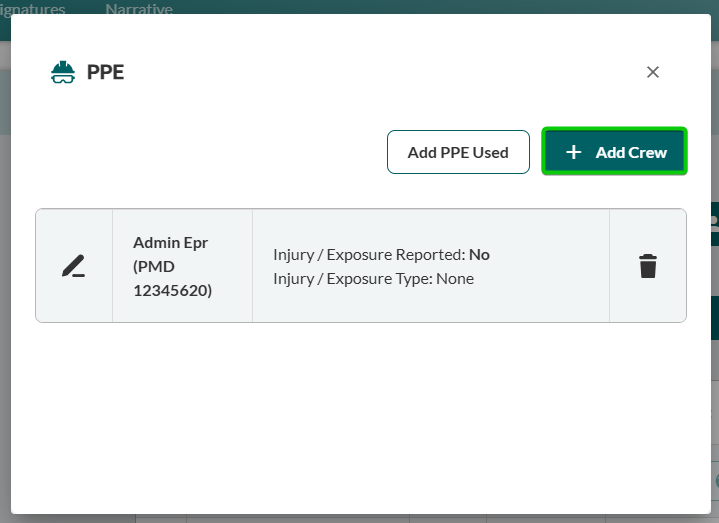
In the PPE modal, click Add Crew.
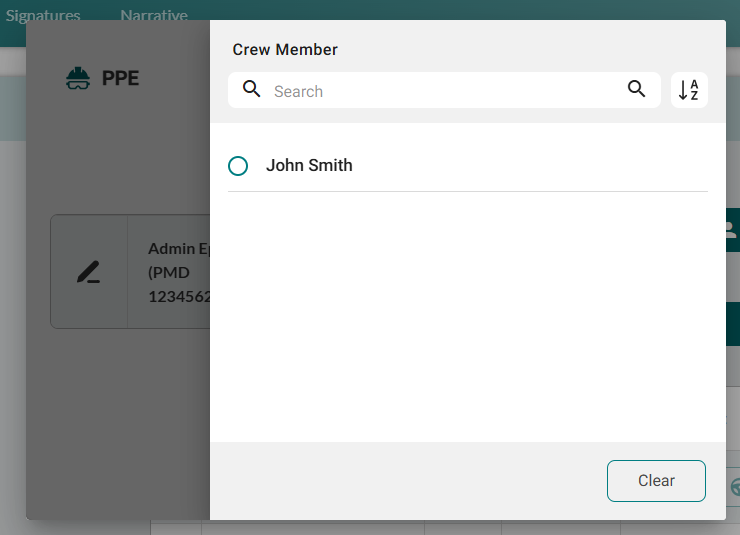
Select the crew member from the Crew Member search sidebar.
In the EMS Crew Exposures & PPE Details sidebar, document PPE usage:
Add PPE items directly in the PPE Used field or click Add PPE Used for default PPE.

Indicate whether the crew member suffered any Suspected Work-Related Exposure, Injury, or Death (Yes/No).
Note: If you selected Yes, choose applicable exposure types from the Types of Work-Related Exposure, Injury, or Death. When finished, click Apply.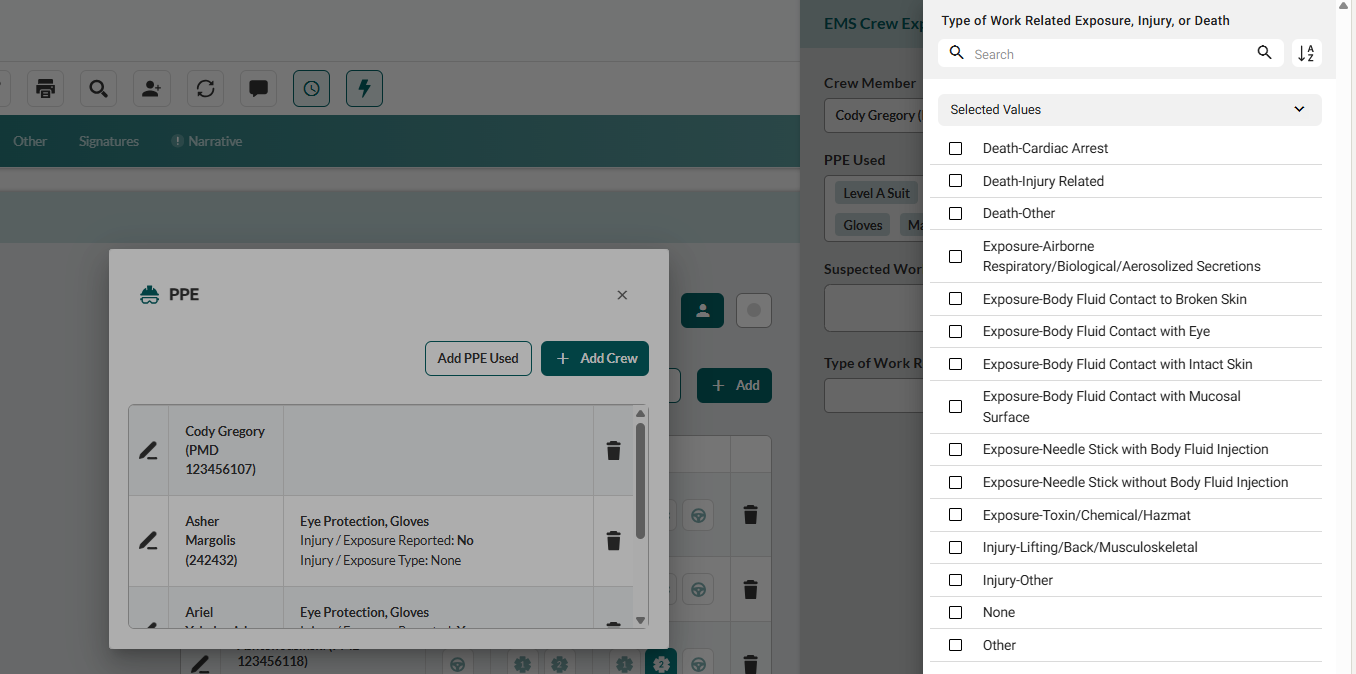
Close the sidebar to save changes.
Updating Existing Crew Member PPE
Modify previously documented PPE assignments or exposure incidents.
In the PPE modal, click the pencil icon next to the crew member requiring PPE updates.

In the EMS Crew Exposures & PPE Details sidebar, modify PPE assignments or exposure settings.
Close the sidebar to save changes.
Next Steps
Response - Response modes and vehicle information
Scene - Scene characteristics and multi-agency coordination