
Outcome
Overview
Document procedures performed during hospitalization to track patient interventions, validate transport destination decisions, and support comprehensive outcome analysis.
To access the Outcome tab, navigate to Other > Outcome.
Before You Start
Ensure you have:
Hospital outcome information available from receiving facility (typically 24-72 hours post-transport)
Medical Record Number (MRN) from hospital wristband or records for accurate patient matching
Understanding of automated data exchange timing and manual entry requirements
Documenting Emergency Department (ED) Disposition
Document patient ED disposition to validate EMS transport destination appropriateness.
Click Emergency Department Disposition to select the known disposition of the patient from the Emergency Department (ED).
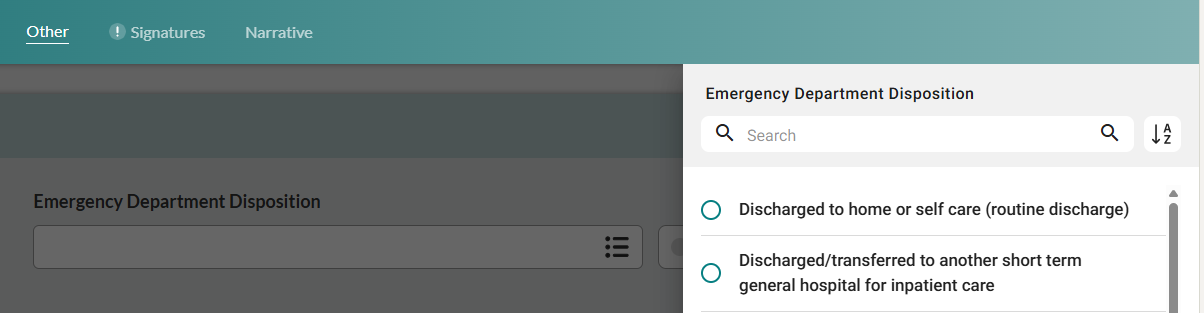
In Emergency Department Recorded Cause of Injury, select all causes of injury as recorded by the ED.
In Emergency Department Diagnosis, select all conditions or problems for which ED services were provided.
Record Date and Time of Emergency Department Admission.
Recording Hospital Disposition
Complete the following fields if the patient was hospitalized after ED discharge:
If the patient was discharged from the hospital, select the reason in Hospital Disposition field.
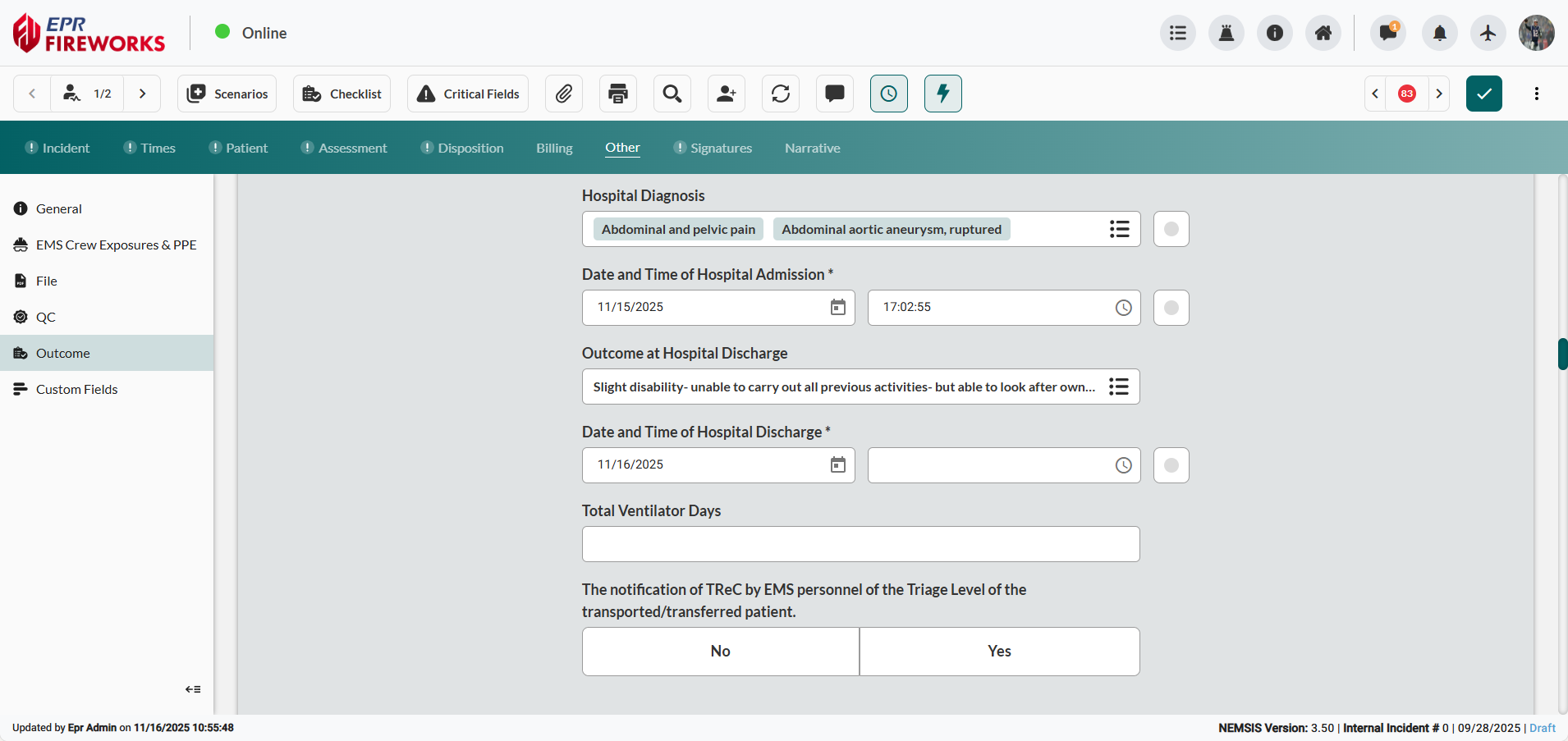
In Hospital Diagnosis field, select all conditions or problems included in the hospital diagnosis.
Establish hospitalization timeline. Record Date and Time of Hospital Admission and Date and Time of Hospital Discharge.
In Outcome at Hospital Discharge, select outcome of hospitalization.
If the patient was connected to a mechanical ventilator during hospitalization, record the number of days in Total Ventilator Days field.
Indicate whether you or one of the EMS personnel notified the TReC (Trauma Referral Center) about the patient's Triage Level.
Recording External Data
Enable outcome data matching with hospital records by capturing report identifiers for automated health information exchange.
Using Barcode Scanner
Capture the external report ID using mobile barcode scanning.
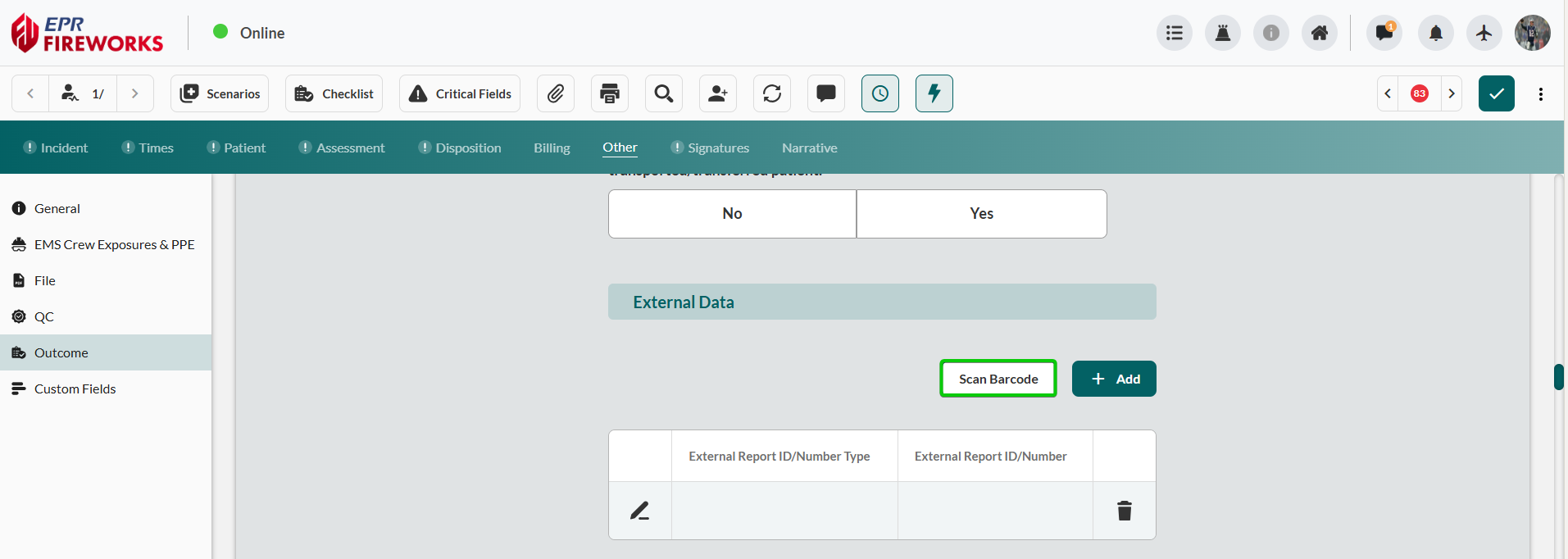
Scroll to External Data. Click Scan Barcode.
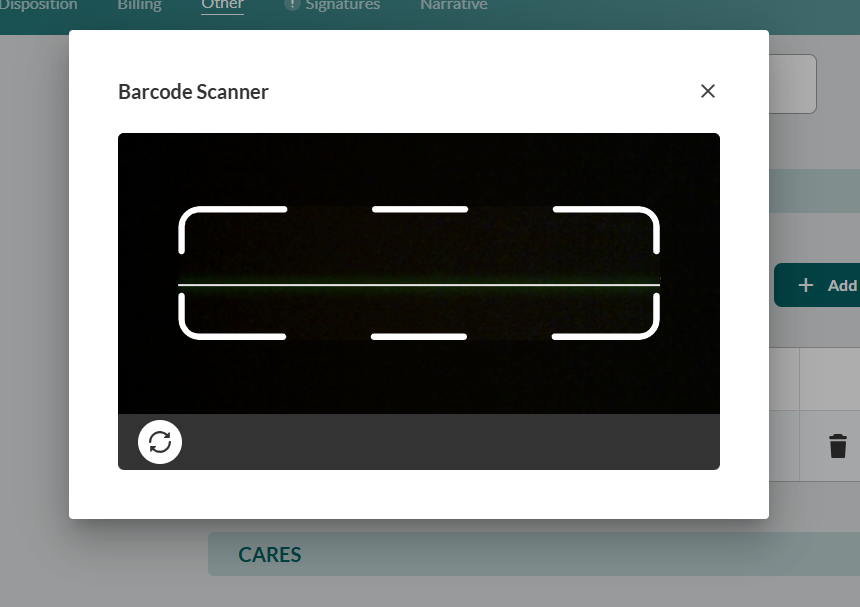
Scan the report ID barcode.
Manual Entry
Enter external report identifiers when barcode scanning is unavailable.
In the External Data subsection, click Add.
In the External Data Details sidebar, select External Report ID/Number Type.
Type External Report ID/Number.
If another Report Registry Type exists, add it in the Other Report Registry field.
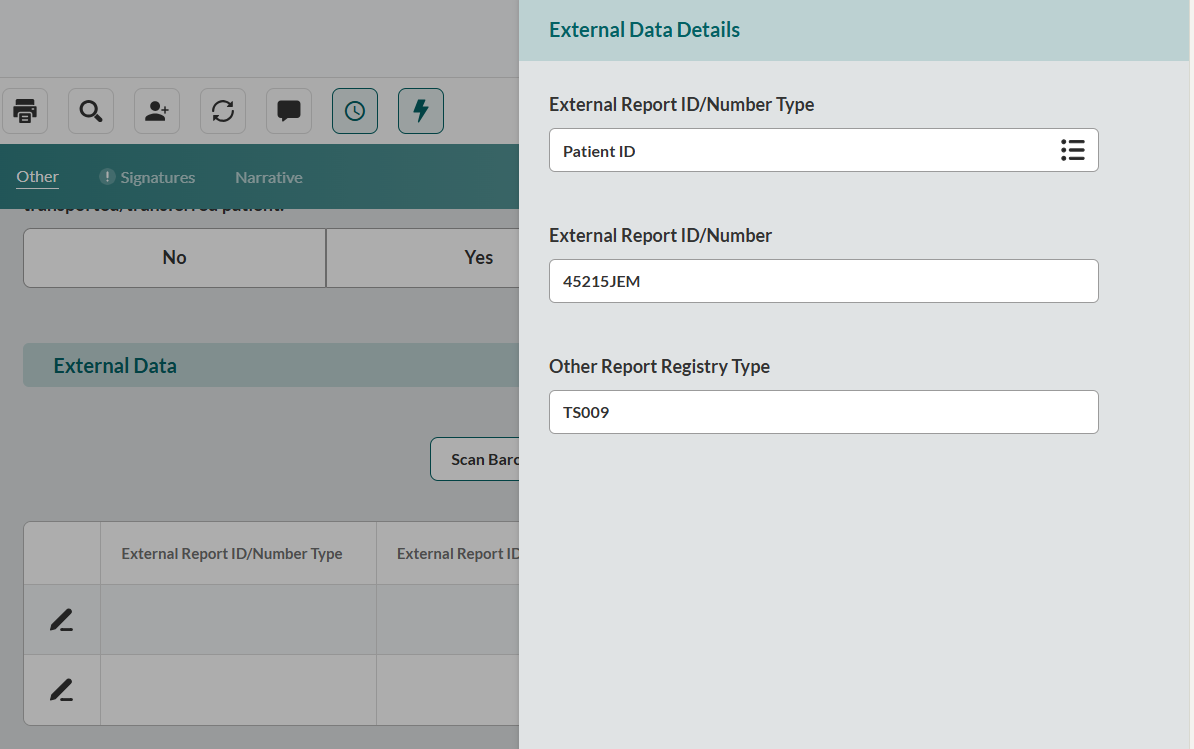
Close the sidebar to save changes.
Recording CARES Registry Data
In the event of a cardiac arrest, navigate to complete the CARES subsection:
Navigate to Outcome > CARES.
Describe the outcome using the quick select buttons below each field:
ER Outcome - Destination Hospital
Was hypothermia care/TTM initiated or continued in the Destination hospital?
Hospital Outcome - Destination Hospital
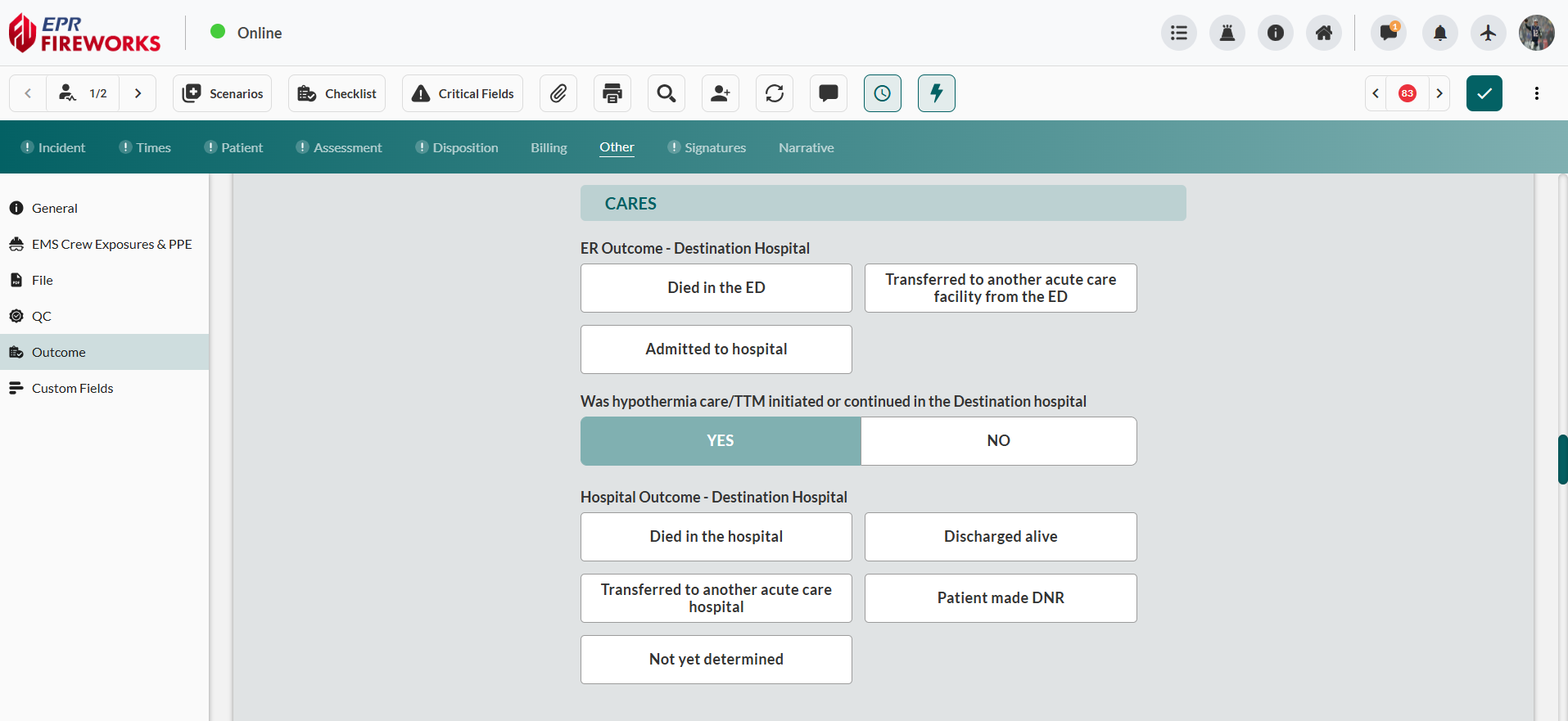

The Outcome > CARES subsection includes only fields regarding cardiac arrest outcome. For CARES documentation regarding the event of the cardiac arrest, see Completing CARES Registry Information.
Documenting ED and Hospital Procedures
Document ED and hospital procedures performed on the patient
Recording ED Procedures
Navigate to Outcome > Emergency Department Procedures.
Click Add.
In the Emergency Department Procedures Details sidebar, complete the following fields:
Date and Time of Procedure Performed
Emergency Department Procedure
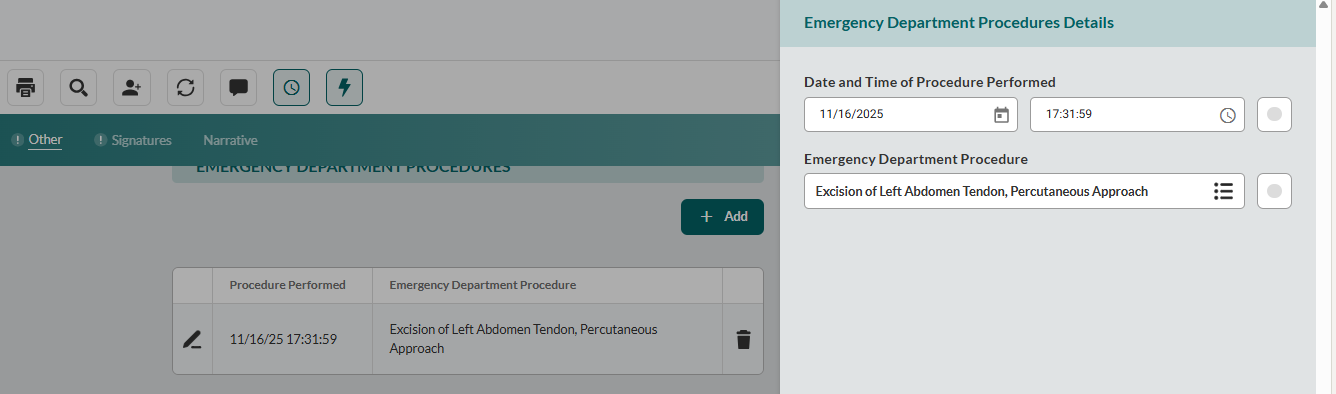
Close the sidebar to save changes.
Repeat for all ED procedures.
Recording Hospital Procedures
Navigate to Outcome > Hospital Procedures
Click Add.
In the Emergency Department Procedures Details sidebar, complete the following fields:
Date and Time of Hospital Procedure Performed
Hospital Procedures
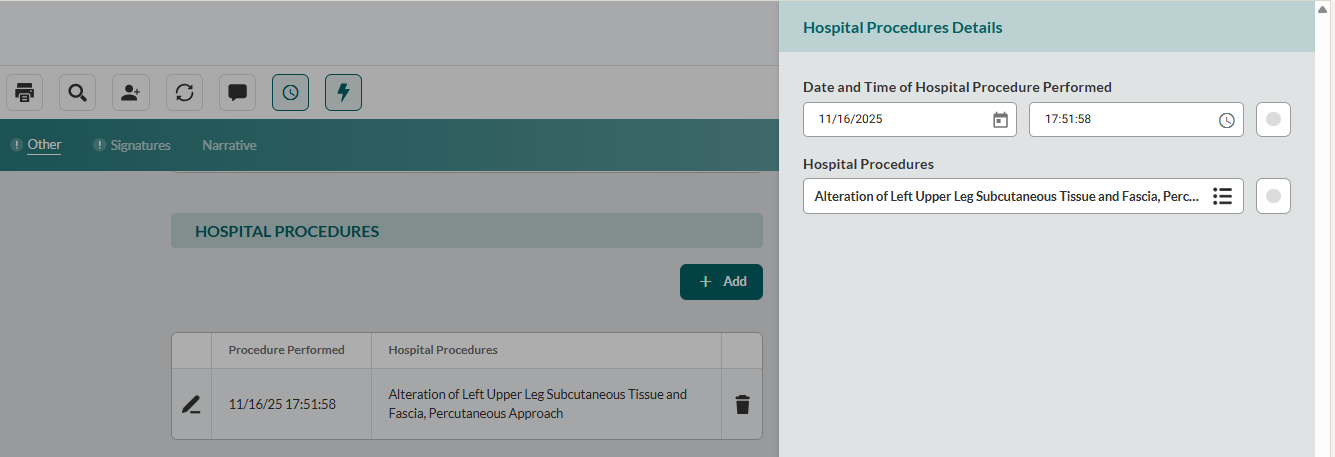
Close the sidebar to save changes.
Repeat for all hospital procedures.
Next Steps
Return to Other (ePCR tab) to complete custom fields or review additional documentation sections.