
Treatment and Protocols
Overview
Document patient interventions for NEMSIS compliance and clinical oversight. The EPR FireWorks ePCR Assessment Treatment section captures procedure performance, medication administration, and protocol application including intervention timing, provider identification, clinical response, and authorization details.
Choosing Documentation Methods
Use Quick Procedures/Medications for:
Common interventions (IV access, oxygen, aspirin, nitroglycerin)
Protocol-driven care with standard dosages
Time-critical documentation during active resuscitation
First-pass documentation requiring later refinement
Use Manual Entry for:
Medications not in your department's configured presets
Non-standard dosages or routes
Procedures requiring detailed custom documentation
Complex multi-step interventions (surgical airways, complicated vascular access)

Note: Quick Action availability depends on your department's EPR FireWorks configuration. If presets are not configured, use manual entry methods.
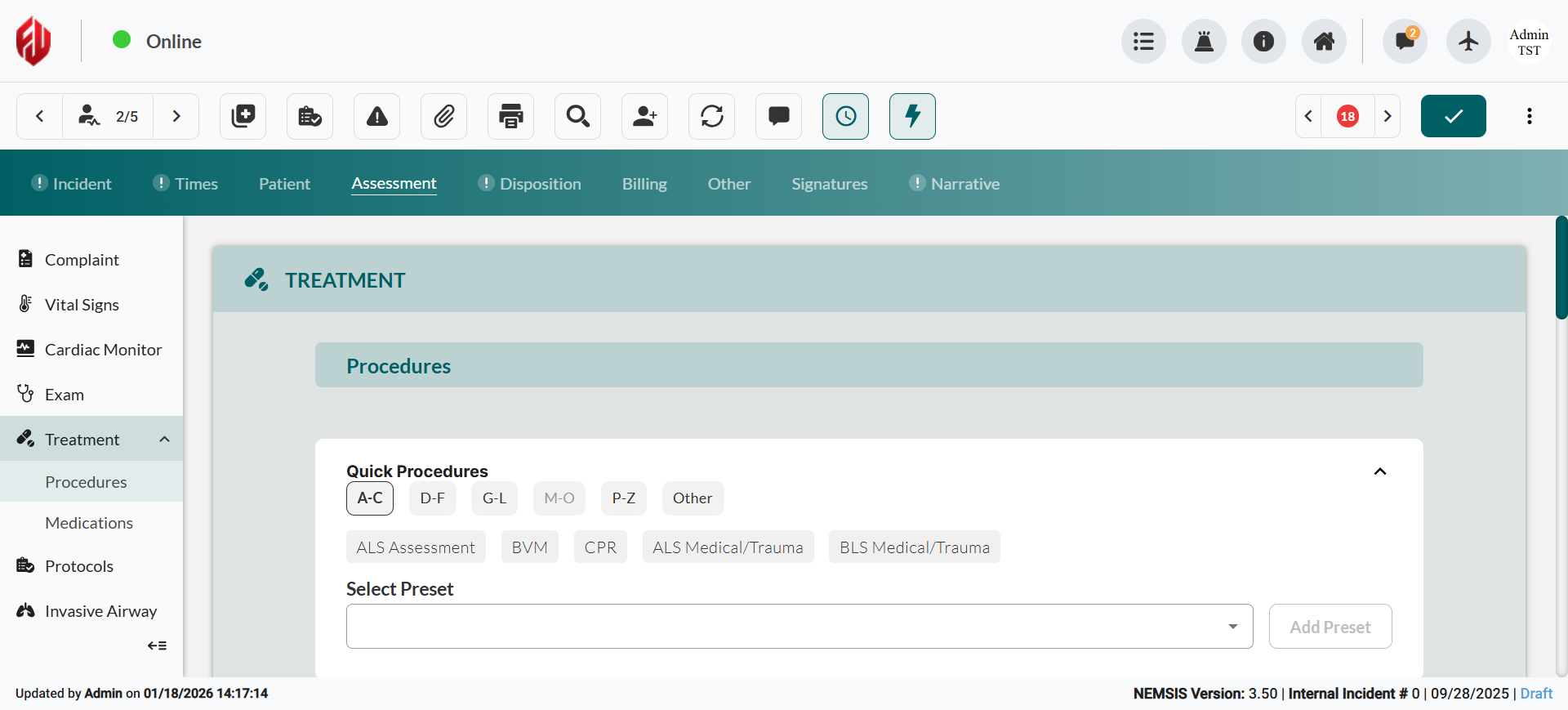
Procedures
Document procedure performance for clinical documentation and NEMSIS reporting.
Using Quick Procedures
Access pre-configured procedure buttons for rapid field documentation.
Locate procedure presets. Click Frequently Used tab or Select Preset dropdown to access grouped procedures.
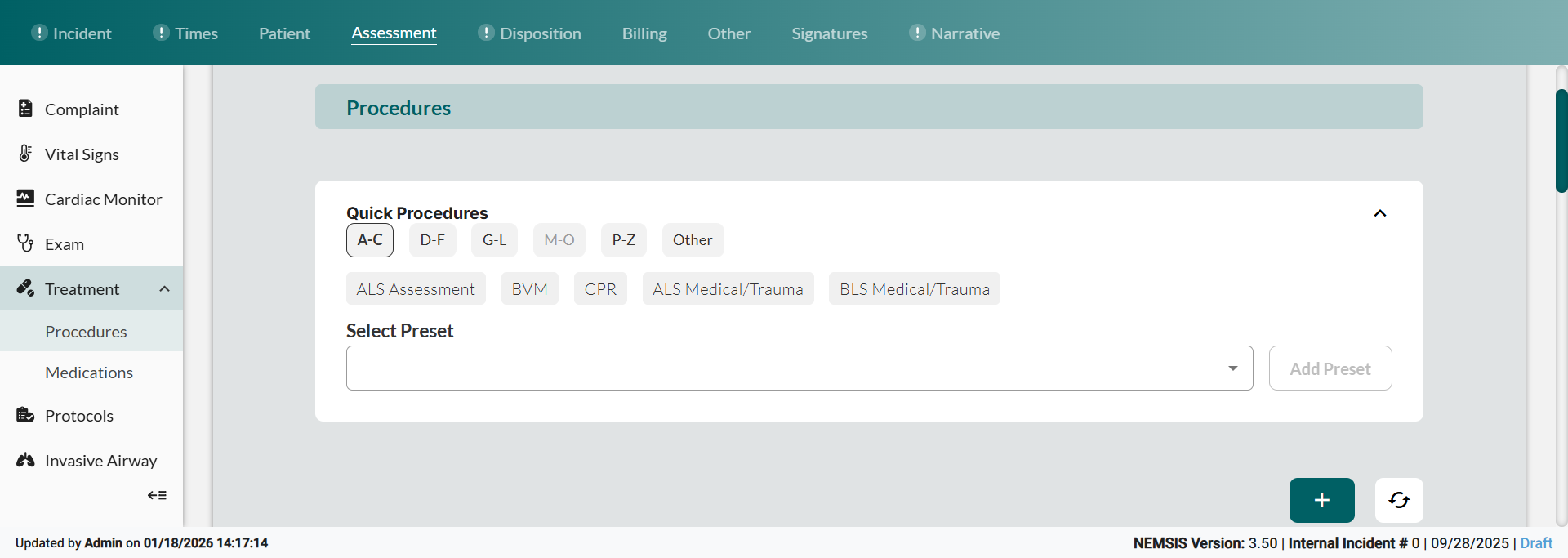
Click the procedure button to automatically document performance with pre-configured details, including procedure name, equipment size, and authorization.
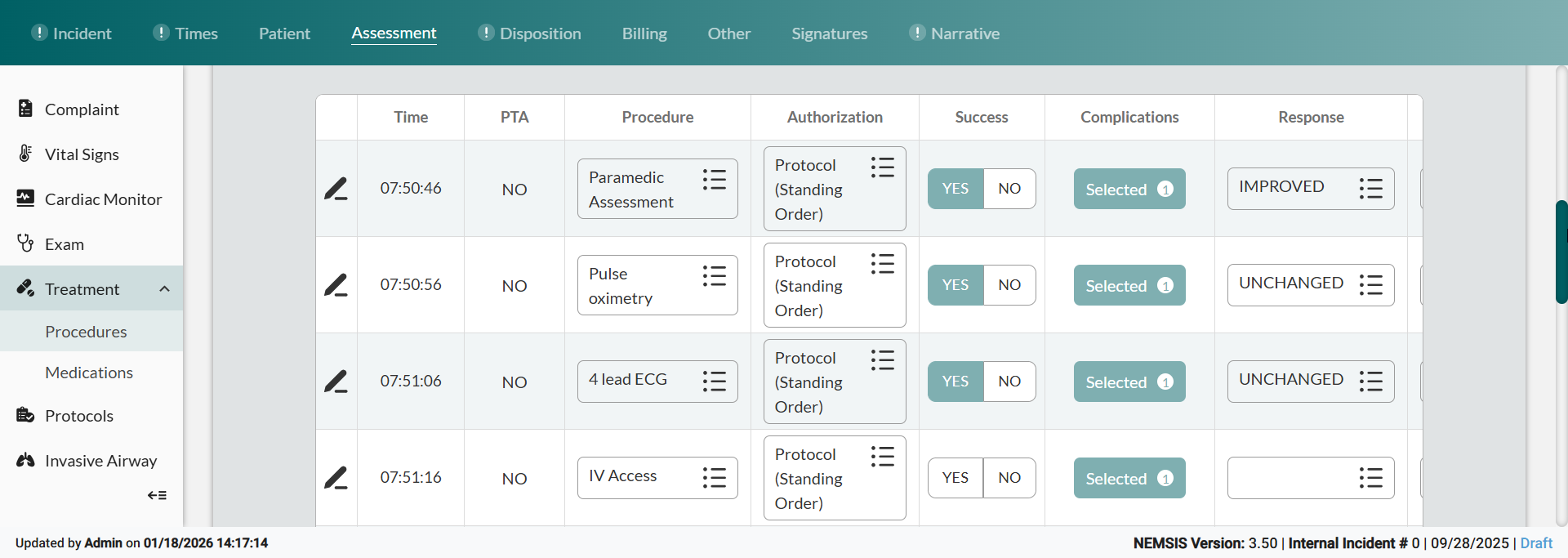
Refine preset entries. Edit using the multiple selection fields in the table, or click the
 icon to open the treatment sidebar.
Note: In-table editing is available on PC devices only.

Result: Procedures appear in the patient timeline with preset configurations, ready for refinement based on actual performance details.
Adding Procedure Details
Document procedures not available in Quick Actions or require full manual entry.
Navigate to Assessment> Treatments.
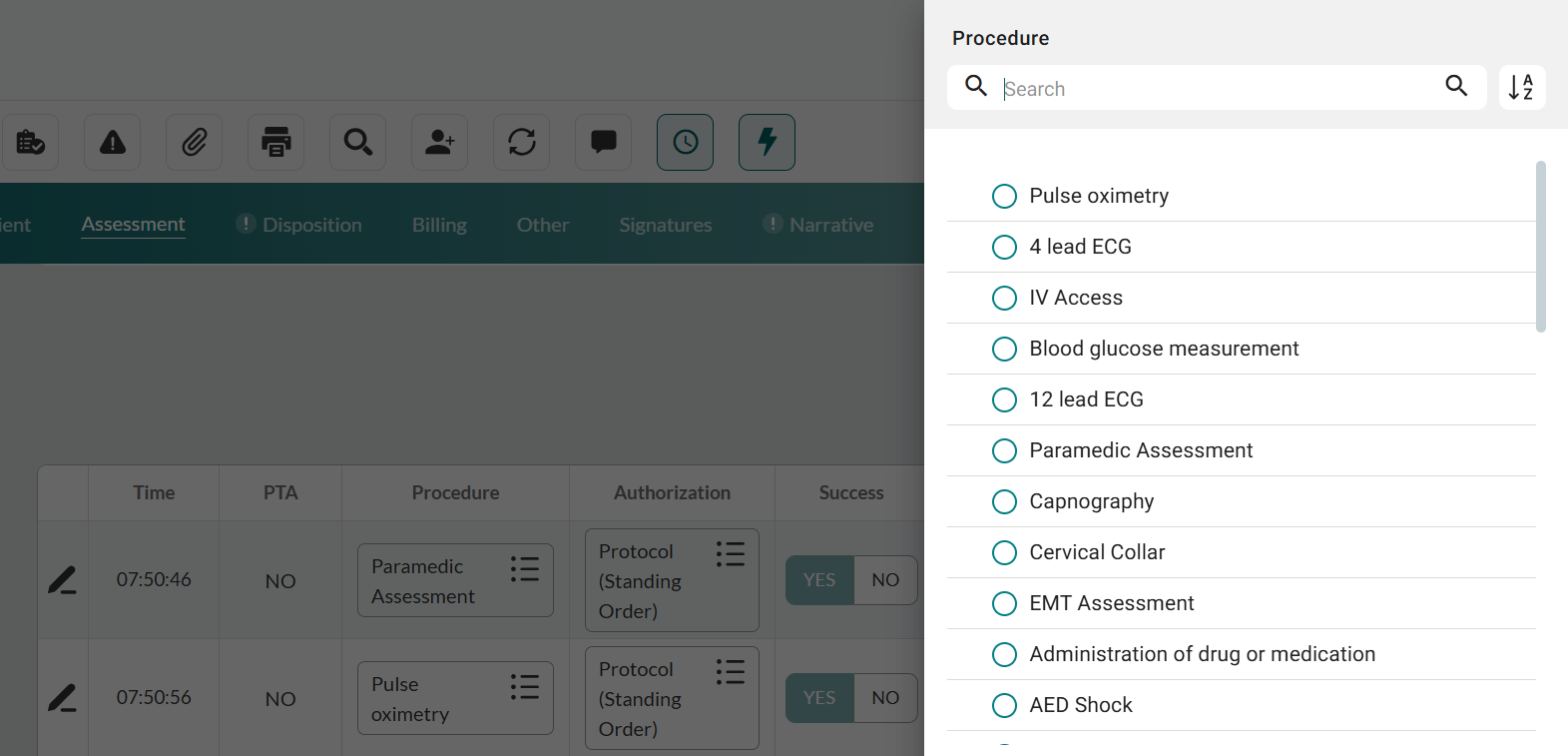
Add procedure entry. In the Procedures section, click '+' (add), then select the procedure from the Procedure sidebar.
Recording Procedure Timing and Performance
Document when the procedure was performed and initial performance outcomes.
Establish administration timing. Set Date and Time of Procedure Performed.
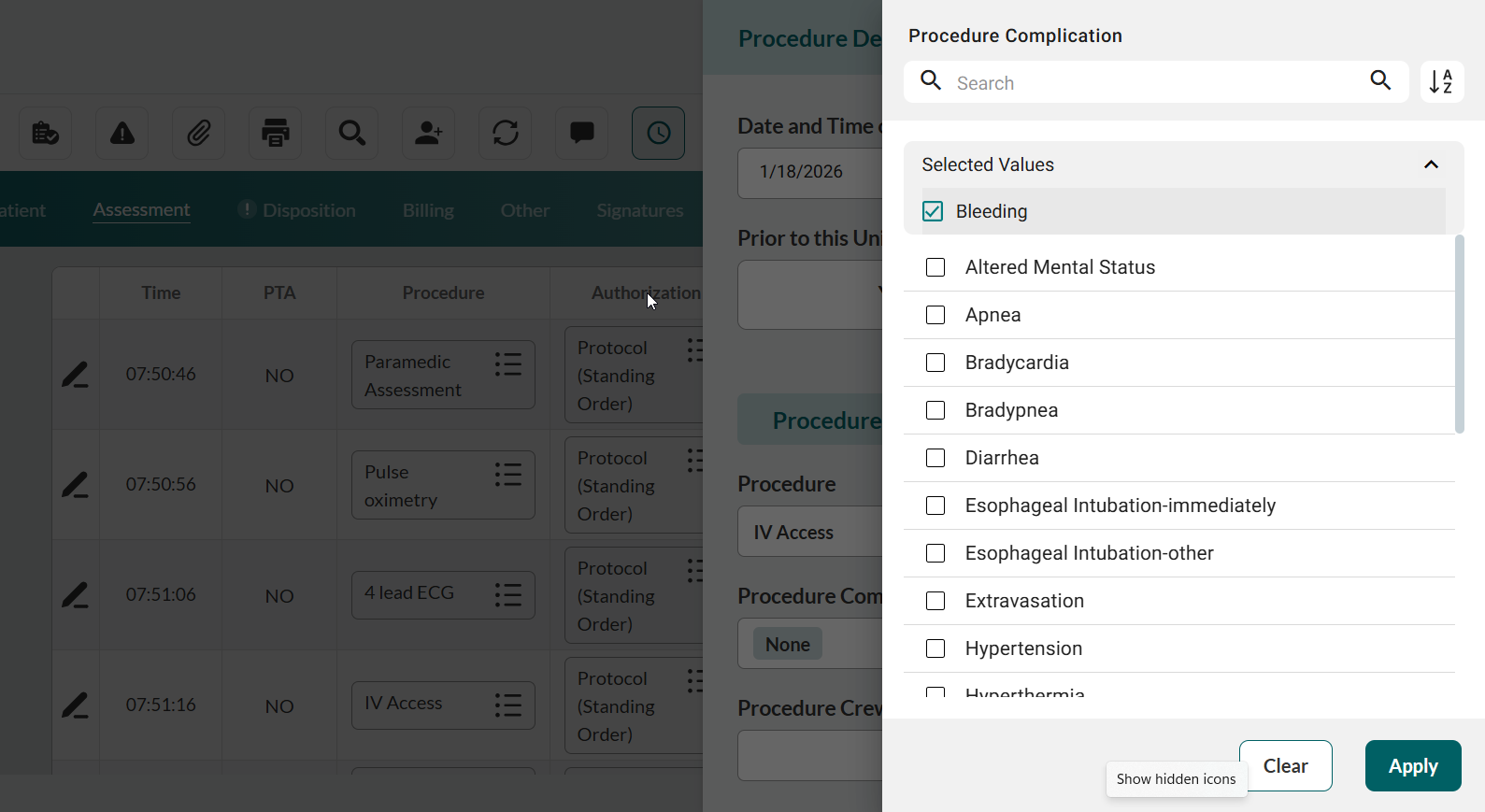
Note: If the procedure was performed before the unit’s arrival, in the Prior To Arrival field, click Yes.Document complications if applicable. Select Procedure Complication, deselect None, and then select all applicable complications from the sidebar list.
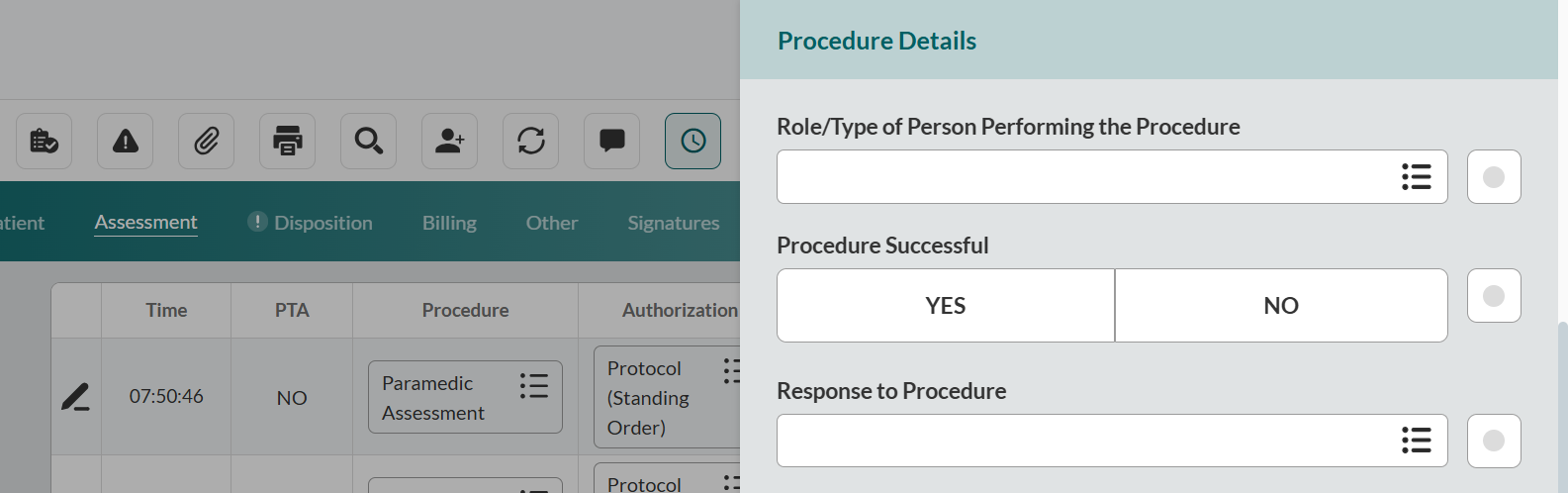
Identify the staff member. Select Procedure Crew Member ID and Role/Type of Person Performing the Procedure.
Track procedure success. Set Procedure Successful status, and then select Response to Procedure.
Documenting Procedure Details and Authorization
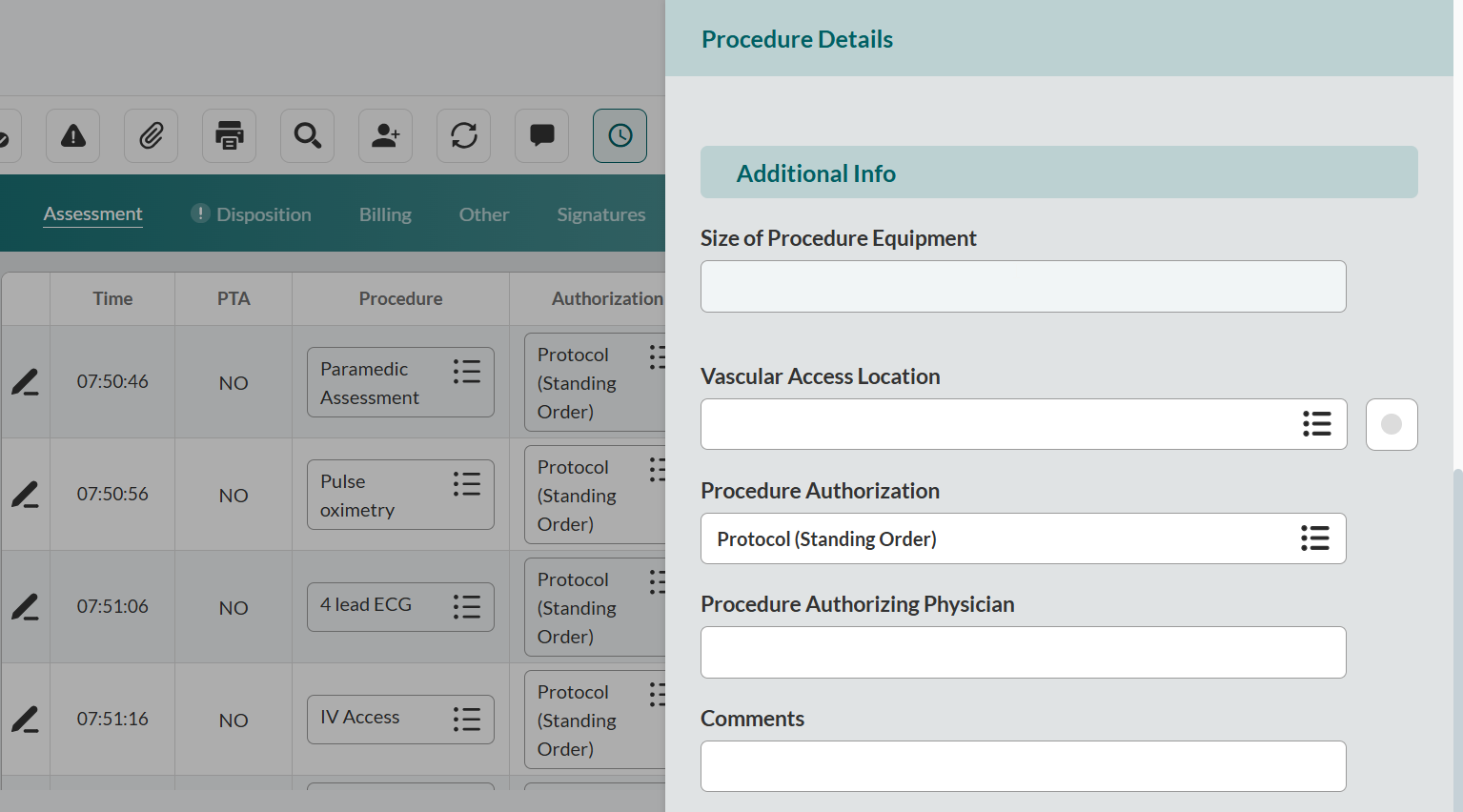
Record equipment specifications. Enter Size of Procedure Equipment and # of Procedure Attempts.
For vascular access, document anatomical details. Select Vascular Access Location and enter other relevant anatomical information.
Complete authorization. Select Procedure Authorization type and Procedure Authorizing Physician if direct medical control was obtained.
Add clinical remarks in the Comments field.
Close the sidebar to save changes.
Medications
Document medication administration for clinical documentation and NEMSIS reporting.
Using Quick Medications
Access pre-configured medication buttons for rapid field documentation.
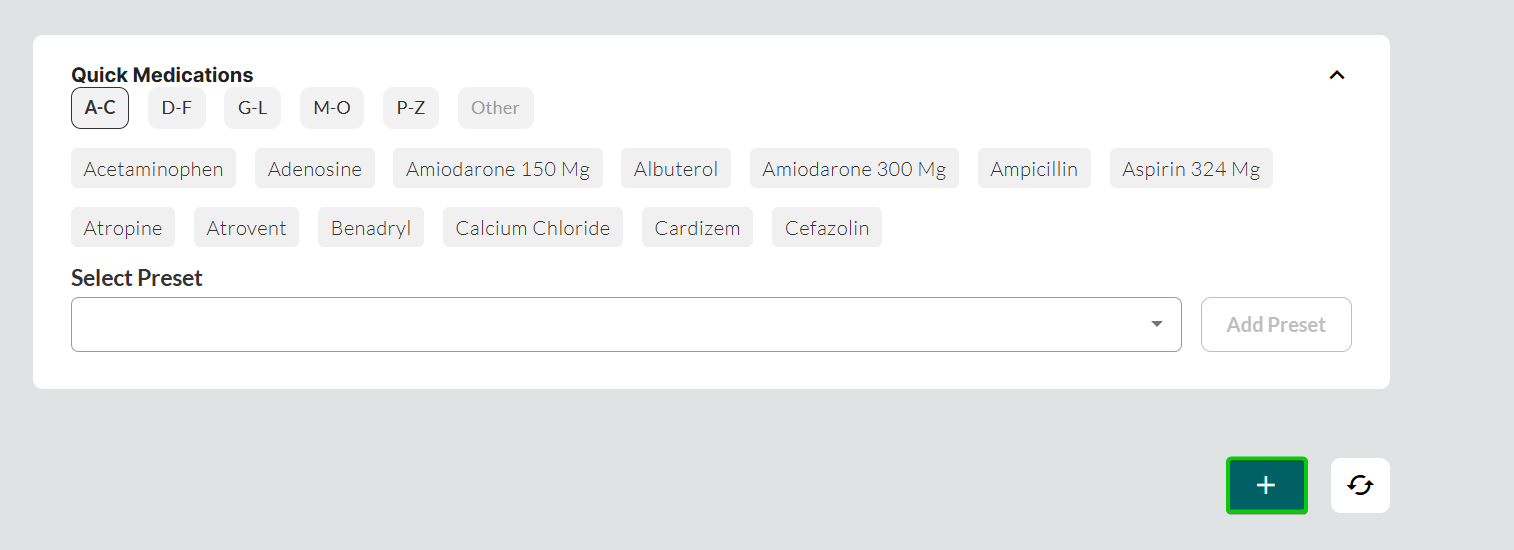
Locate medication presets. Click alphabetical category tabs (A-C, D-F, G-L, M-O, P-Z, Other) or Select Preset dropdown to locate the desired preset.
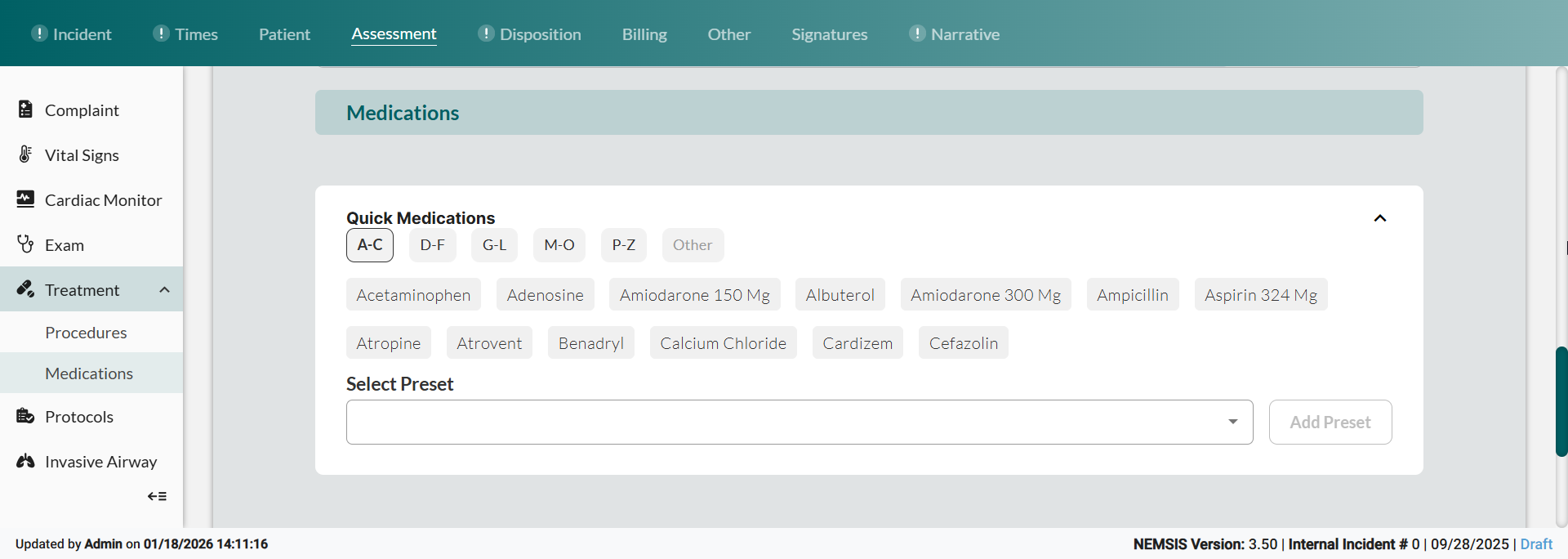
Document pre-configured medication rapidly. Click the medication preset button to automatically add administration with pre-configured dosage, units, and authorization.
Refine preset entries. Edit using the multiple selection fields in the table, or click the
icon to open the treatment sidebar.
Note: In-table editing is available on PC devices only.
Result: Medications appear in the patient timeline with preset configurations, ready for refinement based on actual administration details.
Adding Medication Details
Document medications not available in Quick Actions or requiring full manual entry.
Scroll down to the Medications section.
Add medication entry. Click '+' (add), and then select the medication from the Medications Given sidebar.
Recording Medication Administration Details
Document medication dosage, route, and response to medication.
Establish administration timing. Set Date and Time of Medication Administered.
Note: If the medication was administered before the unit’s arrival, in the Prior To Arrival field, click Yes.Track dosage. Enter the Dosage value, and then select Units.
Identify the medication provider. Select Medication Provider and Role/Type of Person Administering Medication.
Specify administration method. In Medication Administered Route, select the route used.
Record patient response. Select any Medication Complication if adverse reactions occurred, and Response to Medication.
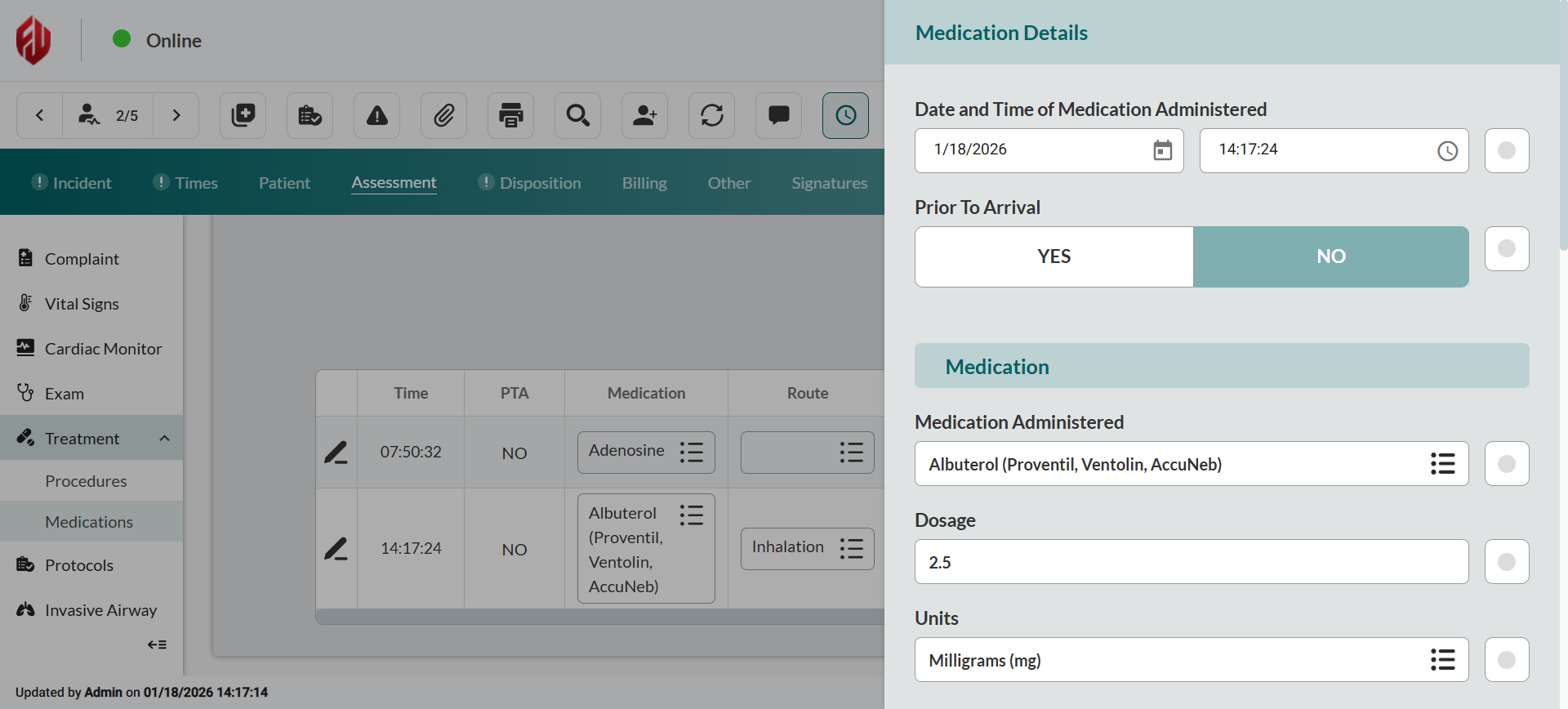
Result: Medication administration details documented with complications and response to medication.
Documenting Medication Response and Controlled Substance Details
Record medical authorization and complete controlled substance tracking.
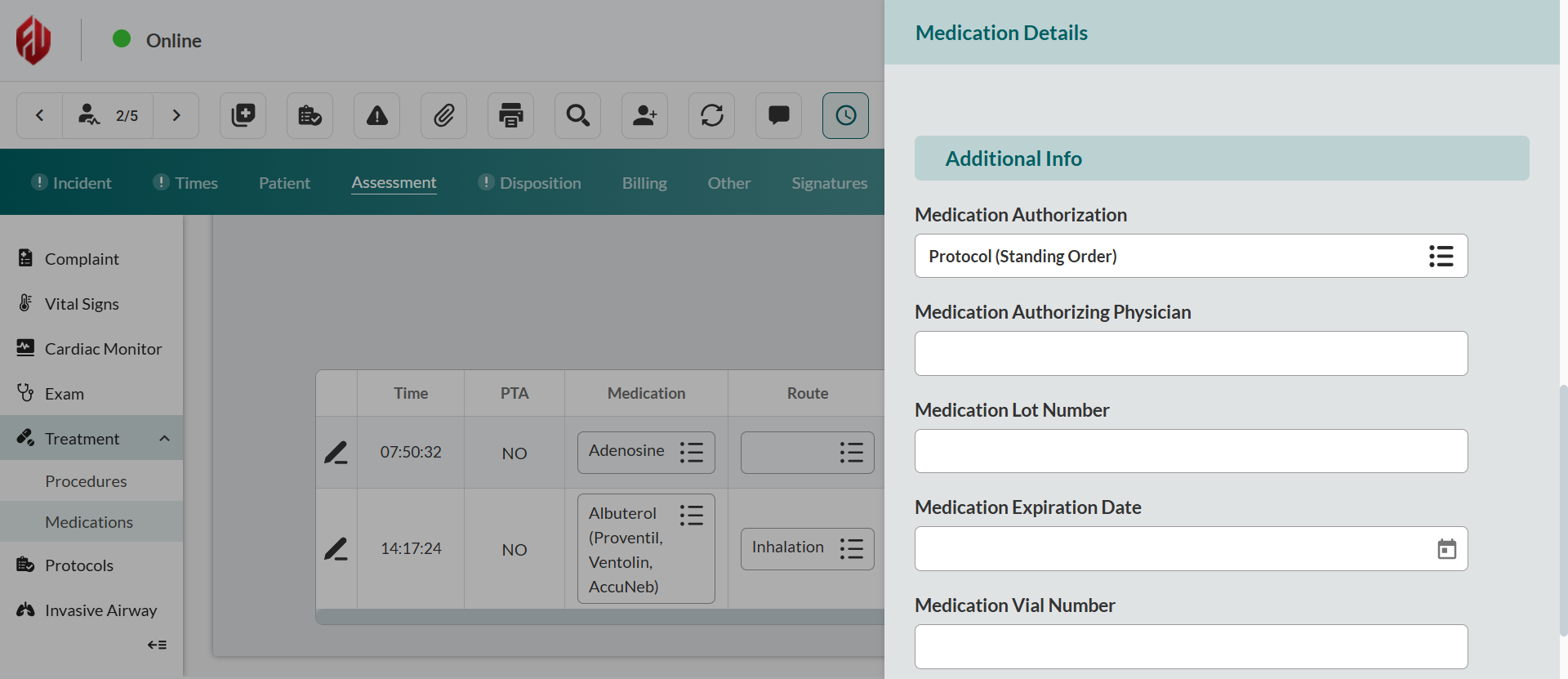
Complete authorization. Select Medication Authorization type and Medication Authorizing Physician if direct medical control was obtained.
For controlled substances, complete Medication Lot Number, Medication Expiration Date, and Medication Vial Number.
Add clinical remarks in the Comments field (if applicable).
Close the sidebar to save changes.
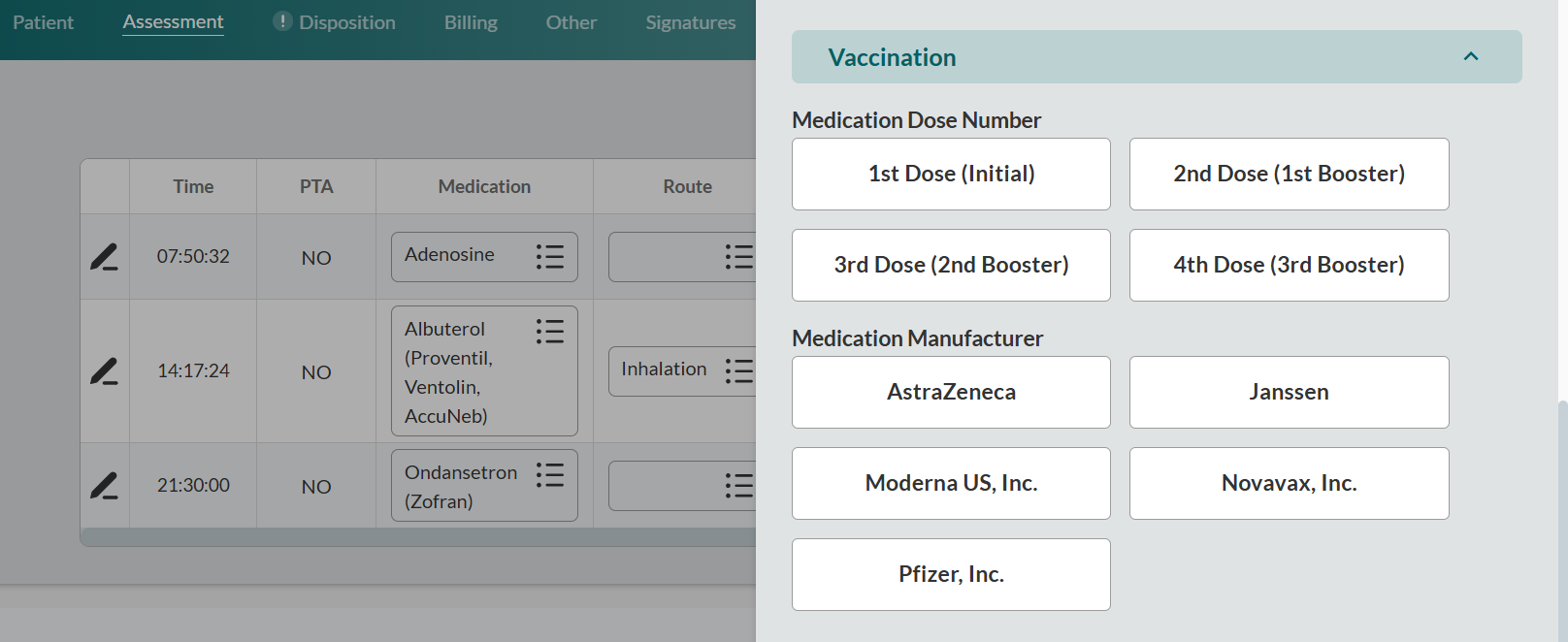
Note: The Vaccination section expands below standard medication fields when documenting immunizations. Select Medication Dose Number and Medication Manufacturer for vaccine-specific requirements.
Protocols
Document applied clinical protocols for quality assurance and medical oversight.
Adding Protocol Details
Navigate to Assessment > Protocols
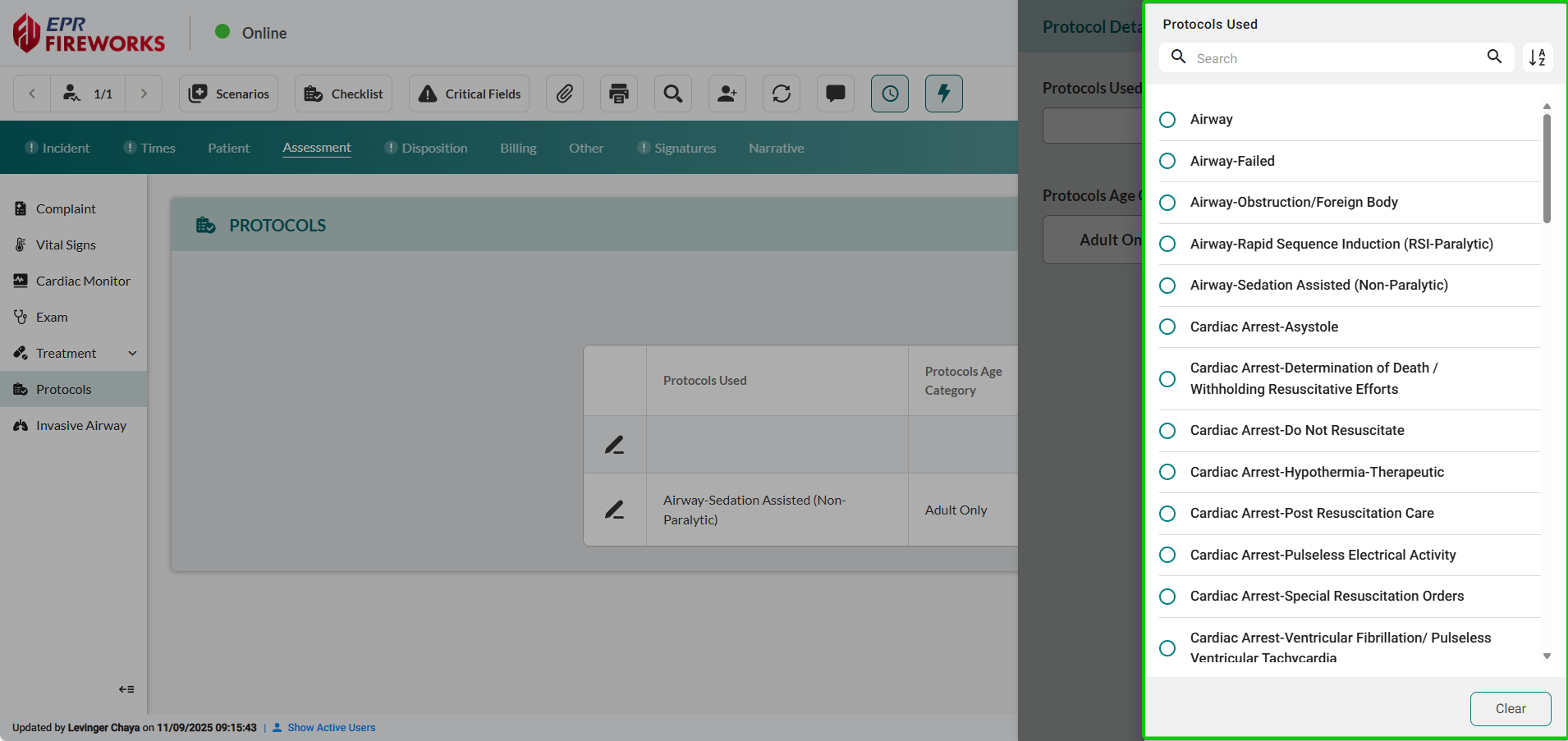
Add protocol entry. Click '+' (add) to open the Protocol Details sidebar.

Select Protocols Used from the department-configured protocol list.
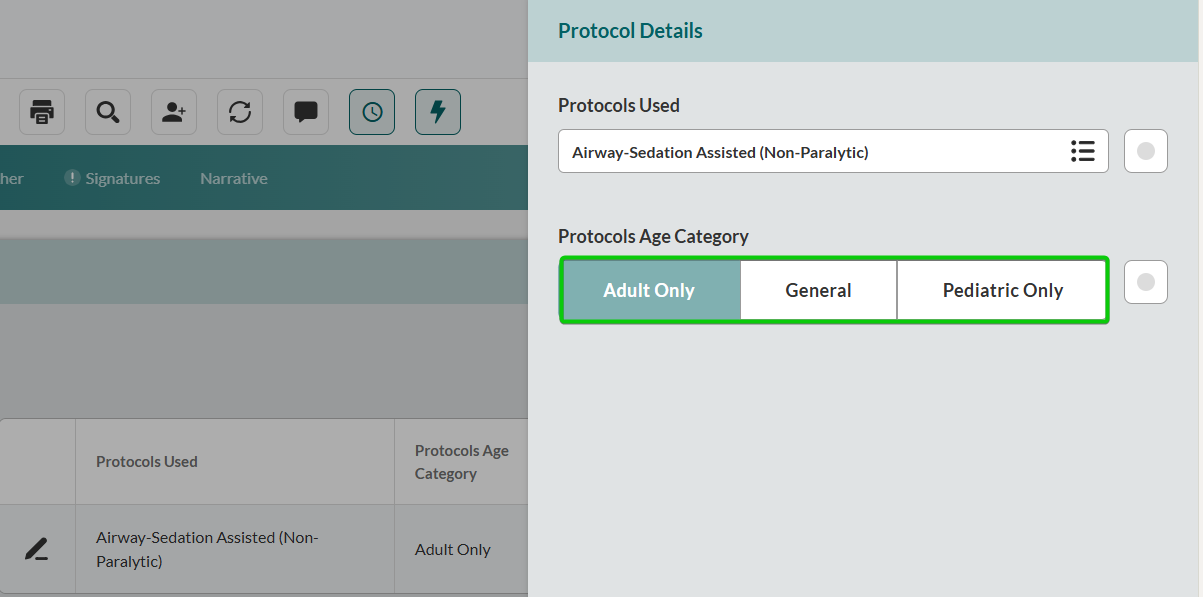
Specify patient age group. Select Protocols Age Category (Adult Only, General, or Pediatric Only).
Close the sidebar to save changes.
To update or modify existing protocols, click the Edit (pencil) icon next to any documented protocol entry.
