
Invasive Airway
Overview
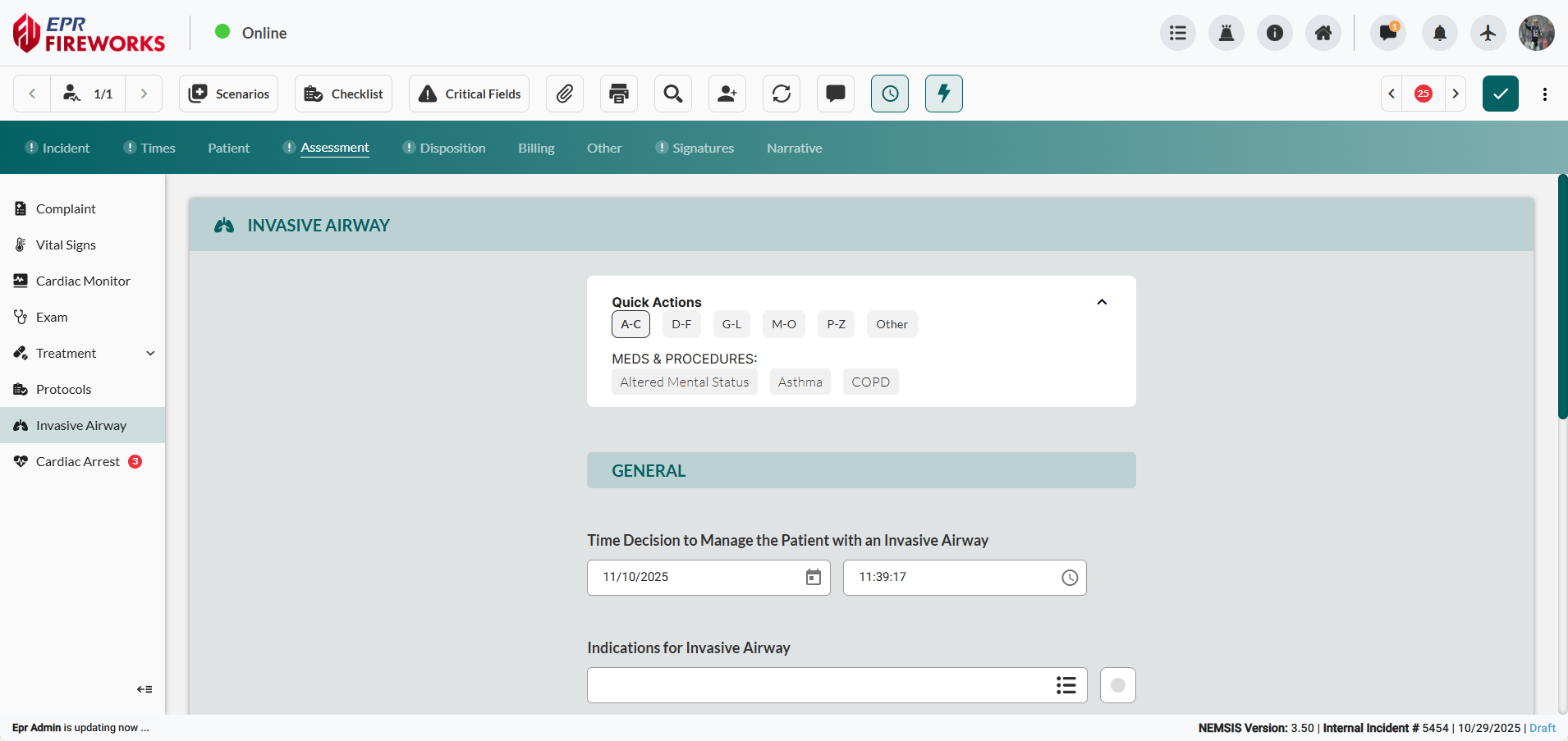
Document invasive airway management decisions, placement confirmations, and complications in the ePCR Assessment Invasive Airway section. This section captures advanced airway interventions when patients require assisted ventilations through endotracheal or supraglottic airway devices.

To access the Invasive Airway page, navigate to Assessment > Invasive Airway using the navigation bar on the left.
Before You Start
Required Permissions: Assessment documentation access with invasive airway capabilities enabled
Required Prior Documentation:
Patient demographics completed
At least one Treatment procedure documented (required for Linked Procedure functionality)
Documenting Invasive Airway Decision and Indications
Using Quick Actions for Invasive Airway Documentation
Rapidly document invasive airway medications and procedures using pre-configured Quick Action presets.

Note: The Quick Actions section in the Invasive Airway interface does not auto-populate fields on this page. Instead, it adds medications and procedures directly to the Treatment page.
Click alphabetical category tabs (A-C, D-F, G-L, M-O, P-Z, Other) or Select Preset dropdown to locate the desired preset.

Select the preset. The system will automatically populate the Treatment screen with the pre-configured medications and procedures.
Recording Invasive Airway Protocols
Record timing and clinical rationale for invasive airway management decision.
Establish decision timeline. Enter Time Decision to Manage the Patient with an Invasive Airway.
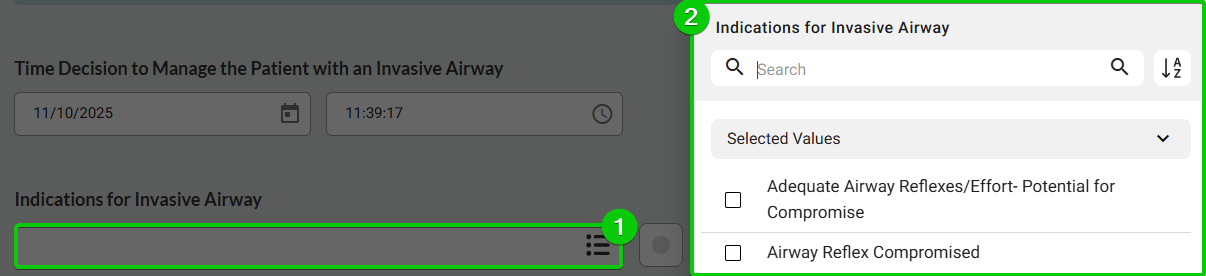
Define clinical justification. Click Indications for Invasive Airway, and then select all applicable medical reasons.
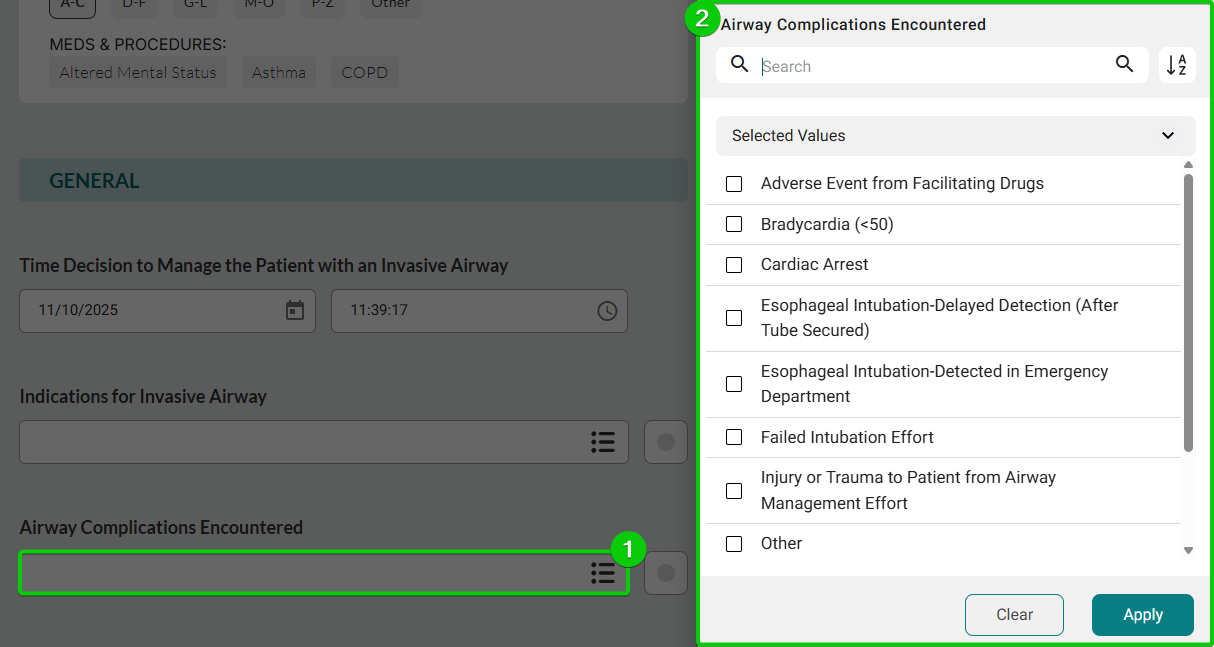
Record complications if encountered. Click Airway Complications Encountered, and select all complications that occurred during airway management.
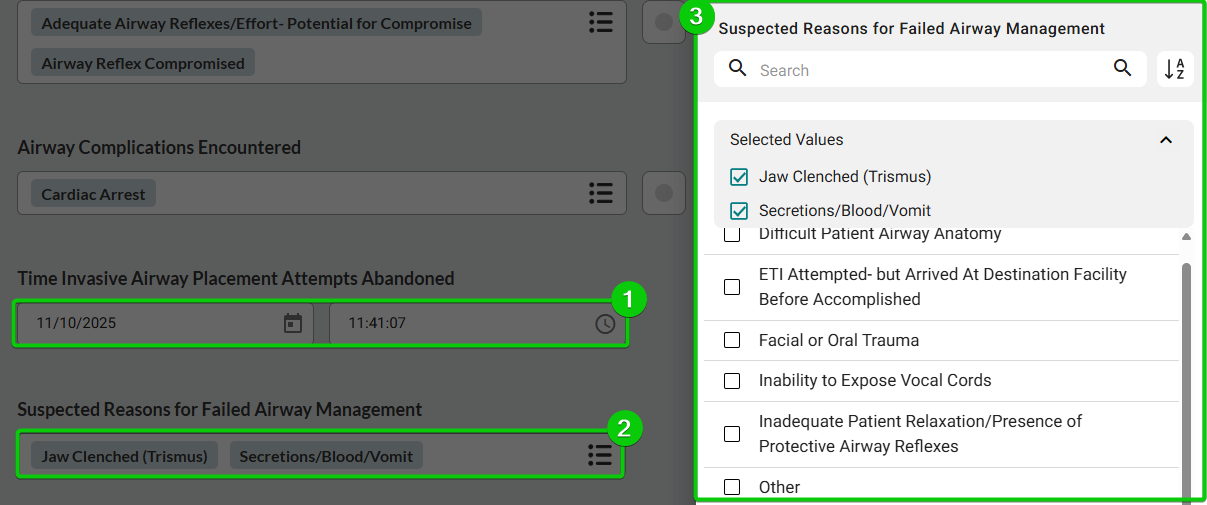
If invasive airway placement attempts were discontinued:
Enter Time Invasive Airway Placement Attempts Abandoned.
Click Suspected Reasons for Failed Airway Management, and then select all applicable reasons.
Adding Airway Device Placement Confirmation
Document verification of proper airway device placement with confirmation method and personnel.
Navigate to Confirmations at the bottom of the page.
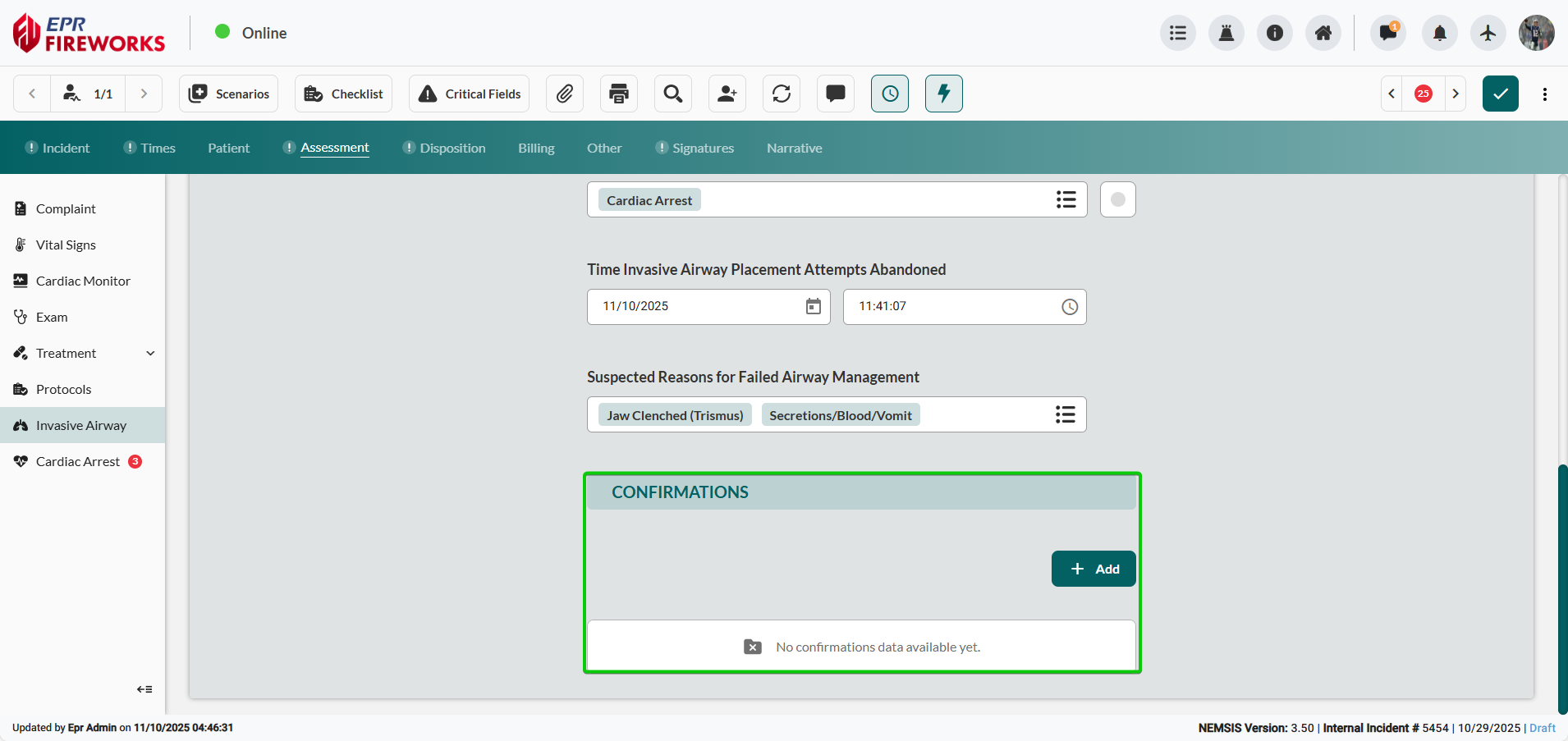
Create new confirmation. Click + Add. The Confirmations Details panel opens automatically.
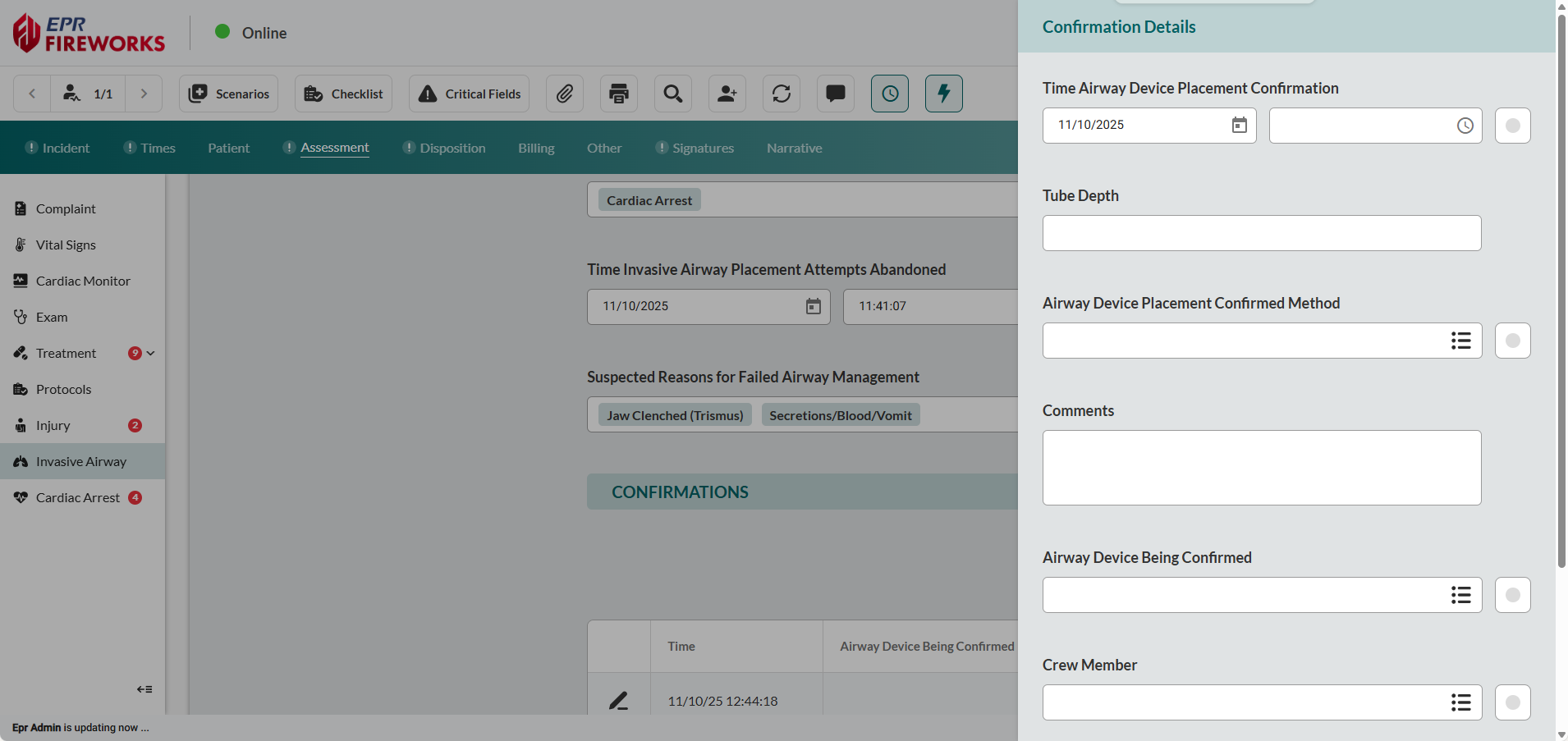
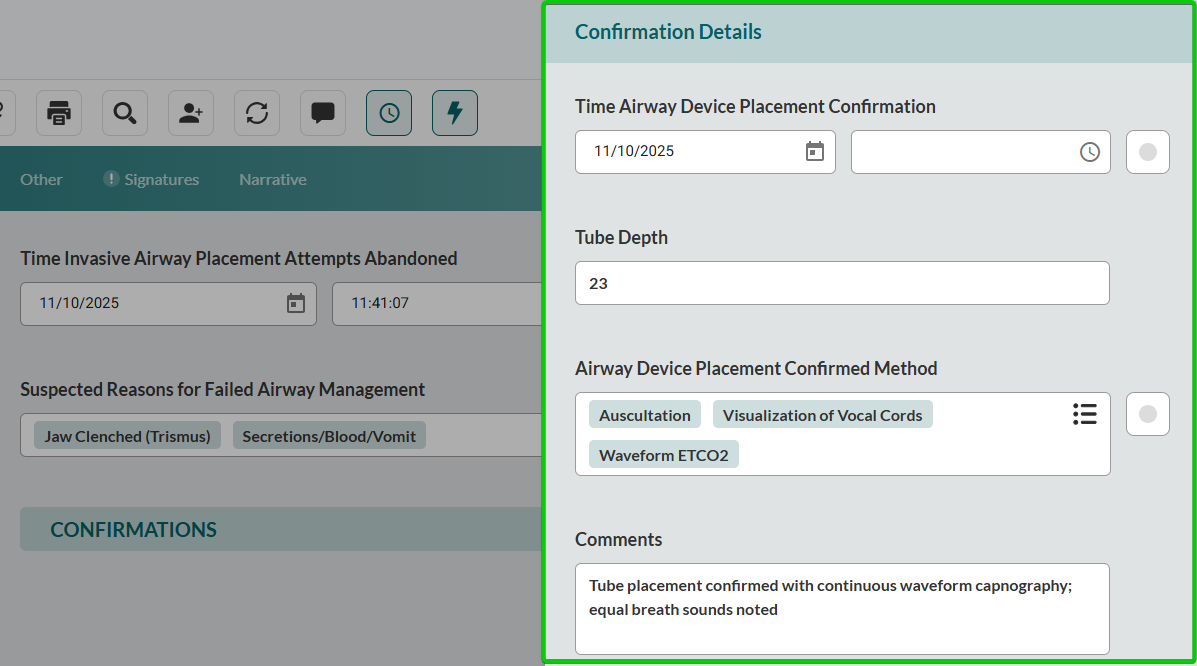
Establish the confirmation timing. Enter Time Airway Device Placement Confirmation,
Document tube position. Record Tube Depth.
Record confirmation method. Select Airway Device Placement Confirmed Method.
Add clinical remarks if applicable. Enter relevant information in the Comments field.
Completing Airway Confirmation Details
Specify device type, confirming personnel, and link to treatment documentation.
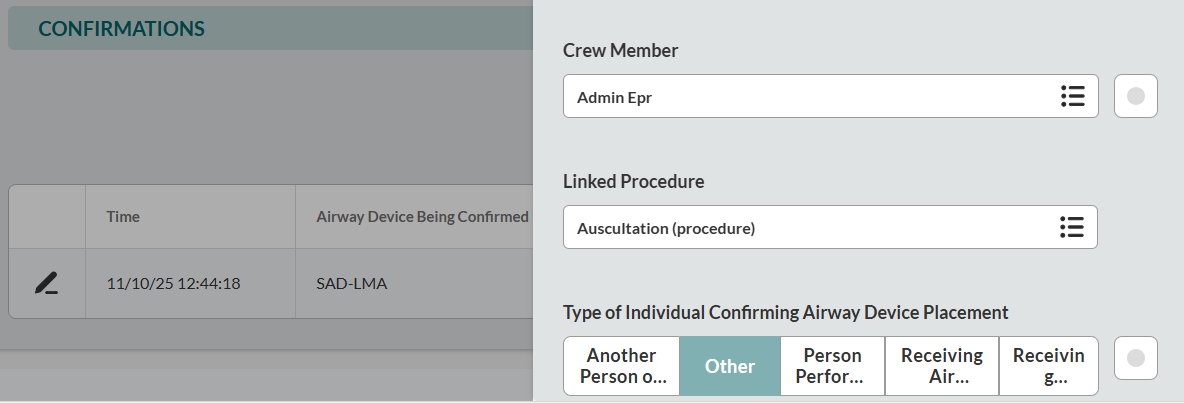
Select the confirmed device. Click Airway Device Being Confirmed, and then select the specific airway device (e.g., SAD-LMA).
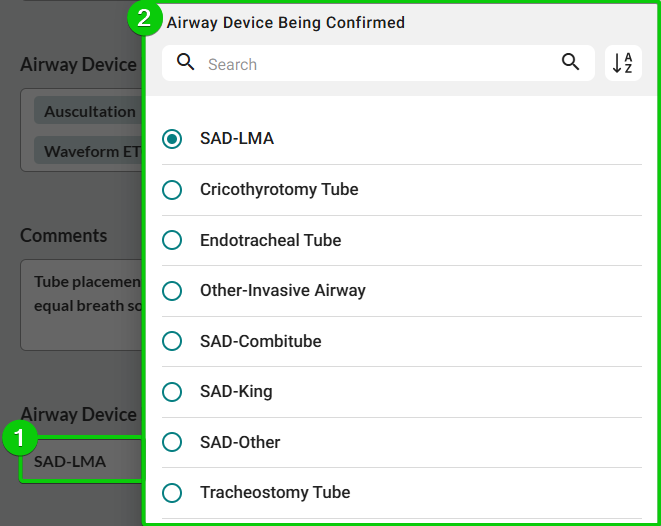
Identify confirming provider. Select the Crew Member who performed the confirmation.
Link the associated procedure. Click Linked Procedure to connect the confirmation with the procedure documented in the Treatment section.
Note: This field will only function if you already selected procedures or activated procedure presets before completing this page.Select the Type of Individual Confirming Airway Device Placement.
Next Steps
Cardiac Arrest - Document cardiac arrest procedures and protocols
Billing - Billing information due to patient stabilization and transport services.
Other - Quality control, crew exposures, and custom fields