Importing Device Data

This guide describes how to import vital signs from integrated medical devices. For manual vital signs entry, see Capturing Manual Vitals.
Overview
Import measurements from integrated cardiac monitors when available. Requires back-office API configuration with compatible devices (Zoll, Stryker, Philips).

Data imported from a cardiac monitor will appear in the Cardiac Monitor section of the Assessment tab.
Importing Device Data
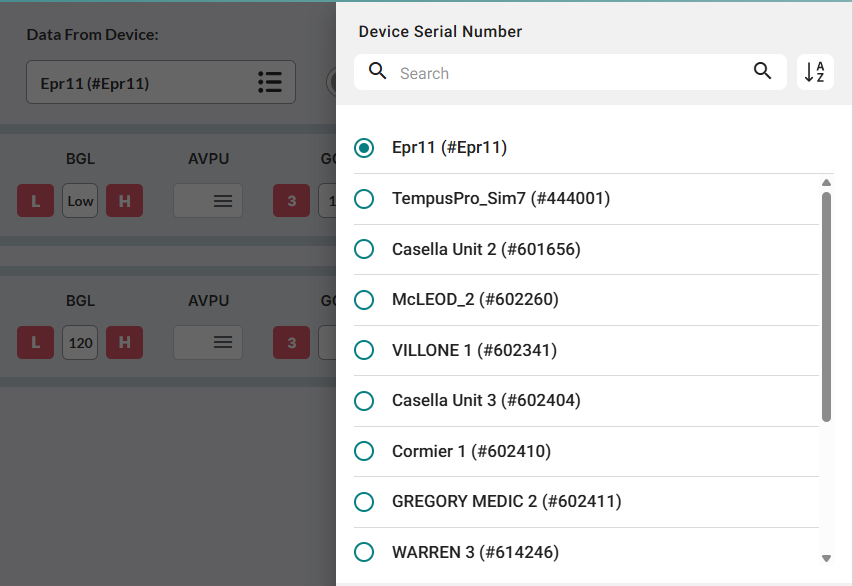
Click the Data From Device field, and then select the target device from the sidebar.
Click Get Data, and then select the appropriate data entry.
Note: To import previously processed data, enable Include Processed Data.
Selecting Specific Vital Signs
You can add selected rows from the Vital Signs data entry:
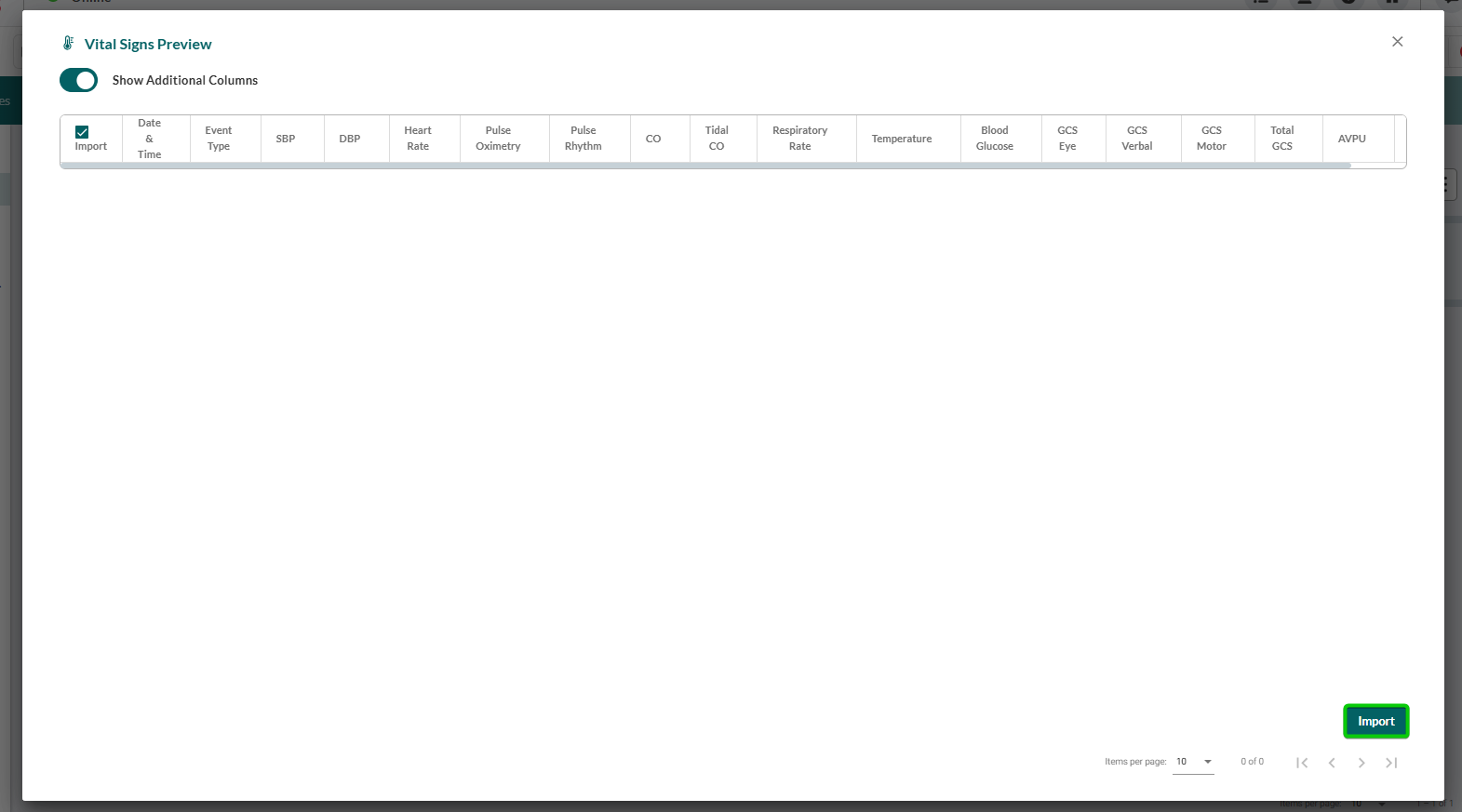
In the Vital Signs column, click Preview.

In the Vital Signs Preview window, use the checkboxes in the Import column to deselct irrelevant entries.

When done, click Import.