
Managing Patient and QC Review List Interfaces
Overview
Optimize management of the ePCR Patient List using two tabs: Patient List and QC Review.
Before You Start
You must have appropriate role permissions:
Field crews and supervisors can access the Patient List
Supervisors and QA reviewers can access QC Review
Patient List
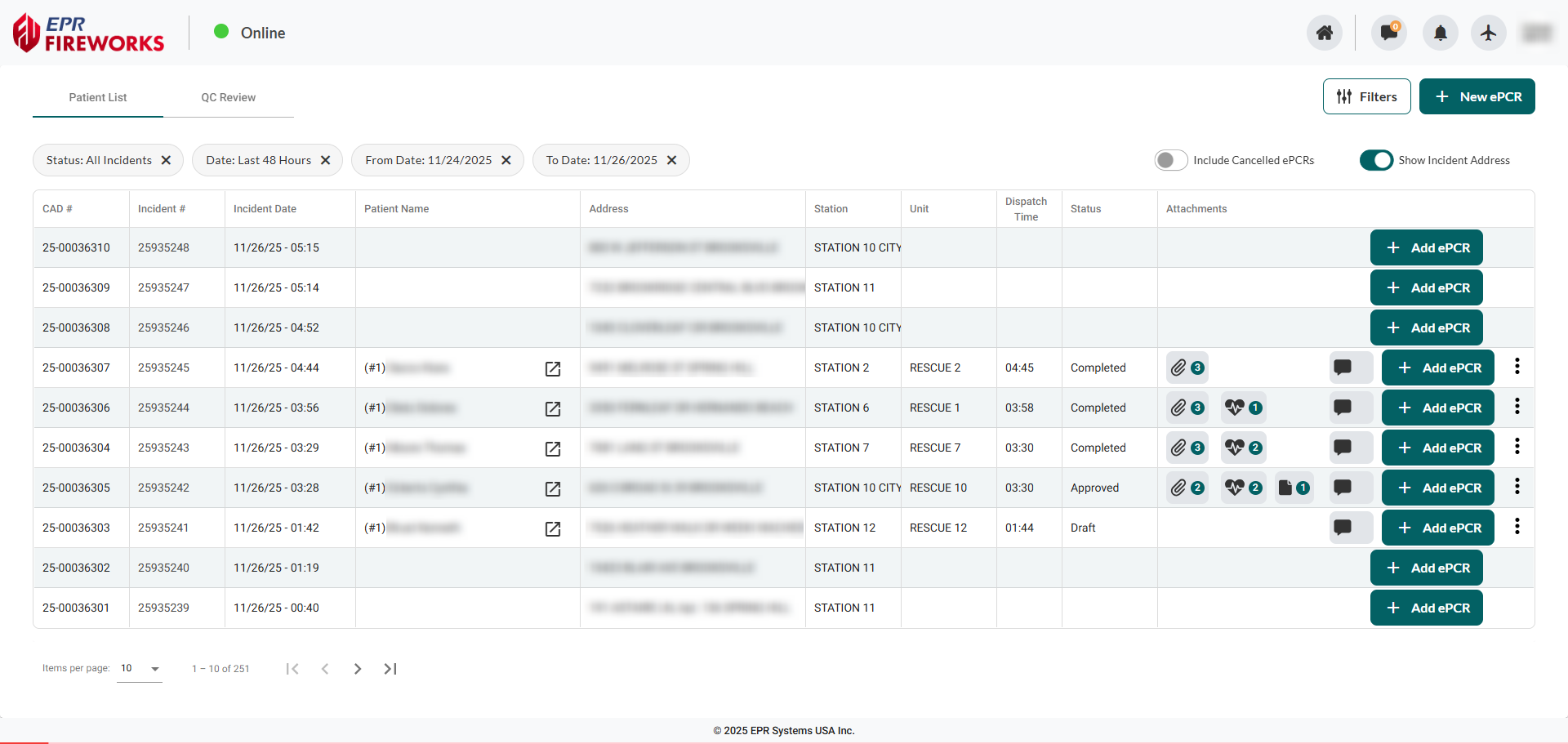
The Patient List displays all incidents available for ePCR documentation. Incidents appear here as they arrive through CAD integration or manual entry in the Incidents module.
Opening ePCRs: Click any row to open the associated ePCR. If no ePCR exists for that incident, the system opens a new ePCR form. (See Opening ePCRs for complete workflow.)
Note: For agencies configured with EPR FireWorks as the default app in Settings, this is your homepage when logging in.
For agencies not using the Incidents module: Incidents still display in this list as they're created, maintaining the same ePCR workflow.
QC Review
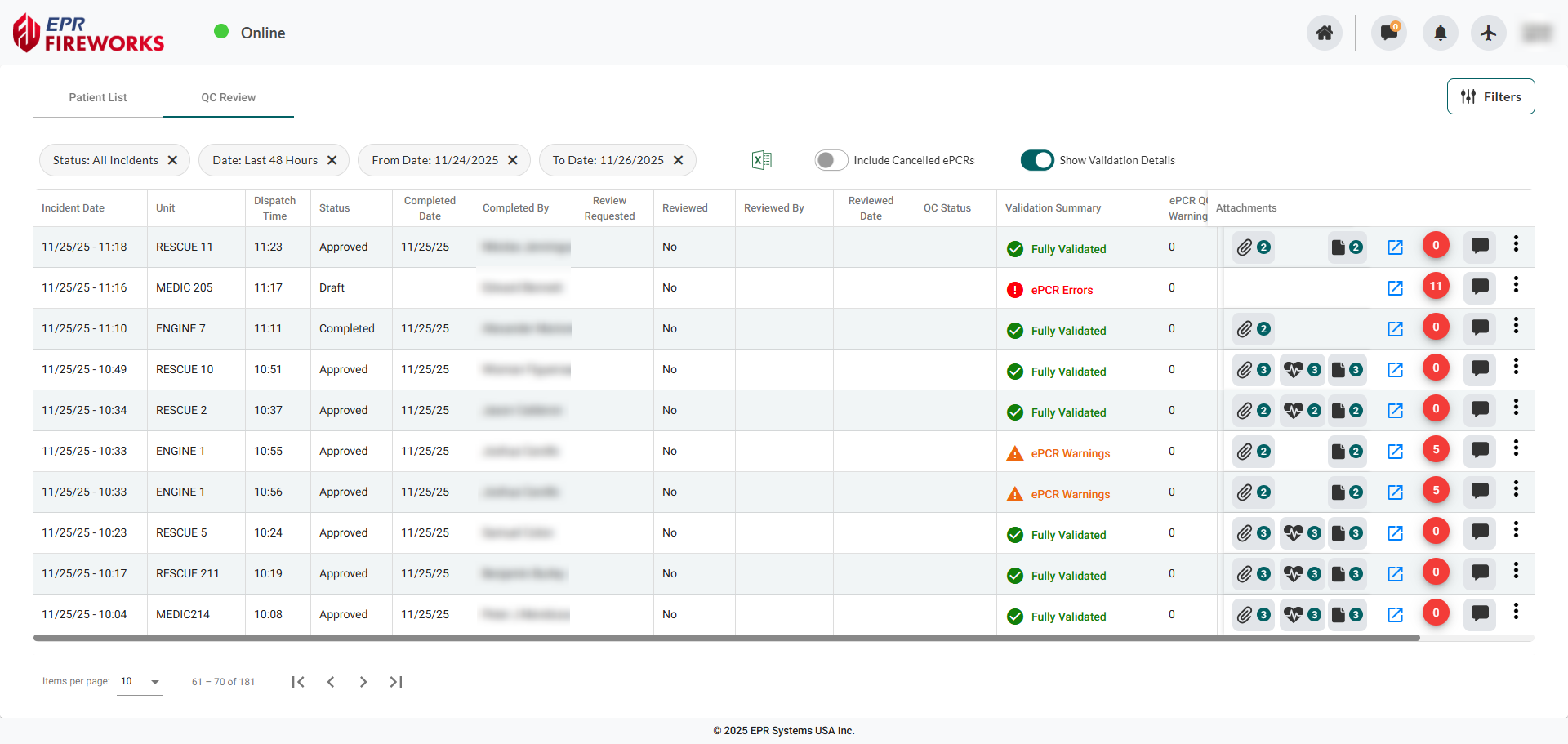
Review incidents with ePCRs and validation status for quality checking.
Validation Details View
Toggle Show Validation Details to display comprehensive validation status for each report.

QC Status column: Overall validation summary (Fully Validated, ePCR Warnings, ePCR Errors)
Validation columns: Numeric counts with color-coded indicators
Green checkmark: Fully validated, no issues
Orange warning triangle: ePCR warnings requiring attention
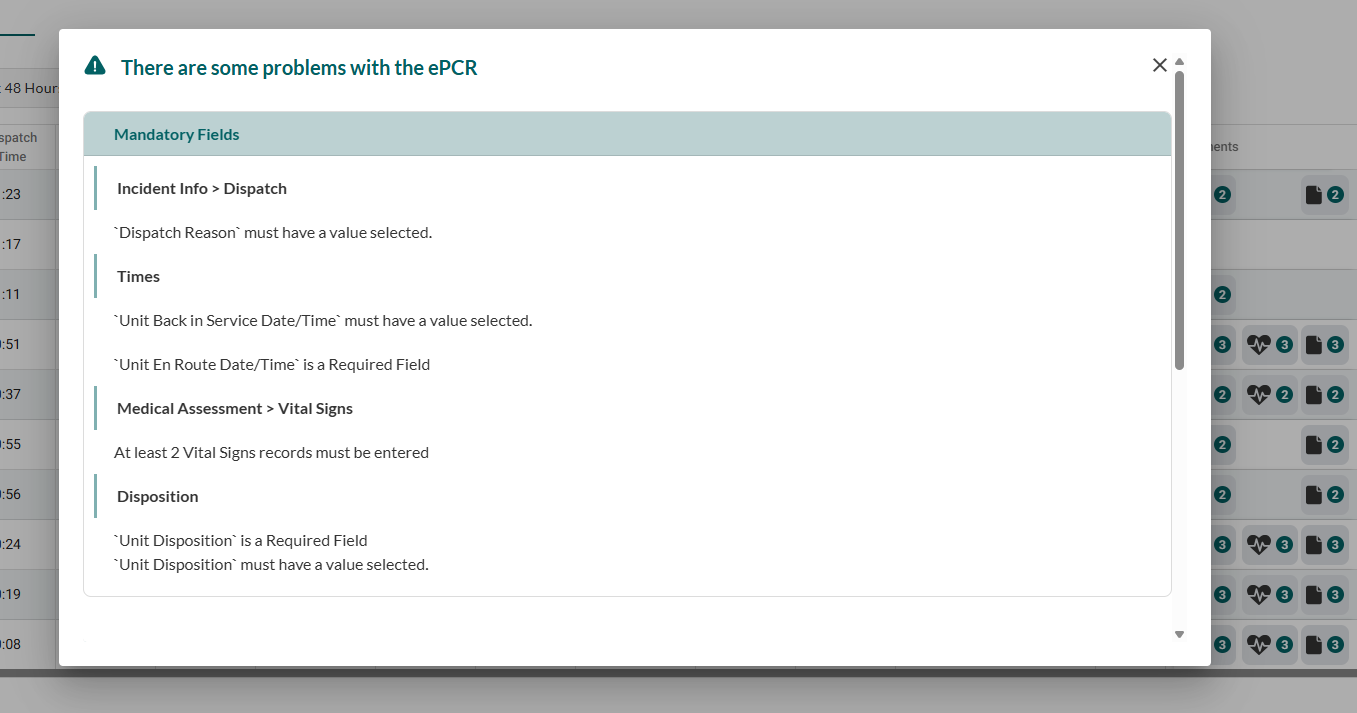
Red error circle: ePCR errors requiring correction
The validation indicators provide a quick visual assessment of the report quality status. Click any row to open the full report and address validation issues.
List Actions
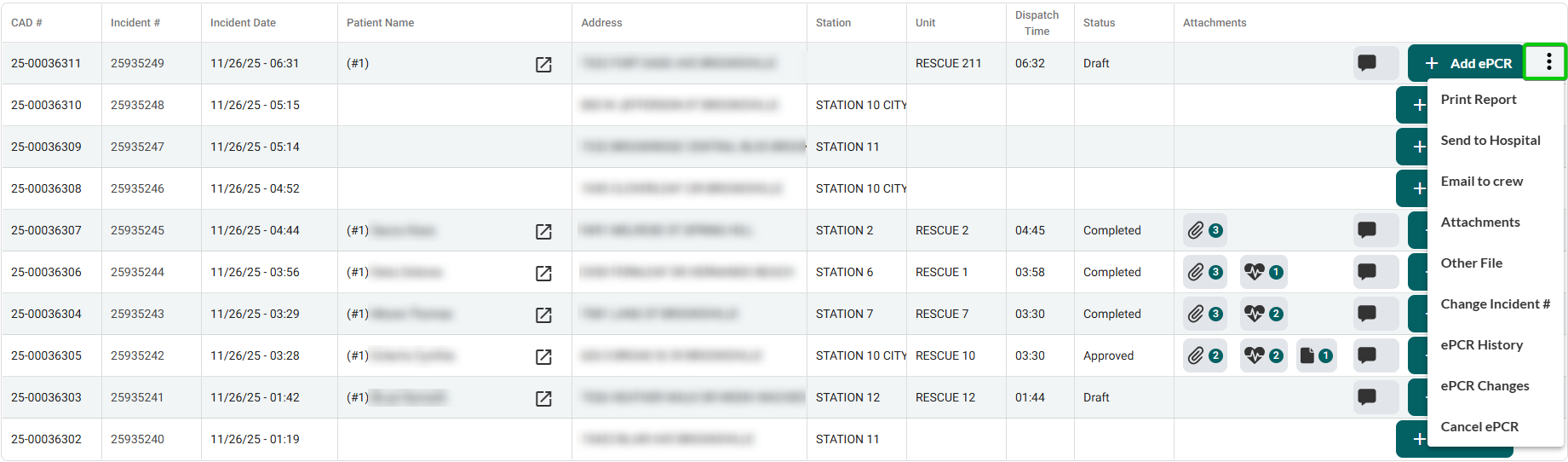
Row Actions Menu (⋮)
Click the menu icon at the end of any row to access these actions.
Action | Description |
|---|---|
Print Report | Download ePCR. See App Settings for preview options. |
Send to Hospital | Transmit ePCR to the hospital. |
Email to crew | Send ePCR to selected crew members via email. Note: Email addresses must be entered manually. |
Change Incident # | Modify incident ID number. |
Change CAD # | Modify CAD #. |
ePCR History | View log of who viewed/updated the ePCR. Exportable to Excel. |
ePCR Changes | View log of all changes to the ePCR. Exportable to Excel. |
Cancel ePCR | Cancel the current ePCR record. |
Managing Attachments
The Attachments column displays icons indicating what's attached to each report.
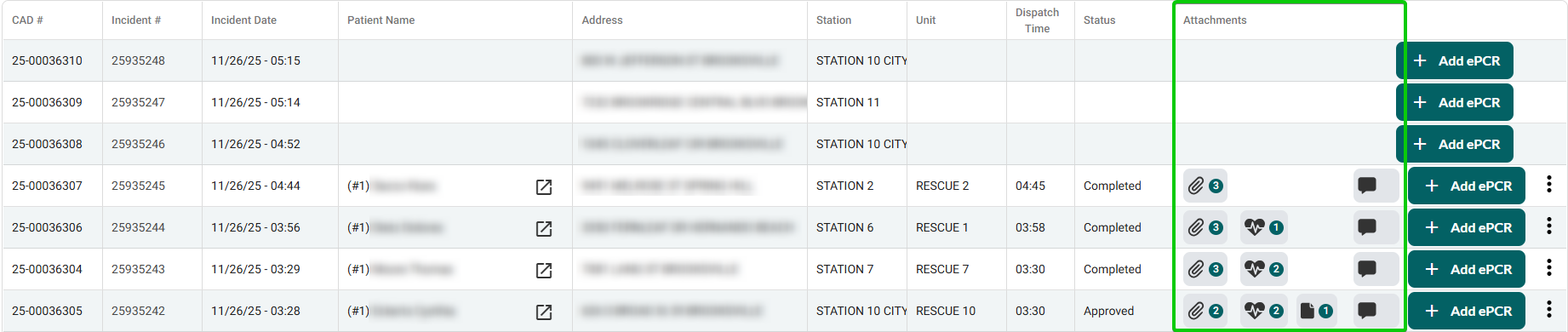
Icon | Attachment Type | Description |
|---|---|---|
 | Messenger | Opens chat attached to the incident. |
 | Attachment | General attachments (including signatures), added using the attachment button on the ePCR upper toolbar. Note: Attachments added using the print feature are not stored electronically in the ePCR. |
 | ECG | ECG File stored electronically in the ePCR, added via Assessment > Cardiac Monitor. |
 | Other files | Files stored electronically in the ePCR, added via Other > File. |
Using Filters
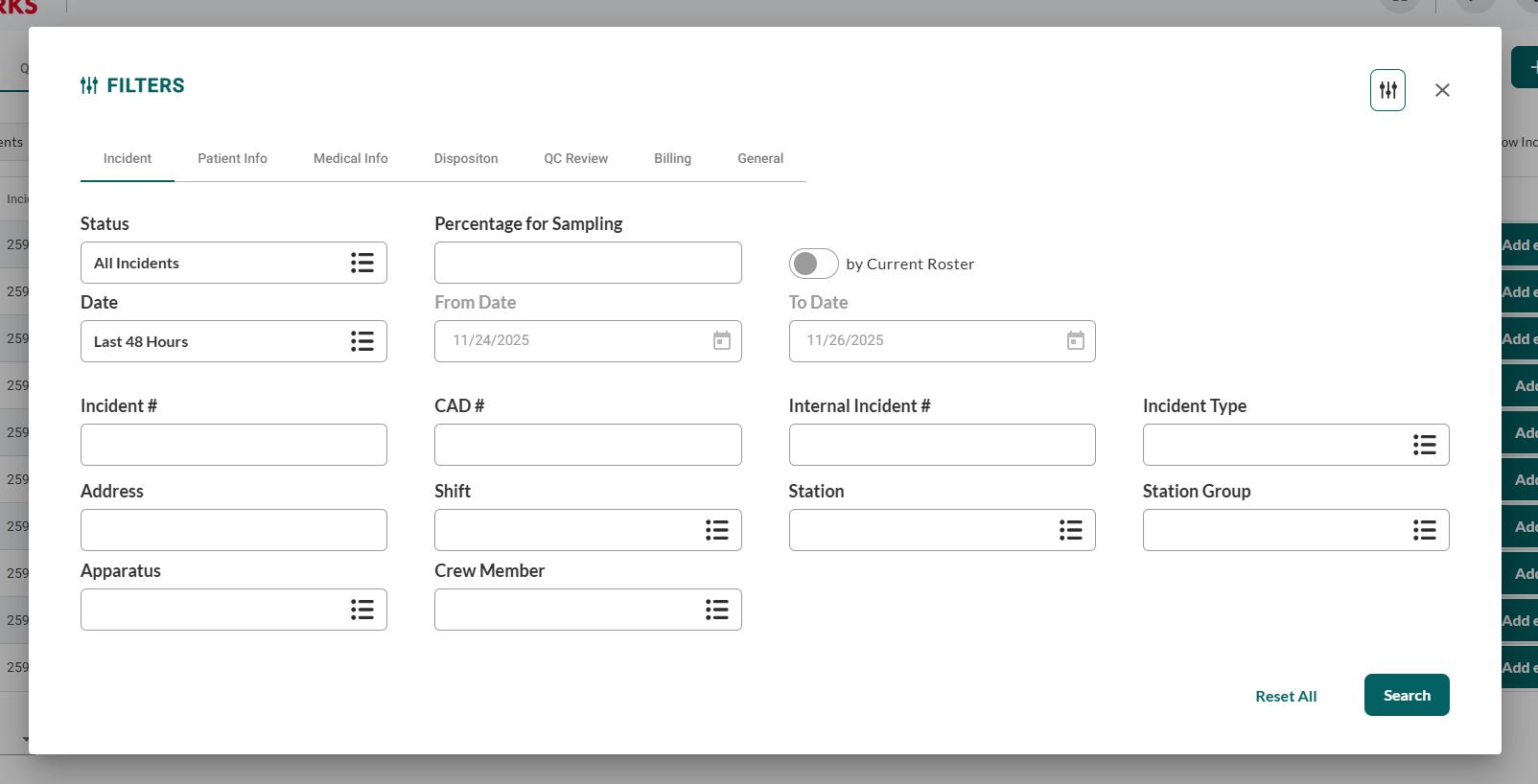
Access filters using the Filters button in the top right.

Active filters appear as badges below the tabs.
Filter tabs available:
Incident: Date range, Status, Station, Unit assignments
Patient Info: Demographics and patient identifiers
Medical Info: Clinical criteria and protocols
QC Review: Review and billing transmission status
Additional tabs: Disposition, Billing, General

For complete filtering instructions, including creating saved filters, common scenarios (QC review queue, incomplete ePCRs, cardiac arrest tracking), and performance tips, see ePCR Incident Filters.