
Navigating the ePCR Interface
Overview
The EPR FireWorks ePCR interface provides patient care documentation capabilities for EMS operations. This guide introduces the main interface components and basic navigation to help new users get started.

Configuration Notice: EPR FireWorks ePCR follows NEMSIS 3.5 standards. Interface appearance varies significantly by department configuration. Field visibility, available tabs, and functionality depend on your department's service level (transport vs. non-transport, Advanced Life Support [ALS] vs. Basic Life Support [BLS]) and EPR FireWorks version. Not all departments will see all tabs and fields described in this guide. Contact your department administrator for configuration-specific details.
Interface Layout
The ePCR interface consists of three main sections:
Upper Toolbar: Horizontal icon bar providing access to documentation tools, file management, navigation, and workflow controls.
Main Navigation Tabs: Nine tabs organizing patient care documentation by category (Incident, Times, Patient, Assessment, Disposition, Billing, Other, Signatures, Narrative).
Left Sidebar: Hierarchical navigation within active tab with validation indicators showing missing or incomplete fields.
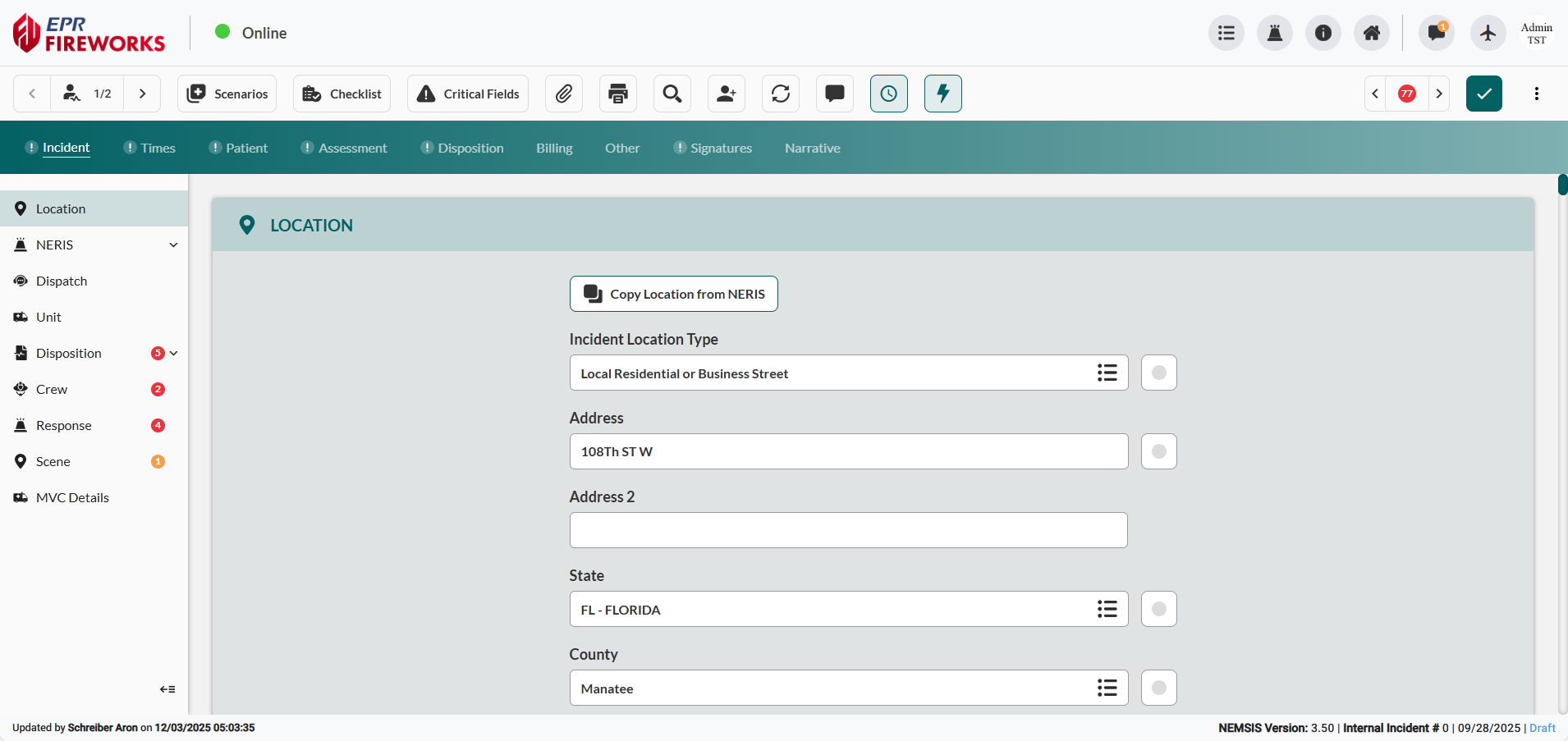
Upper Toolbar Functions
The following sections describe key ePCR functions selected for their importance in daily operations, interface complexity, or non-obvious functionality. These tools support rapid field documentation, data management, and crew coordination during emergency response.

Documentation Tools
The EPR FireWorks upper toolbar provides rapid access to field documentation tools. These tools are covered comprehensively in Rapid Field Response with complete workflows and field operations guidance.
Icon | Function | See Complete Guide |
|---|---|---|
 | Scenario Templates | |
 | Assessment Checklists | |
 | NEMSIS Critical Fields | |
 | Rapid Field Entry |
File and Communication
Icon | Function | Purpose |
|---|---|---|
 | File Management | Upload files, capture photos/audio, manage signatures |
 | Report Generation | Generate Full, Redacted, QC Remarks, or CARES reports; attach cardiac monitor PDFs |
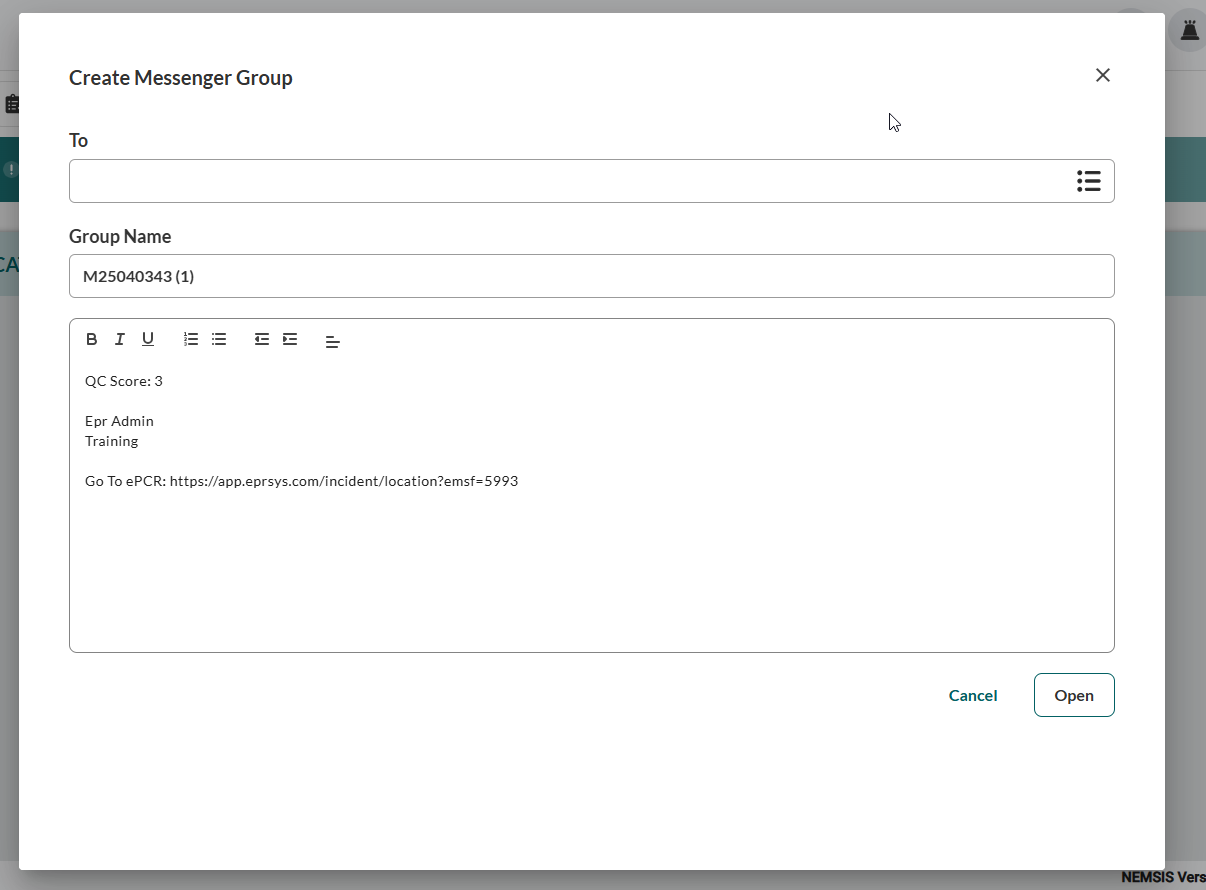
 | Crew Communication | Create messenger groups with ePCR linking |
Navigation and Search
Icon | Function | Purpose |
|---|---|---|
 | Patient Navigation | Display current patient number; use arrows to navigate between multiple patients |
 | Field Search | Find and navigate directly to specific fields by name or category |
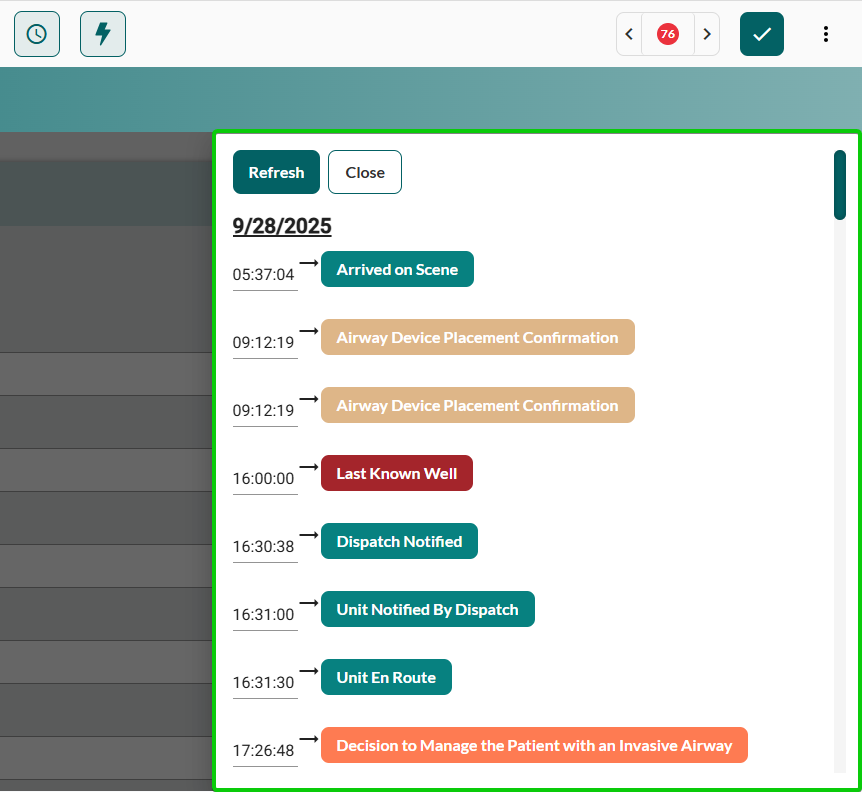
 | Event Timeline | View a chronological timeline of timestamped events |
Workflow Management
Icon | Function | Purpose |
|---|---|---|
 | Patient Addition | Create an additional patient record for multi-patient incidents |
 | Cloud Sync | Synchronize with cloud servers for offline-capable implementations |
 | Report Submission | Submit the ePCR report for approval workflow after validation |
 | Additional Options | Access Cancel ePCR, Send to Hospital, Email Crew functions, and more. See the Menu Functions table below for full details. |
Menu Functions
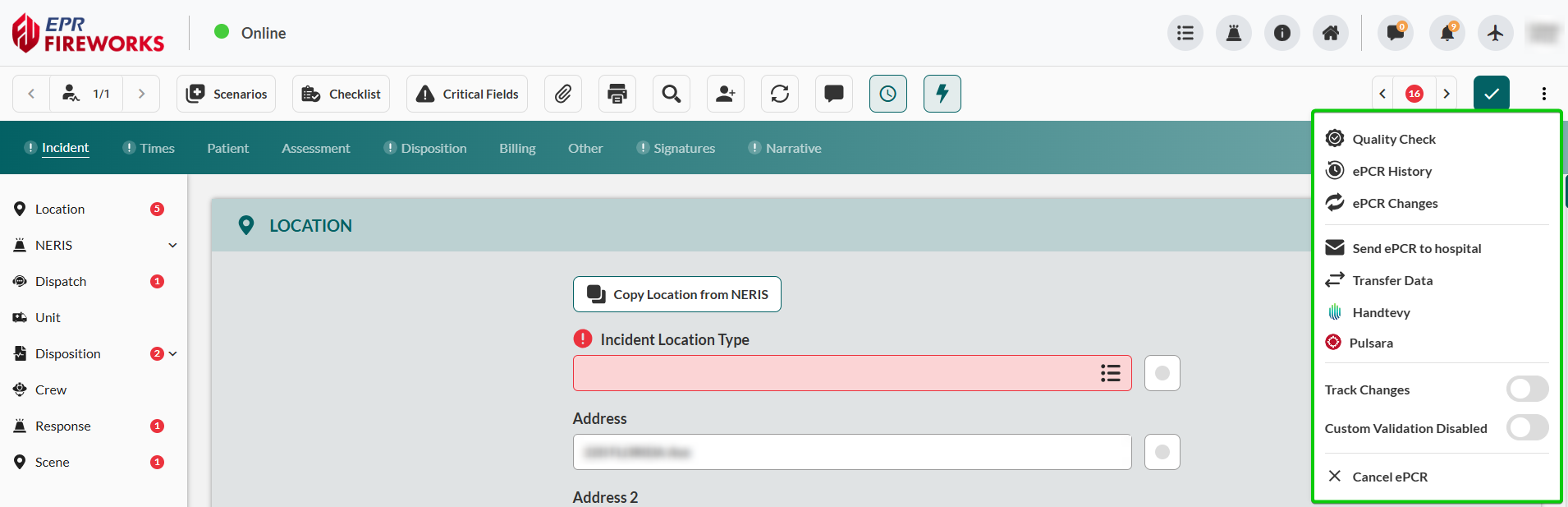
Available menu options vary by agency configuration and integrations. Not all departments will see all functions listed below. Contact your department administrator for agency-specific menu options.
Function | Purpose |
|---|---|
Quality Check | Open the QC Review modal to document quality assurance status, assign reviewers, and request medical director review. |
Email to crew | Send the ePCR summary with incident details to crew members via email. |
ePCR History | View the complete audit log of ePCR edits, timestamps, and user actions. |
ePCR Changes | Display tracked changes showing field modifications and revision history. |
Send ePCR to Hospital | Transmit patient information to the receiving facility via email using staff and facility lists. |
Submit ePCR to HDE | Submit ePCR data to Health Data Exchange for regional data sharing and analytics. |
Transfer Data | Import patient data from another ePCR record in multi-patient incidents. |
Handtevy | Import patient data from the Handtevy system integration. |
Pulsara | Import patient data from the Pulsara system integration. |
Track Changes | Toggle change tracking to monitor field edits during ePCR documentation (toggle switch). |
Custom Validation Disabled | Toggle custom department-specific validation rules on/off (toggle switch, administrative function). |
Cancel ePCR | Delete current ePCR record permanently (requires confirmation). |
Status Indicators
Icon | Function | Purpose |
|---|---|---|
 | Error Counter | Display count of validation errors and missing required fields |
Main Navigation Tabs
The EPR FireWorks ePCR interface organizes patient care documentation across nine main tabs: Incident, Times, Patient, Assessment, Disposition, Billing, Other, Signatures, and Narrative. Each tab contains multiple sections accessible via the left sidebar with validation indicators showing incomplete required fields.
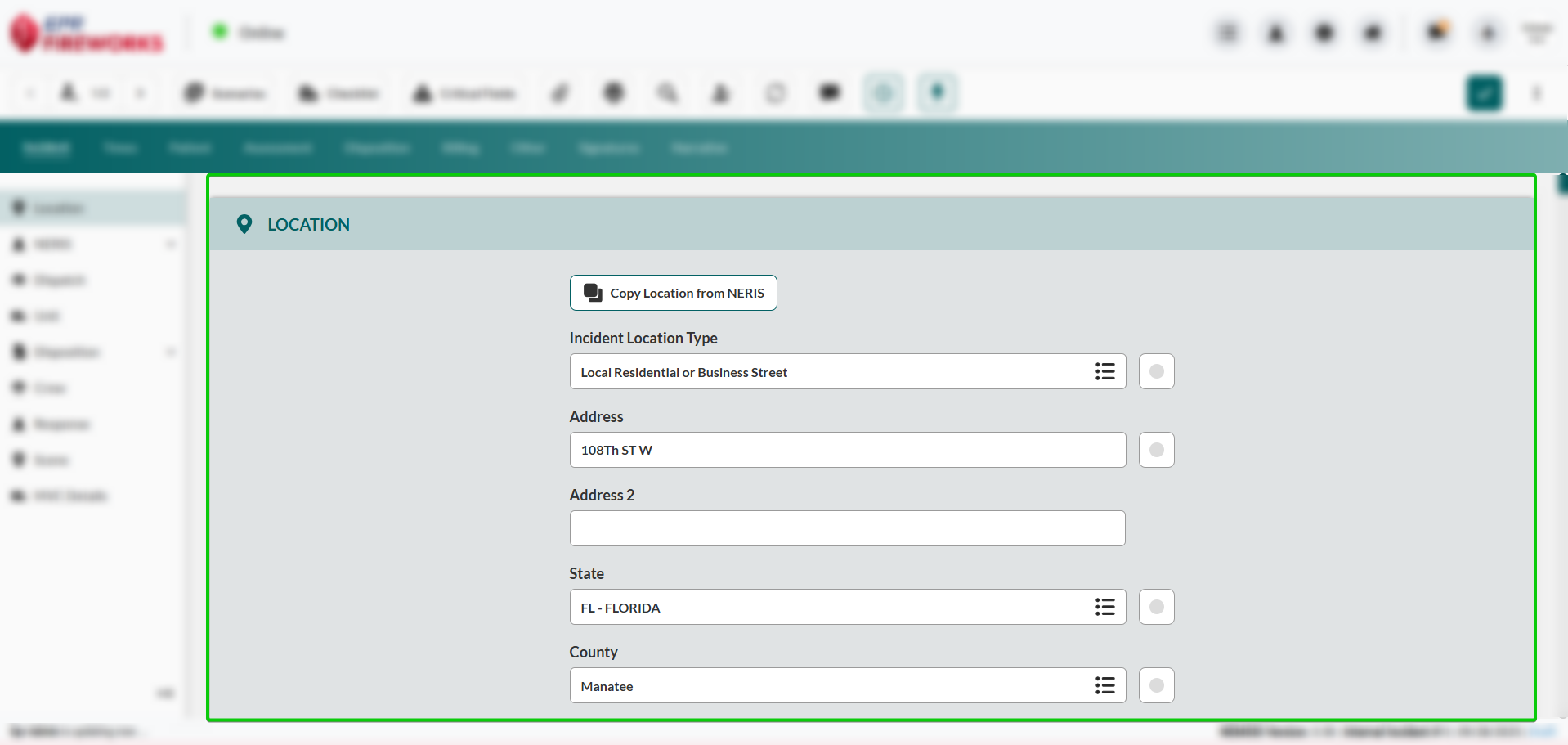
Each tab is documented comprehensively in the Documenting Patient Care hub with detailed field descriptions, workflows, and requirements.
Key Interface Functions
The EPR FireWorks ePCR interface includes specialized features for field operations, documentation management, and crew coordination. These features are accessible throughout the ePCR workflow to support rapid information access and collaborative documentation.
Search Fields
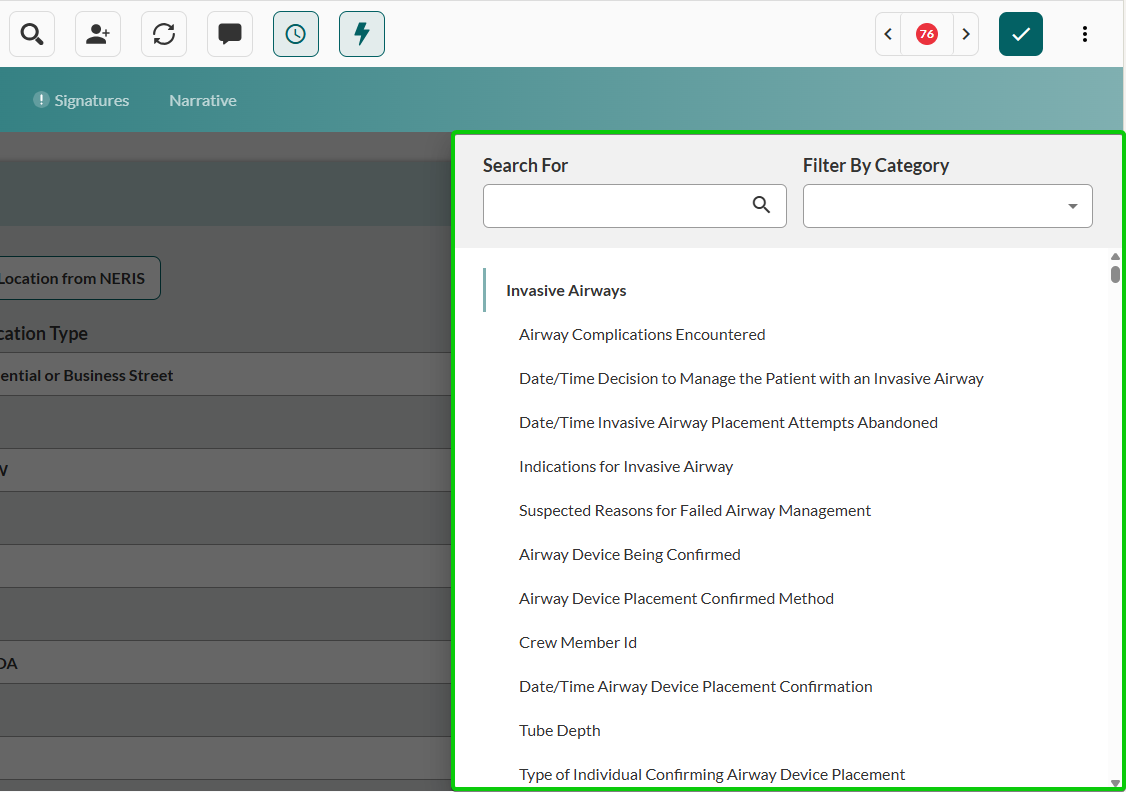
The EPR FireWorks ePCR Search Fields function locates any ePCR field by name or category, without navigating tabs or sections, enabling rapid field access during emergency documentation.
Click
 .
.Type the field name in the search bar or select it from the sidebar.
Click the field name to navigate directly to its location.
Attachments
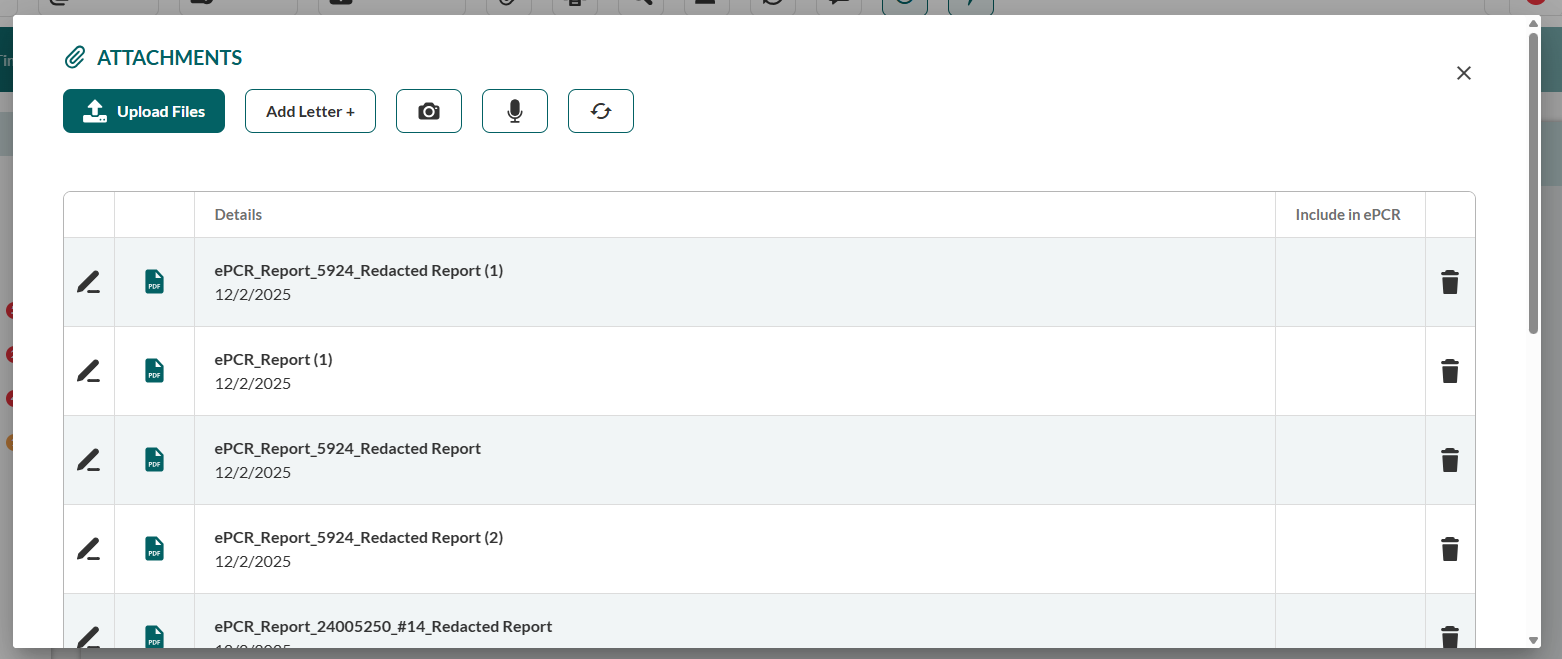
The EPR FireWorks Attachments function manages files, photos, audio recordings, and signatures associated with the ePCR, supporting comprehensive incident documentation with multimedia evidence.
Available Actions:
Upload Files: Attach external documents or files.
Add Letter +: Add correspondence or notes.
Capture Photo: Take a photo using the device camera.
Capture Audio: Record audio notes.
Refresh: Update attachment list.
Messenger
The EPR FireWorks Messenger function creates crew communication groups with automatic ePCR linking for collaborative documentation, enabling real-time coordination between responding units.
Create crew communication group. Follow these steps:
Click
 in the upper toolbar.
Add recipients and/or group name.
Compose a message with rich text formatting and click Send.

Result: EPR FireWorks opens the new messenger group conversation with automatic ePCR link included. All recipients can access the linked ePCR directly from the message for collaborative documentation and QC team coordination.
Timeline
The EPR FireWorks Timeline displays a chronological view of all timestamped ePCR events, providing audit trail and temporal reference during documentation review.
Features: Refresh button for updates, collapsible sidebar.
Related Documentation
Field Operations:
Rapid Field Response - Quick Actions and field workflows
Critical Fields - Essential field documentation
Complete ePCR Guide:
Documenting Patient Care (Main Hub) - Complete tab-by-tab documentation
Assessment Tab Sections - Detailed assessment documentation
Related Interfaces:
Managing Patient and QC Review List Interfaces - Report management interface
This overview introduces ePCR interface components for new users. Interface appearance and available features depend on department configuration. See linked documentation for complete workflows and field descriptions.